

About Notifications & 🔔 Alerts
DefectDojo keeps you up to date in a variety of ways. Notifications can be sent for upcoming Engagements, user Mentions, SLA expiry, and other events in the software.
This article contains an overview of notifications at both System-wide and Personal levels.
Notification Types
DefectDojo handles notifications in two different ways::
- System-Wide Notifications are sent to all users.
- Personal Notifications are set by individual users, and will be received in addition to any System-Wide Notifications.
In both cases, Role-Based Access Control rules apply, so users will not receive activity notifications for Assets or Organizations (or their related objects) which they don’t have access to.
Notification Delivery Methods
There are four delivery methods for DefectDojo notifications:
- DefectDojo can share 🔔 Alerts, stored as a list in the DefectDojo interface
- DefectDojo can send notifications to an Email address
- DefectDojo can send notifications to Slack, in either a shared or individual channel
- DefectDojo can also send notifications to Microsoft Teams in a shared channel
Notifications can be sent to multiple destinations simultaneously.
Receiving Slack and Teams notifications will require you to have a working integration. For more info on setting this integration up, see our Guide.
In-App Alerts
DefectDojo’s Alerts system keeps you up to date with all Asset or system activity.
The Alerts List
The Alerts List is always visible in the top-right hand corner of DefectDojo, and contains a compact list of notifications. Clicking on each Alert will take you directly to the relevant page in DefectDojo.
You can open your Alerts List by clicking on the 🔔▼ icon on the top right hand corner:
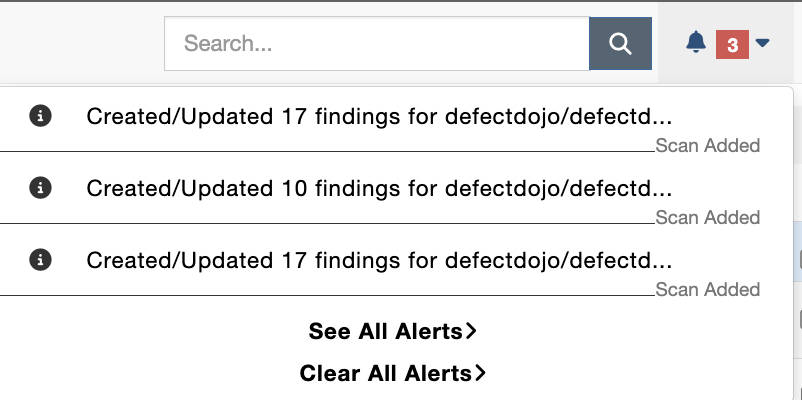
To see all of your notifications, along with additional detail, you can click the See All Alerts > button, which will open the Alerts Page.
You can also Clear All Alerts > from the Alerts List.
The Alerts Page
The Alerts Page stores all of your Alerts in DefectDojo with additional detail. On this page, you can read descriptions of each Alert in DefectDojo, and remove them from the Alerts queue once you no longer need them.
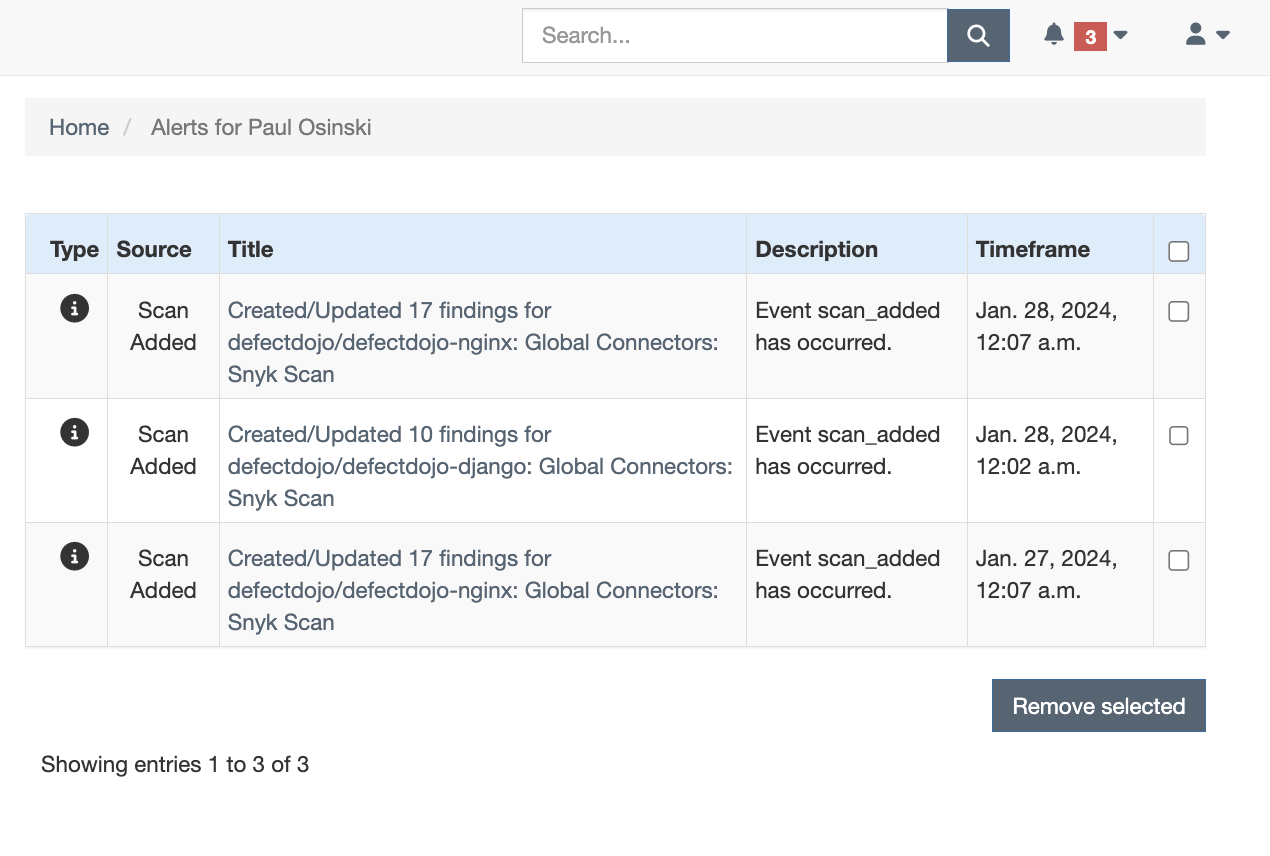
To remove one or more Alerts from the Alerts Page, check the empty box next to it, and then click the Remove selected button in the bottom-right corner of the Page.
Notes On Alerts
- Reading an Alert, or opening the Alerts Page will not remove any Alerts from the count next to the bell icon. This is so that you can easily access past alerts to use them as reminders or a personal activity log.
- Using the Clear All Alerts > function in the Alerts Menu will also completely clear the Alerts Page, so use this feature with care.
- Removing an Alert only affects your own Alerts List - it will not affect any other user’s Alerts.
- Removing an Alert does not remove any import history or activity logs from DefectDojo.
Notification Inbox (Pro)
In DefectDojo Pro, the bell in the sidebar footer opens a notification inbox instead of the Alerts List menu, and the number on the bell counts your unread alerts rather than every alert you have.
- Grouped by record. Unread alerts about the same Finding, Test, Engagement, Asset, Organization or Risk Acceptance are shown together under that record’s name, with the number of unread alerts it carries and its three newest alerts. Click the record’s name to open it. An alert that is not about a record is shown on its own. The inbox shows the twenty newest groups; Load Older, under the last one, adds the next twenty.
- Kept current. The number on the bell and on each tab refreshes every 30 seconds while DefectDojo is open in a visible browser tab, and as soon as you come back to the tab. The groups in an open inbox stay where they are until you open it again.
- Read one at a time. Clicking an alert marks it read and opens the record it is about; the number on the bell drops by one straight away, and stays down after a reload. Reading an alert changes nothing else: the Finding or other record is untouched and no notification is sent.
- Tabs. All shows every unread alert; Mentions, Assigned, Watching and System each show one kind. Mentions are notes that mention you; Assigned is work assigned to you, review requests and risk acceptance requests; System is connector health, Jira and SLA alerts; Watching is everything else about a record you can see. Each tab shows how many unread alerts it holds.
- Mark All Read (the double check mark in the inbox header) marks every unread alert on the open tab read. See All Alerts (the arrow) opens the Alerts Page, which still lists every alert you have, read or not.
- The group menu (the three dots beside a record’s name) offers Mark Group Read, which reads that record’s alerts on the open tab, and Mute This Record.
- Clear All Alerts moves from the bell to the Alerts Page toolbar. It still deletes all of your alerts, after a confirmation.
Muting a record (Pro)
Mute This Record, in the inbox’s group menu or an alert’s menu on the Alerts Page, marks that record’s unread alerts read, and every later alert about it arrives already read: it is still recorded, and still listed on the Alerts Page with a Muted tag, but it never counts on the bell. Muting changes nothing but the inbox: email, Slack and Teams notifications about the record are sent as before.
A mute never touches system alerts (connector health, Jira and SLA alerts): a muted record’s system alerts still arrive unread and count on the bell. A record whose alerts are all system alerts offers no mute.
Your muted records are listed on your User Profile under Muted Records, each with an Unmute action. After unmuting, new alerts about the record count as unread again.
The Alerts Page (Pro)
With the inbox on, the Alerts Page shows whether each alert is read in a Read column (with a Muted tag on alerts about a muted record), and can be filtered to unread alerts. Each alert’s menu offers Mark Read or Mark Unread, and Mute This Record (except on a system alert); an alert’s title links to the record it is about. Mark All Read and Clear All Alerts sit on the toolbar.
Alerts about a record you can no longer see (for example, after you lose access to its Asset) are left out of the inbox and the count.
When the inbox is first turned on, every alert you already had counts as read, so the bell starts at zero.
Narrowing Review Request Notifications (Pro)
If a review is requested from all eligible reviewers, everyone eligible on that asset is notified. That is a lot of mail for a reviewer who only looks after part of your estate.
In the DefectDojo Pro UI you can narrow your own review-request notifications. On your notification settings page, under Review Requests:
- Review Request Scope — All (the default) notifies you about everything you can see. Selected narrows you to the assets and asset types you pick.
- Review Request Assets / Review Request Asset Types — the slice of the estate you want to hear about. A request matches if it is on one of your selected assets or one of your selected asset types.
Two things to be clear about:
- Choosing Selected and picking nothing means none, not all.
- Narrowing suppresses the notification, not the request. You remain a requested reviewer and the request still appears in your My Work queue under Awaiting My Review — you simply are not messaged about it. This is deliberate: the queue is the durable record, notifications are the reminder.
This narrowing also takes precedence over the system-level override described below, so a reviewer who has scoped themselves out is not notified even when review_requested is configured to trump personal preferences.
Narrowing can also be set over the API on the notifications endpoint, which is the practical route if you are configuring many reviewers at once.
Work Assignment Notifications (Pro)
When Findings are assigned to you, the Work Assigned notification tells you how many and links to your My Work queue.
It is aggregated per person rather than per Finding: assigning a hundred Findings sends one message, not a hundred. As with review requests, the assignment is visible in your queue whether or not the notification reaches you.
Connector Health Notifications (Pro)
A Connector that stops working is quiet about it. Nothing in DefectDojo fails, and the only sign is on the Upstream Connectors page, which nobody is watching. The Connector Health Warning notification is the message that finds you instead.
It covers the three ways a Connector goes quiet:
- Its runs start failing. A Discover or Sync ends in error or times out against your tool. The message names the Connector and carries the tool’s own error, which is usually an expired or narrowed credential.
- Its tool stops returning data. A run succeeds, but every record the Connector holds is now Missing. The run reports success, so this state raises no error anywhere. See Managing Operations for what that state means and how it clears.
- Its Syncs return zero results. The records are still there and every Sync succeeds, but every actively mapped record has returned zero Findings for two Syncs in a row, after importing Findings in the previous 30 days. Records with nothing imported in that window are clean projects and do not count, and one record that still imports keeps the message from going out. See Zero Results. With Ingestion Health turned on, the quiet period is also recorded on the Connector, where it can be acknowledged with a reason.
None of these messages arrives once per run. A Connector with a dead credential on an hourly schedule sends one message when it starts failing, then stays quiet until its runs succeed again. A Connector that lost visibility, or keeps returning zero results, sends one message per day while the condition lasts, and re-arms once a Sync imports data again.
The notification is on 🔔 Alerts by default. Set it to Email, Slack or Teams on your notification settings page, under Connections. A Connector that is set up correctly but has never seen any data is a separate case, and it warns you when you save it rather than later.
Ingestion Health Notifications (Pro)
With Ingestion Health turned on, the Ingestion Health Warning notification covers the ways a source falls short that no other message reports:
- A Connector’s or API import stream’s volume drops. A run succeeds and imports Findings, but far fewer than the source’s 30-day baseline.
- An API import stream returns no Findings. Its last import submitted none, against a baseline above zero.
- A source goes stale. A Connector’s or scheduled Triage Engine rule’s schedule fired three times in a row without it running, or an API import stream has gone far longer than usual without a successful import (its imports stopped arriving, or keep failing).
It is sent once per anomaly, never once per check, to superusers and to everyone who can see that source (the Connector View or Rule View permission, or for an API import stream, access to its Asset together with Connector View, which opens the page the message links to). A Connector’s zero results and failed runs stay on the Connector Health Warning above, so no condition sends two messages.
The notification is on 🔔 Alerts by default. Set it to Email, Slack, Teams or a webhook on your notification settings page, under Connections; the setting is shown while Ingestion Health is on.
Open-Source Considerations
Specific overrides
System notification settings (scope: system) describe the sending of notifications to superadmins. User notification settings (scope: personal) describe sending notifications to the specific user.
However, there is a specific use-case when the user decides to disable notifications (to decrease noise) but the system setting is used to override this behavior. These overrides apply only to user_mentioned and review_requested by default.
The scope of this setting is customizable (see environment variable DD_NOTIFICATIONS_SYSTEM_LEVEL_TRUMP).
For more information about this behavior see the related pull request #9699
Webhooks (experimental)
DefectDojo also supports webhooks that follow the same events as other notifications (you can be notified in the same situations). Details about setup are described in the related page.