

OIDC (Pro)
DefectDojo Pro supports login via a generic OpenID Connect (OIDC) provider. Open-source DefectDojo does not include SSO — see Authorized Users for open-source access control.
Configuration
In DefectDojo, go to Connect > Authorization > Providers and select OpenID Connect.
Fill in the form:
- Endpoint — the base URL of your OIDC provider. Do not include
/.well-known/openid-configuration. - Client ID — your OIDC client ID.
- Client Secret — your OIDC client secret. After you save it, the secret is never shown again. Leave the field blank to keep it, and enter it again only if you change the client ID or the endpoint.
- Optionally configure Claim Mapping and Group Mapping — see below.
- Check Enable OIDC.
Submit the form. A Log In With OIDC button will appear on the DefectDojo login page.
Use Validate Config at any point to check the settings without saving them. It fetches the discovery document, verifies the signing keys and issuer, echoes the exact redirect URI to register at your provider, and cross-checks your claim and group mappings against the claims the provider advertises.
Claim Mapping
Each row maps one OIDC Claim to the DefectDojo Field it should populate. Use Add Claim Mapping for additional rows and the bin icon to remove one.
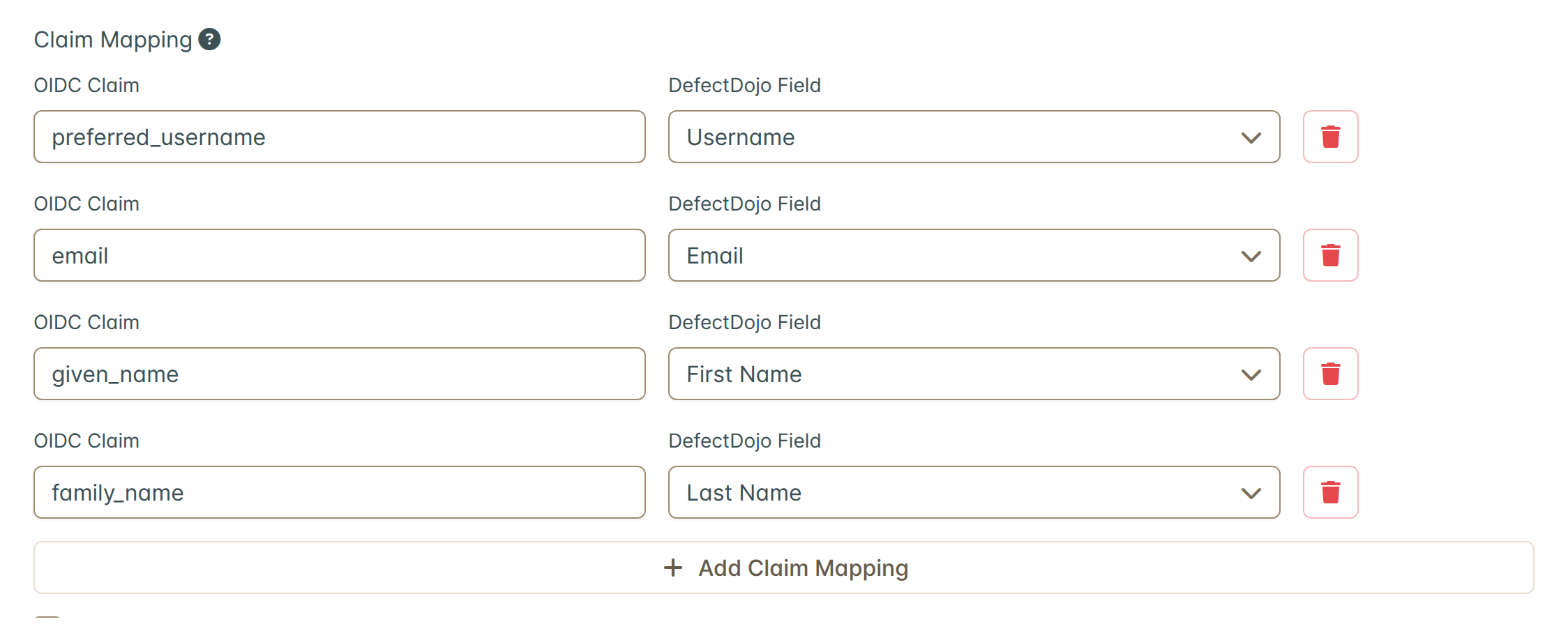
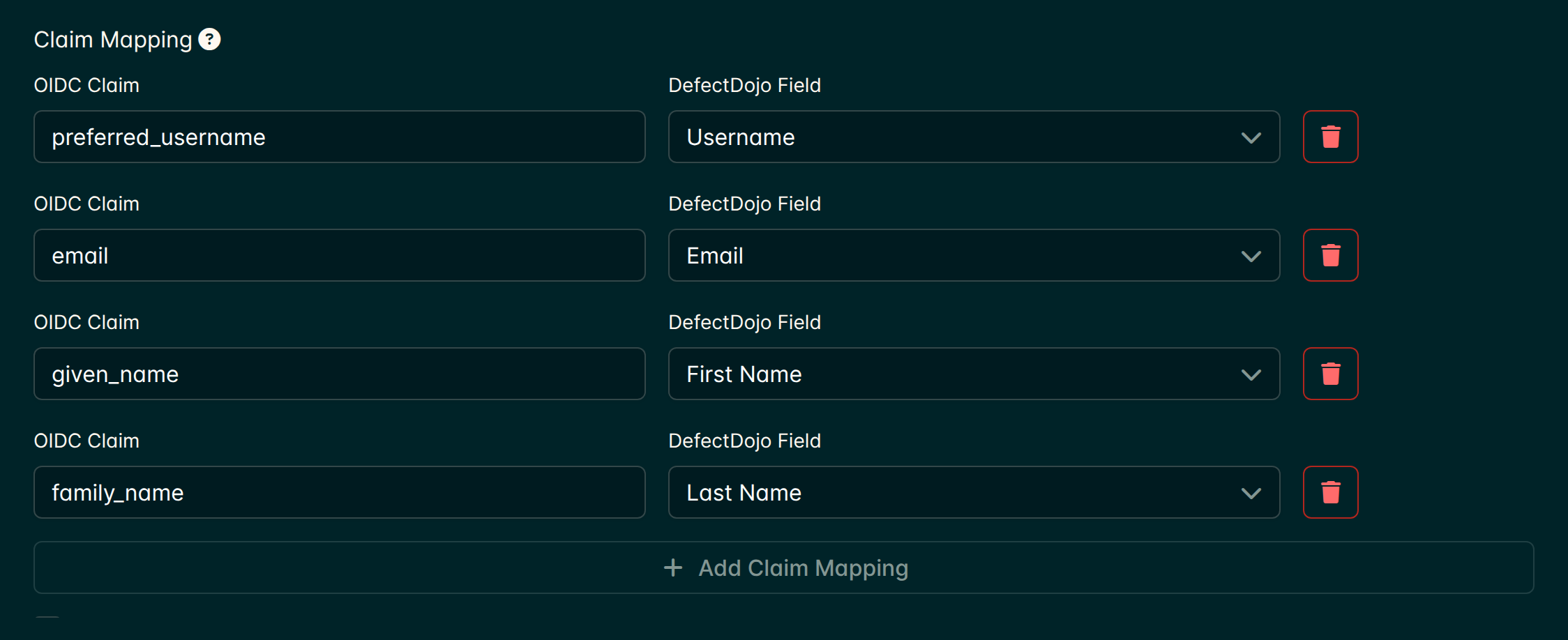
A field with no row keeps its standard claim, so this section is only needed when your provider names things differently. The standard claims are:
| DefectDojo Field | Standard claim |
|---|---|
| Username | preferred_username |
email | |
| First Name | given_name |
| Last Name | family_name |
Notes:
- An unconfigured instance opens with those four rows already filled in, so you can see what OIDC is doing before you change anything.
- The same claim may feed more than one field. Each DefectDojo field may be mapped from only one claim.
- Claims are read from the ID token as well as the userinfo response, so a claim your provider releases in only one of the two still works.
- If a mapped claim is missing or empty for a given user, that field keeps its standard value rather than being blanked.
Group Mapping
DefectDojo can mirror the groups your provider reports into DefectDojo groups on each login. Check Enable Group Mapping to reveal the settings.
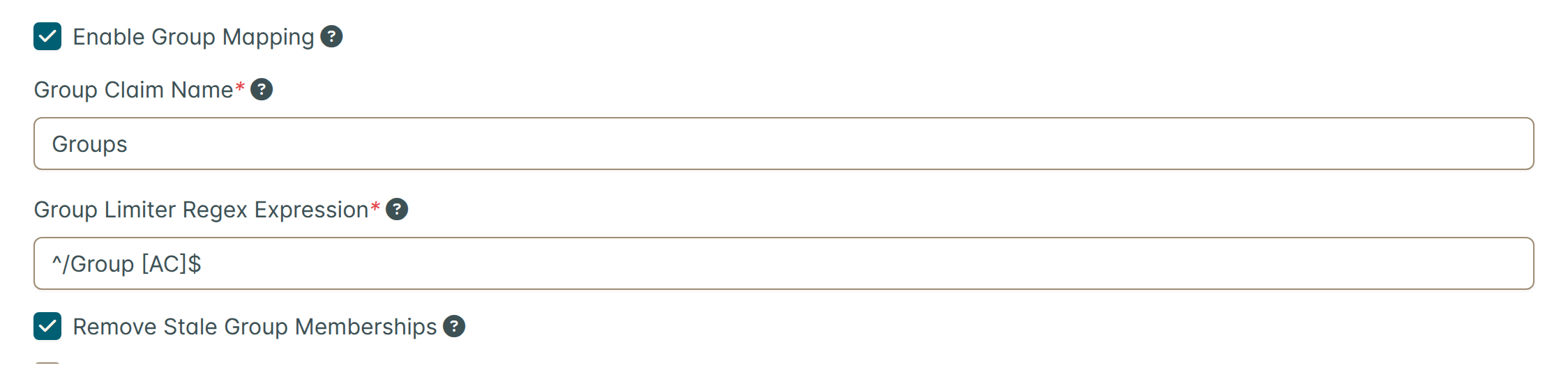
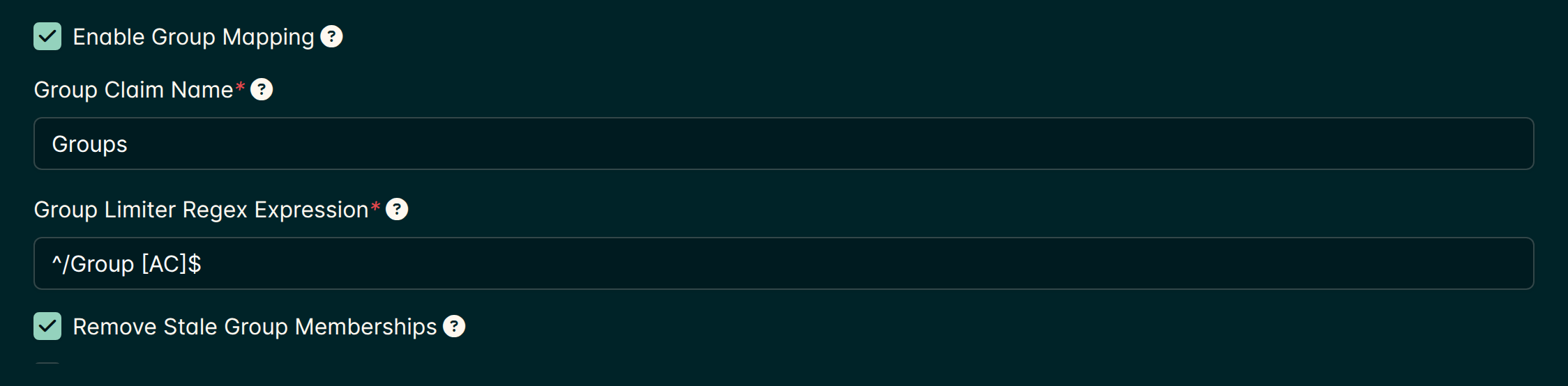
- Group Claim Name — the claim containing the user’s groups. Most providers do not emit one by default and need a mapper configured explicitly; in Keycloak, for example, add a Group Membership mapper to the client. Note that a User Realm Role mapper sends realm roles, not groups.
- Group Limiter Regex Expression — only groups matching this expression are mirrored. Use
.*to allow all. With.*, every group in the claim becomes a DefectDojo group, including built-in provider groups such as Okta’sEveryone, so prefer a pattern that matches only the groups meant for DefectDojo (for example^DefectDojo), or filter the claim at the provider. - Remove Stale Group Memberships — when enabled, memberships in OIDC-provisioned groups the provider no longer reports are removed on the next login. Only groups created by OIDC are affected; groups you assigned by hand, and groups provisioned by another provider such as SAML, are never touched.
Groups are matched by exact name, including spaces and punctuation. If a DefectDojo group with that name already exists, the user is added to it, even if you created the group by hand; otherwise the group is created on first use. Users join mapped groups with the Reader role. A group that group mapping creates starts with no product, product type or global permissions, so its members see nothing new until you grant the group access once in DefectDojo. A group you created by hand stays a hand-made group, so Remove Stale Group Memberships never removes anyone from it. If you want removals handled automatically, let group mapping create the group, or use SCIM.
If the claim is missing or empty for a user, group mapping changes nothing on that login, including removals.
Group names come straight from the claim. If your provider sends full group paths (Keycloak’s Group Membership mapper does this when Full group path is enabled), the DefectDojo group is named /Group A rather than Group A. Turn that option off if you want the names to match groups arriving from another provider, otherwise you will end up with two DefectDojo groups for the same logical group.
What DefectDojo requests and reads
DefectDojo requests the openid, profile and email scopes, and no others. Your provider has to release the groups claim for those scopes. A claim that the provider only sends when a separate groups scope is requested never reaches DefectDojo.
DefectDojo reads the claim from the userinfo response and from the ID token, so releasing it in either one is enough. It does not read the access token, and a claim that only goes into the access token is ignored. In Okta, the Add Claim dialog defaults to the access token; change it to the ID token.
Group mapping with Okta
Okta’s org authorization server (an endpoint of https://<your-org>.okta.com, with no path) does not release a groups claim for the scopes DefectDojo requests. Use a custom authorization server instead:
- In the Okta Admin Console, go to Security > API > Authorization Servers and open the server you want to use (for example
default). Its issuer looks likehttps://<your-org>.okta.com/oauth2/<server id>, and the server list shows it in the Issuer URI column. That issuer is the value DefectDojo needs. The Metadata URI on the server’s Settings tab is a different URL, so do not use it as the endpoint. - On the Claims tab, add a claim:
- Name:
groups(the same value as Group Claim Name in DefectDojo) - Include in token type: ID Token, Always
- Value type: Groups
- Filter: a condition that matches only the groups meant for DefectDojo, for example Starts with
DefectDojo - Include in: Any scope
- Name:
- On the Access Policies tab, make sure a policy applies to your DefectDojo application and has a rule that allows the Authorization Code grant. Okta requires a policy and rule before any client can use the server.
- On the Token Preview tab, preview a token for a user who belongs to one of the groups, using your DefectDojo application and the scopes
openid profile email. The ID token should containgroupswith the exact group names. If it does not, DefectDojo will not see them either. - In DefectDojo, set Endpoint to the server’s issuer (
https://<your-org>.okta.com/oauth2/<server id>), enter the client secret again, and submit. The new endpoint is used from the next sign-in; no restart is needed. - Have a user sign out and sign back in. Group mapping runs on every login, so existing users get their groups the next time they sign in.
Every user who signs in must be assigned to the Okta application, directly or through a group. Otherwise Okta stops the sign-in with User is not assigned to the client application.
The groups in the claim do not have to be assigned to the Okta application. Any group the user belongs to that matches the claim’s filter is included, so a new group only needs its members added in Okta and a name that the filter matches.
Signing in from the Okta dashboard
A sign-in has to start at DefectDojo, which adds a state value that the callback checks. When a request reaches DefectDojo’s callback (/complete/oidc/) without one, DefectDojo logs AuthMissingParameter: Missing needed parameter state and sends the user back to the login page. The next sign-in from DefectDojo works normally, and these errors do not affect group mapping.
If your users open DefectDojo from its tile on the Okta dashboard, make the tile start the sign-in through DefectDojo. Edit the application’s General Settings in Okta and, under Login, set:
- Login initiated by: Either Okta or App
- Login flow: Redirect to app to initiate login (OIDC Compliant)
- Initiate login URI: your DefectDojo base URL followed by
/login/oidc/, for examplehttps://defectdojo.example.com/login/oidc/
If group mapping does nothing
- If the group appears in DefectDojo but its members see nothing new, the mapping worked: grant the group its access (see above).
- Check that the user’s ID token or userinfo response actually carries the claim, using your provider’s token preview (in Okta, the Token Preview tab above).
- Check that the names in the claim match the DefectDojo group names exactly.
- If sign-ins still go to the previous endpoint after you changed Endpoint, check the DefectDojo version. Releases before 3.4.300 cache the provider’s discovery document for up to 24 hours in each running DefectDojo process, so on those releases restart DefectDojo after changing the endpoint.
- Validate Config reports whether the provider lists your group claim in its advertised
claims_supported. Treat that check as a hint only. Providers often leave claims out of that list: Okta does not listgroupsthere even when the claim is set up correctly and arrives in the ID token, so the warning appears either way.