

Share permissions: User Groups (Pro)
DefectDojo Pro feature. User Groups and the underlying RBAC system are part of DefectDojo Pro. Open-source DefectDojo uses the Authorized Users model — see that page for open-source access control, and the 3.0 upgrade notes if you’re moving between editions.
If you have a significant number of DefectDojo users, you may want to create one or more Groups, in order to set the same Role-Based Access Control (RBAC) rules for many users simultaneously. Only Superusers can create User Groups.
Groups can work in multiple ways:
- Set one, or many different Asset or Organization level Roles for all Group Members, allowing specific control over which Assets or Organizations can be accessed and edited by the Group.
- Set Global Roles for all Group Members, giving them visibility and access to all Asset or Organizations.
- Give a Group a Global Role that carries Configuration Permissions, beside its other Global Roles, allowing its Members to reach specific settings pages in DefectDojo.
For more information on Roles, please refer to our Introduction To Roles article.
The All Groups page
From the sidebar, navigate to Settings > Users & Permissions > Groups to see a list of all active and inactive user groups. From here, you can create, delete or view your individual Group pages.
Users with the View Group configuration permission see every Group. A Member of a Group sees the Groups they belong to and can open those Groups’ pages without that permission; what they can change there depends on their Role in the Group.
- You can filter this table by Group Name, Description, Email Address, Global Role, as well as the total number of Users, Organizations, and Assets associated with the Group.
- You can also adjust a Group’s Permissions or other settings by clicking the “⋮” button next to the Group you wish to edit.
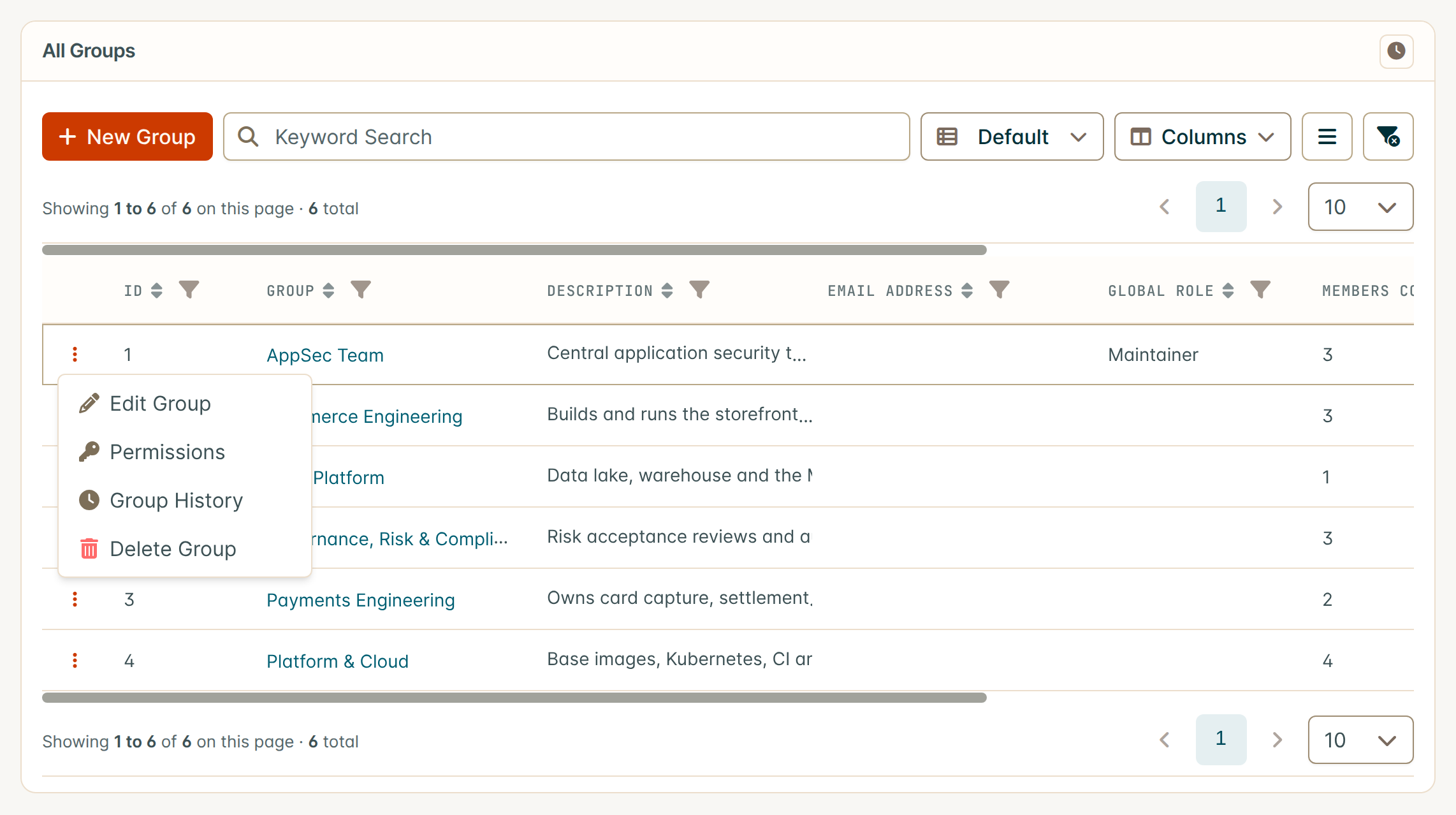
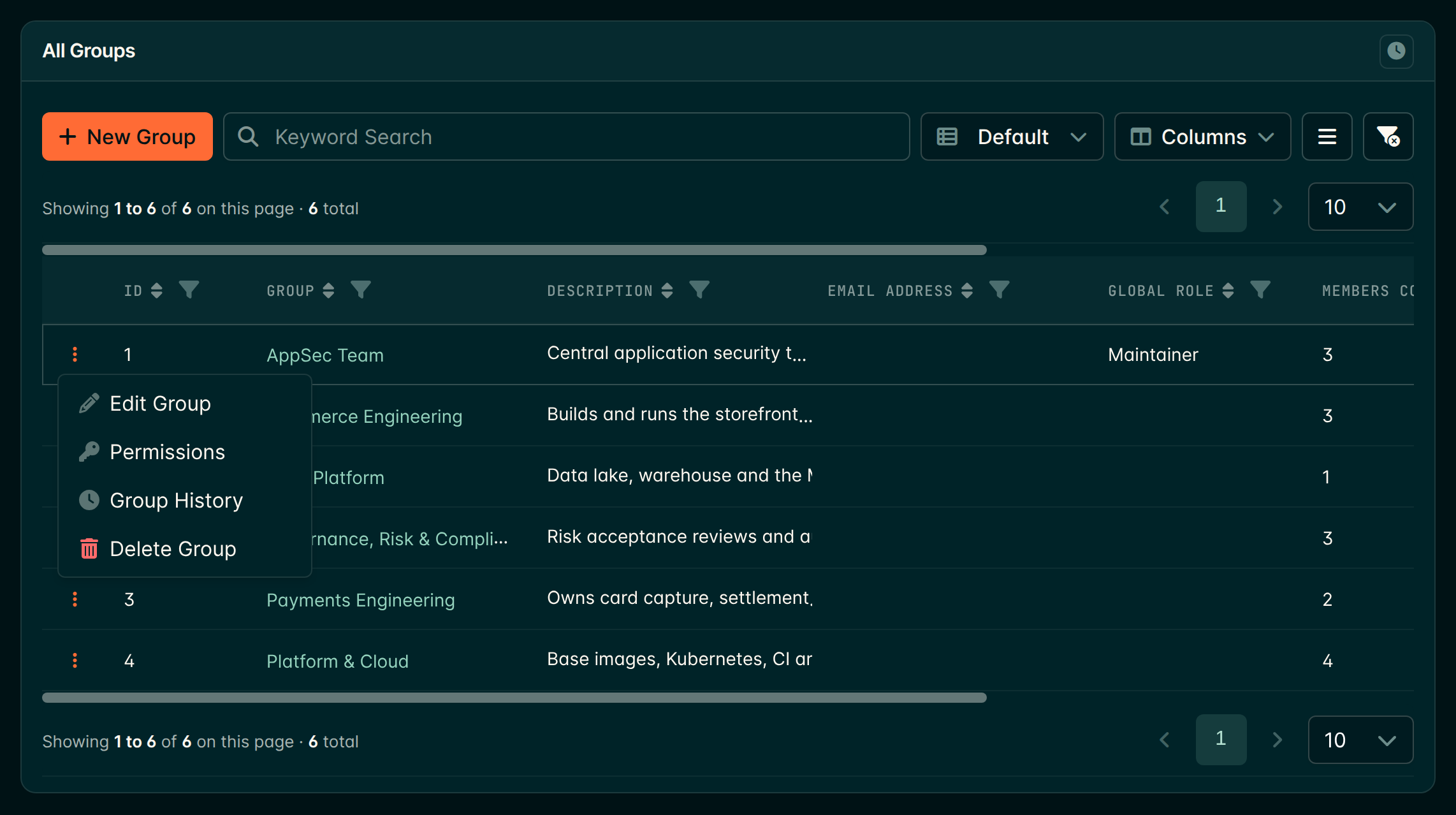
Viewing A Group
Viewing a group displays all Group information, such as ID, name, description, global roles, etc. The Group Members, Organizations, and Assets associated with the group are also displayed.
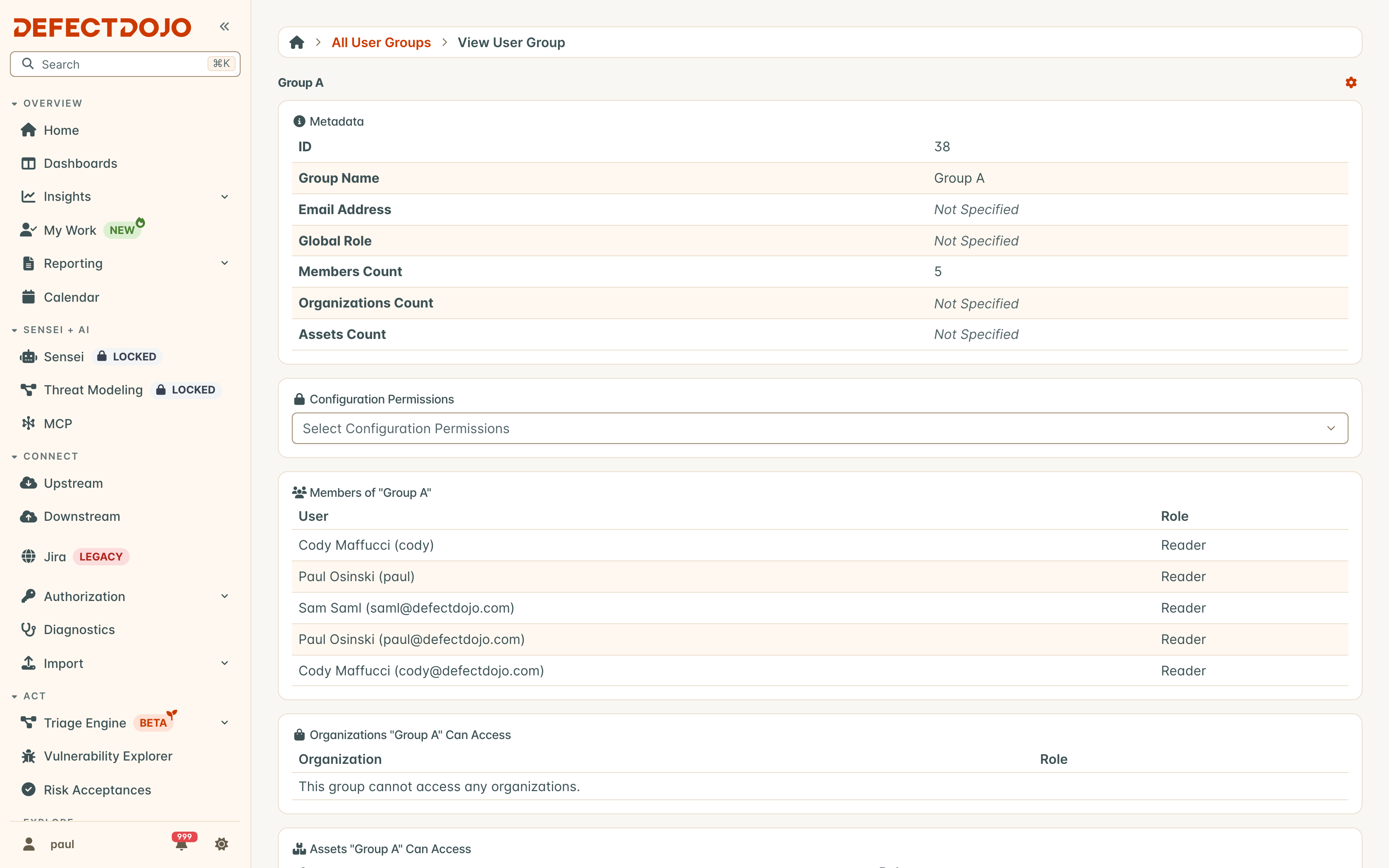
- The Configuration Permissions card lists the Configuration Permissions the Group’s Global Roles carry, grouped by area. It is read-only: to change them, a Superuser edits the Role on the Roles page or changes the Group’s Global Roles.
- A Group’s history, opened from the ⚙️ menu, is shown only to Users with the View Group configuration permission, because it also lists the Group’s past Asset and Organization Roles.
Create a User Group
Navigate to Settings > Users & Permissions > Groups on the sidebar.
Click + New Group above the table of existing Groups.
In the New Group window, set the Name for this Group, and add a Description if you wish.
You can also select the Global Roles that you wish to apply to this Group. Adding a Global Role to the Group will give all Group Members access to all DefectDojo data, along with a limited amount of edit access depending on the Global Role you choose; several Global Roles add up. See our Introduction To Roles article for more information.
Click Submit.
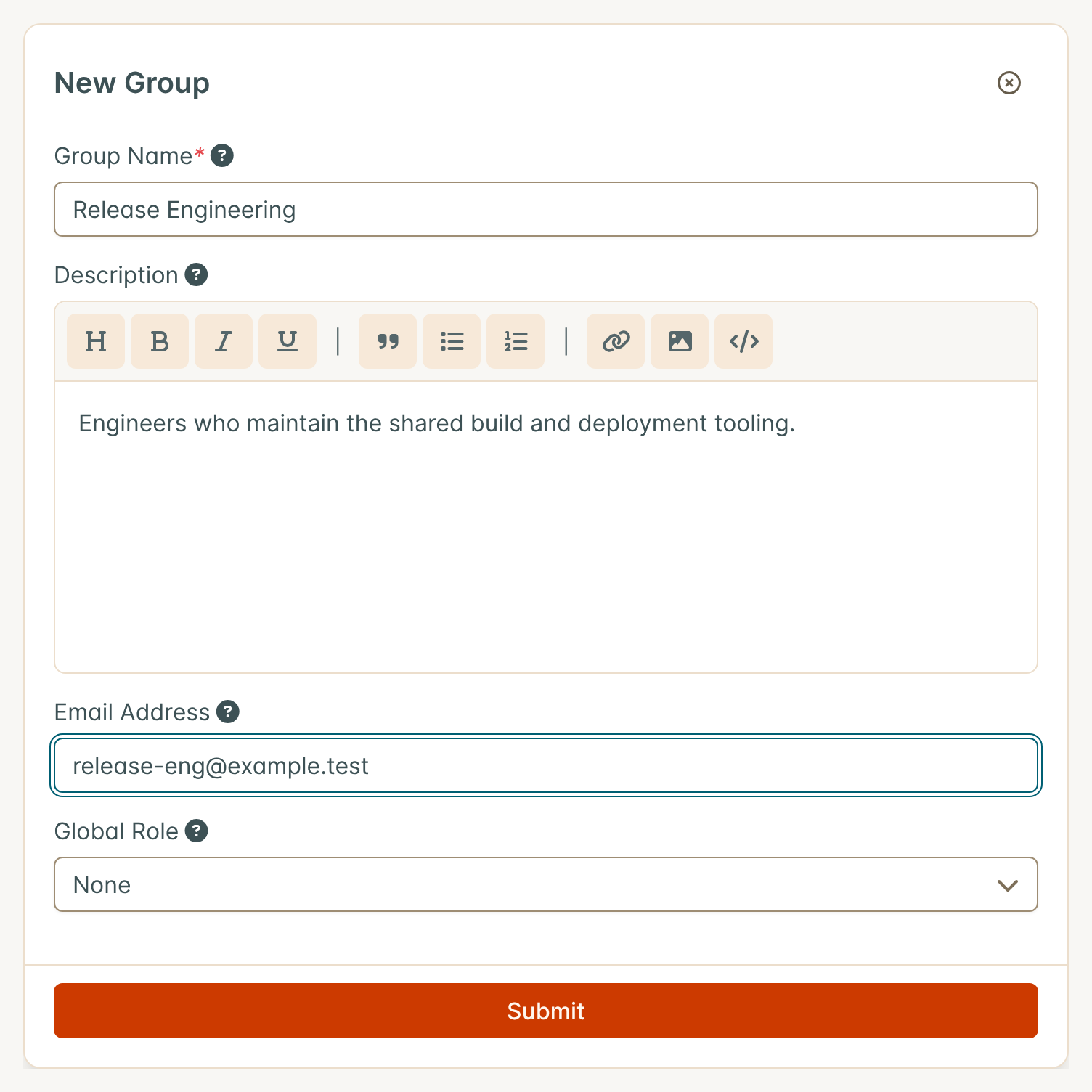
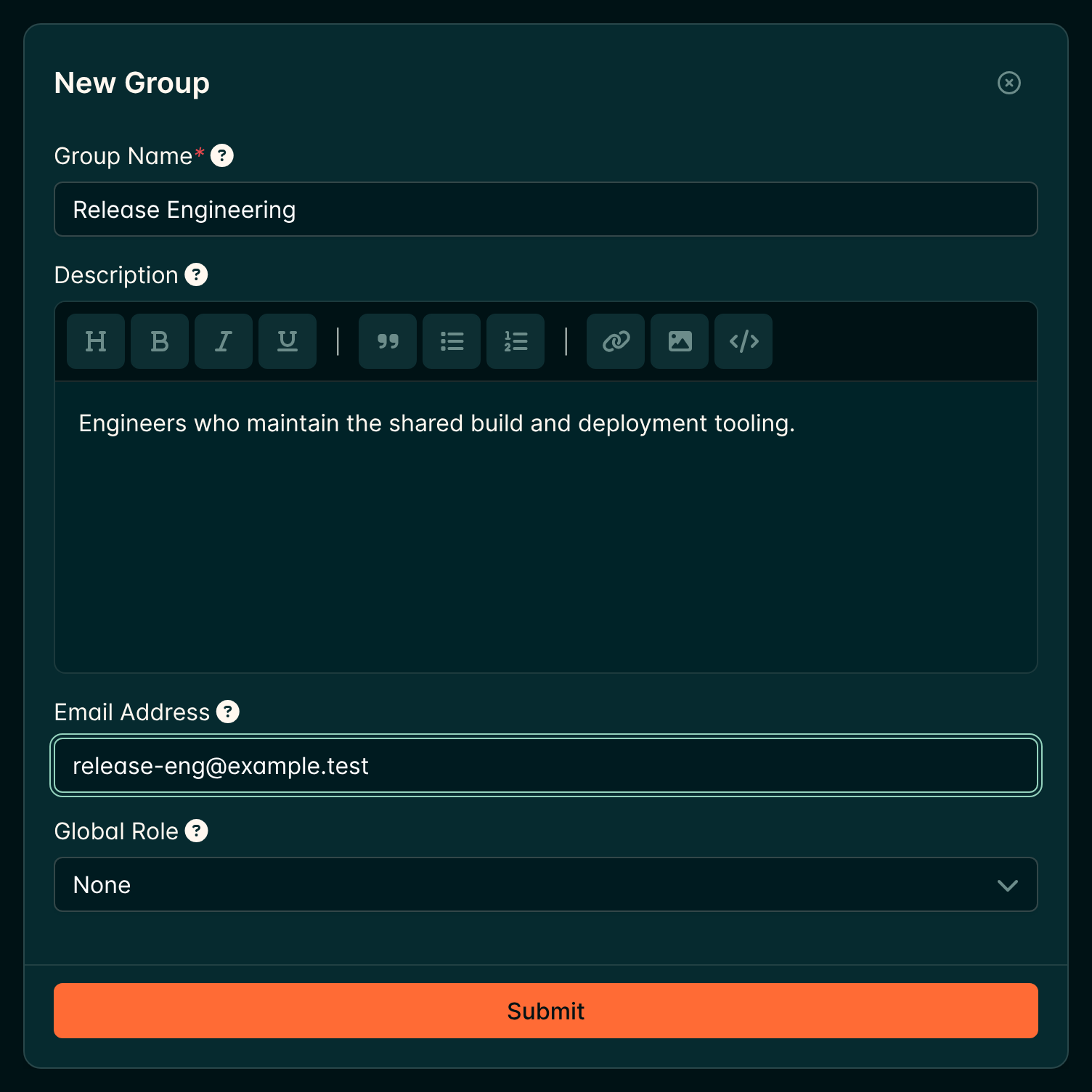
The account that initially creates a Group will have an Owner Role for the Group by Default.
To change a Group’s Name, Description, email address or Global Roles later, open the Group page, click the ⚙️ button in the top right corner, and select Edit Group.
Set an email address to receive reports
The Weekly Digest is a report on all Group-assigned Assets / Organizations. To have a weekly Digest sent out, enter the destination email address you wish to use in the Email Address field when you create or edit the Group. Group members will still receive notifications as usual.
Manage a Group’s Users
Group Membership is managed from the individual Group page, which you can select from the list in the Settings > Users & Permissions > Groups page. Click the highlighted Group Name to access the Group page that you wish to edit.
Any Member of a Group can open its page and see its Members. Adding, changing and removing Members needs a Group Role that allows it, such as Maintainer or Owner (or Superuser status).
Membership is managed from the Group’s Permissions window:
- On the Group page, click the ⚙️ button in the top right corner and select Permissions. This entry is hidden from Users who cannot add or remove Group Members.
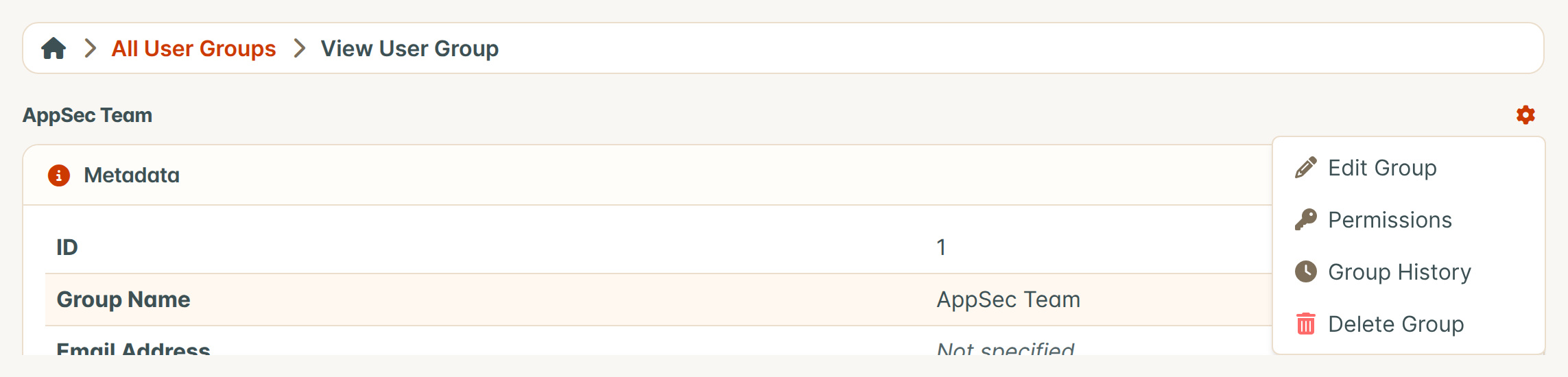
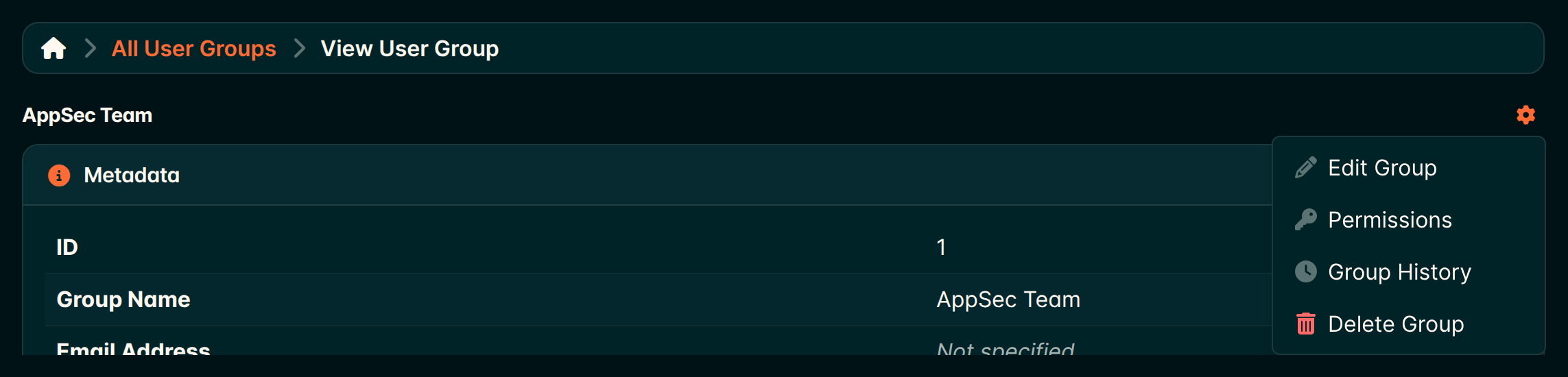
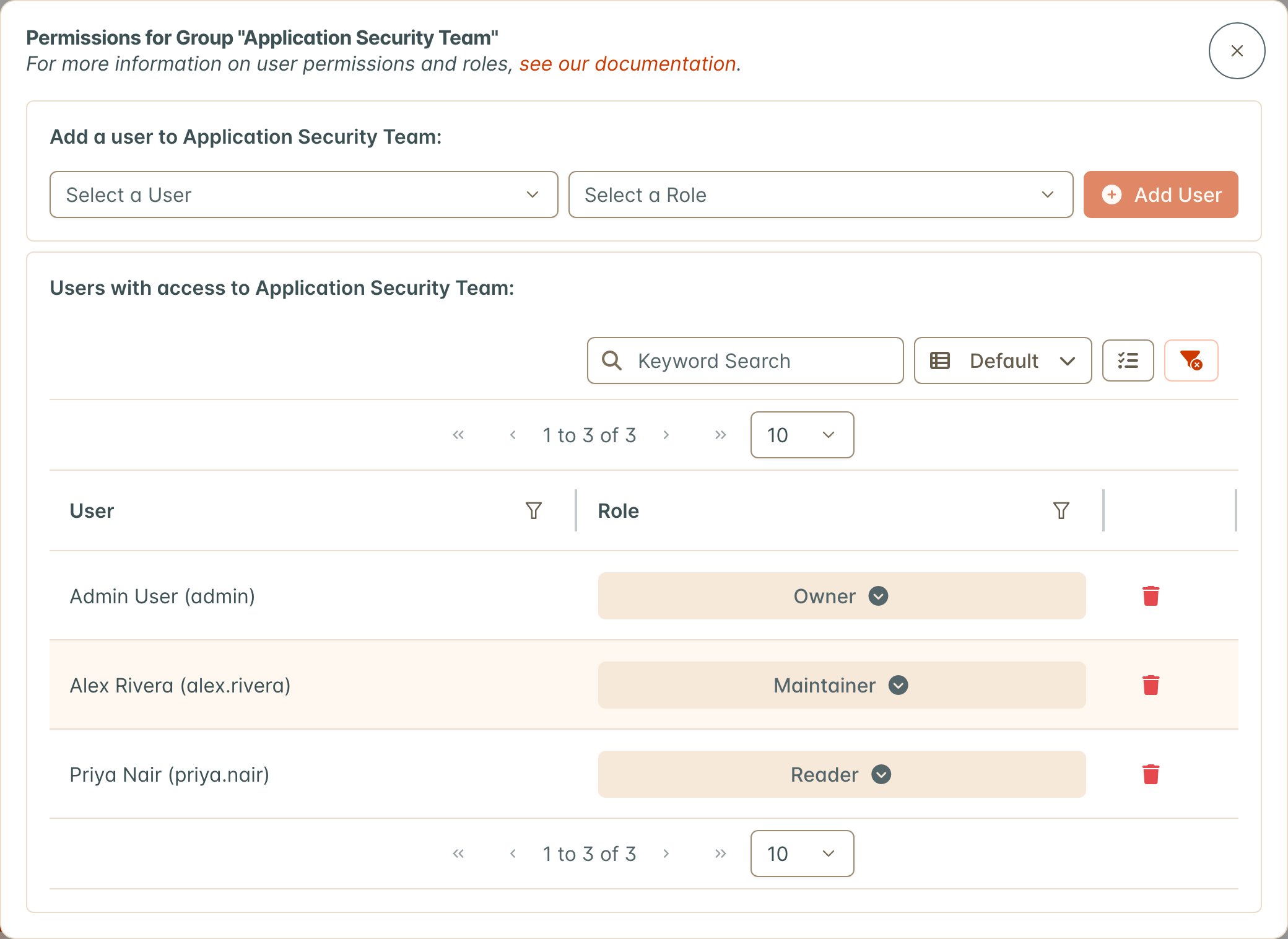
- The Permissions for Group window lists every current Member, along with the Role each one has in the Group.
Add a User to a Group
User Groups can have as many Users assigned as you wish. All Users in a Group will be given the associated Role on each Asset or Organization listed, but Users may also have Individual Roles which supersede the Group role.
Users are added to a Group one at a time. To add several Users, repeat the steps below for each of them.
- In the Permissions for Group window, open the Select a User drop-down. Type in the search box to narrow the list, then choose the User you want to add.
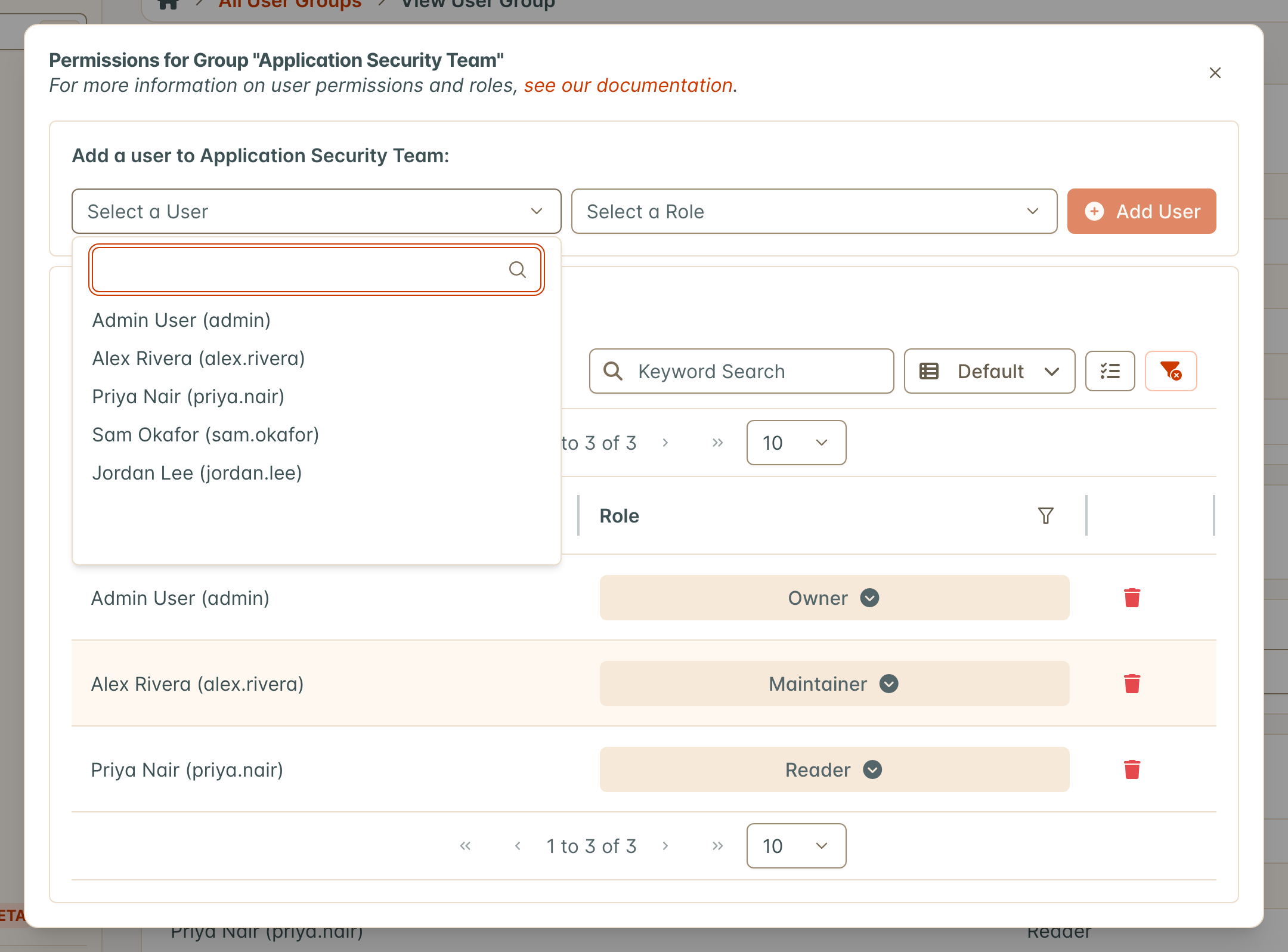
Open the Select a Role drop-down and choose the Group Role to assign to this User. This determines their ability to configure the Group.
Click Add User. The User appears in the Members table straight away, and the form is cleared so you can add the next one.
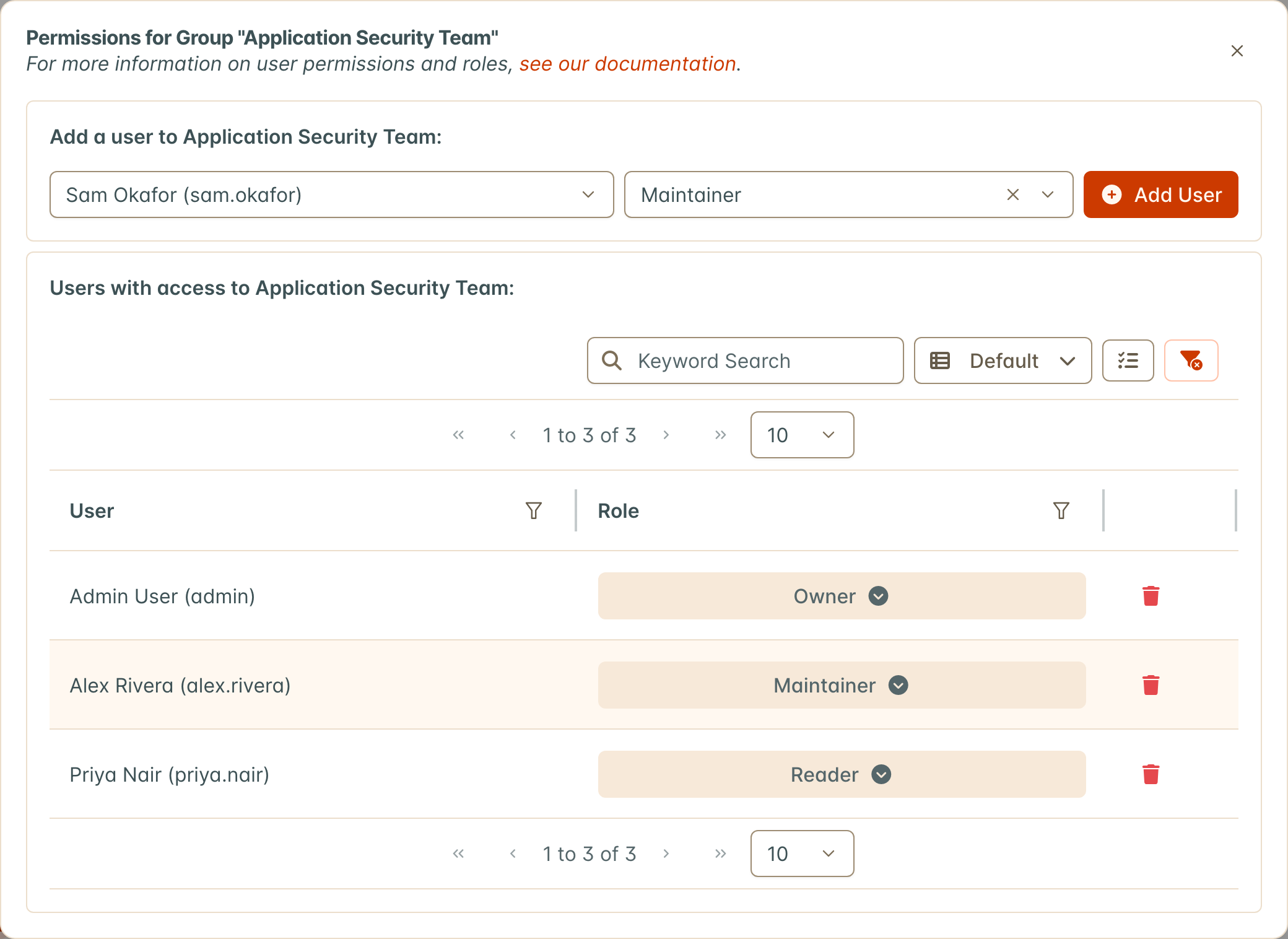
A new Member can open the Group’s page from Settings > Users & Permissions > Groups, which lists the Groups they belong to. Seeing every Group needs the View Group configuration permission.
Add a User to Groups from the User page
You can also add one User to several Groups at once from that User’s page, which is often quicker when onboarding someone.
Navigate to Settings > Users & Permissions > Users and open the User.
In the card listing the Groups the User can access, click Add to Group. The button is shown to Superusers and to Users who can manage the Members of at least one Group.
In the Add to Group window, open the Groups drop-down and choose one or more Groups. Only Groups whose Members you can manage are listed, and Groups the User already belongs to are left out.
Open the Role drop-down and choose the Group Role the User will hold in each selected Group. The Owner Role is offered only when you can grant it in every selected Group.
Click Submit. The new Groups appear in the card straight away.
If some Groups accept the User and others refuse (for example, because your Role in one of them does not allow adding Members), the accepted Memberships are saved, the window stays open, and a message lists each refused Group with the reason. Change the selection or the Role and submit again, or close the window.
To take a User out of a Group from the same card, click the “⋮” button at the start of the Group’s row, select Remove, and confirm. The User’s access through that Group ends immediately. Removing a Membership with the Owner Role takes the same permission as granting it.
Add Users through the API
If you need to add a large number of Users, you can also create Group Members through the API. Send one POST request per User to the dojo_group_members endpoint, with the group, user and role of the new Member. The role is the numeric ID of the Role, which you can look up on the roles endpoint.
Edit or Remove a Member from a User Group
In the Members table of the Permissions for Group window:
- Change a Role: click the Role shown next to the User’s name and select a different Role from the menu (for example, from Reader to Maintainer or Owner). The change is saved as soon as you pick the new Role. Changing or removing a Member who holds the Owner Role takes the same permission as making someone an Owner, which by default only Owners and Superusers hold.
- Remove a Member: click the 🗑️ button at the end of the User’s row. This removes a User’s Membership altogether, and takes effect immediately, without a confirmation prompt. It will not remove any contributions or changes the User has made to the Asset or Organization.
Manage a Group’s Permissions
Note that only Superusers can edit a Group’s permissions (Asset / Organization, or the Global Roles that carry its Configuration Permissions).
Add Asset Roles or Organization Roles for a Group
You can register a Group on as many Assets or Organizations as you wish, with a different Role on each. A Group is added to an Asset or Organization from that Asset or Organization, rather than from the Group page. The Group page lists the result, under the Organizations and Assets the Group can access.
Open the Asset or Organization you want the Group to have access to, click the ⚙️ button in the top right corner, and select Permissions.
In the Permissions window, select the Groups tab at the top. The Users tab beside it is where individual Users are given a Role on the same Asset or Organization.
Open the Select a Group drop-down and choose the Group.
Open the Select a Role drop-down and choose the Role that you want all Group members to have regarding this particular Asset or Organization.
Click Add Group.
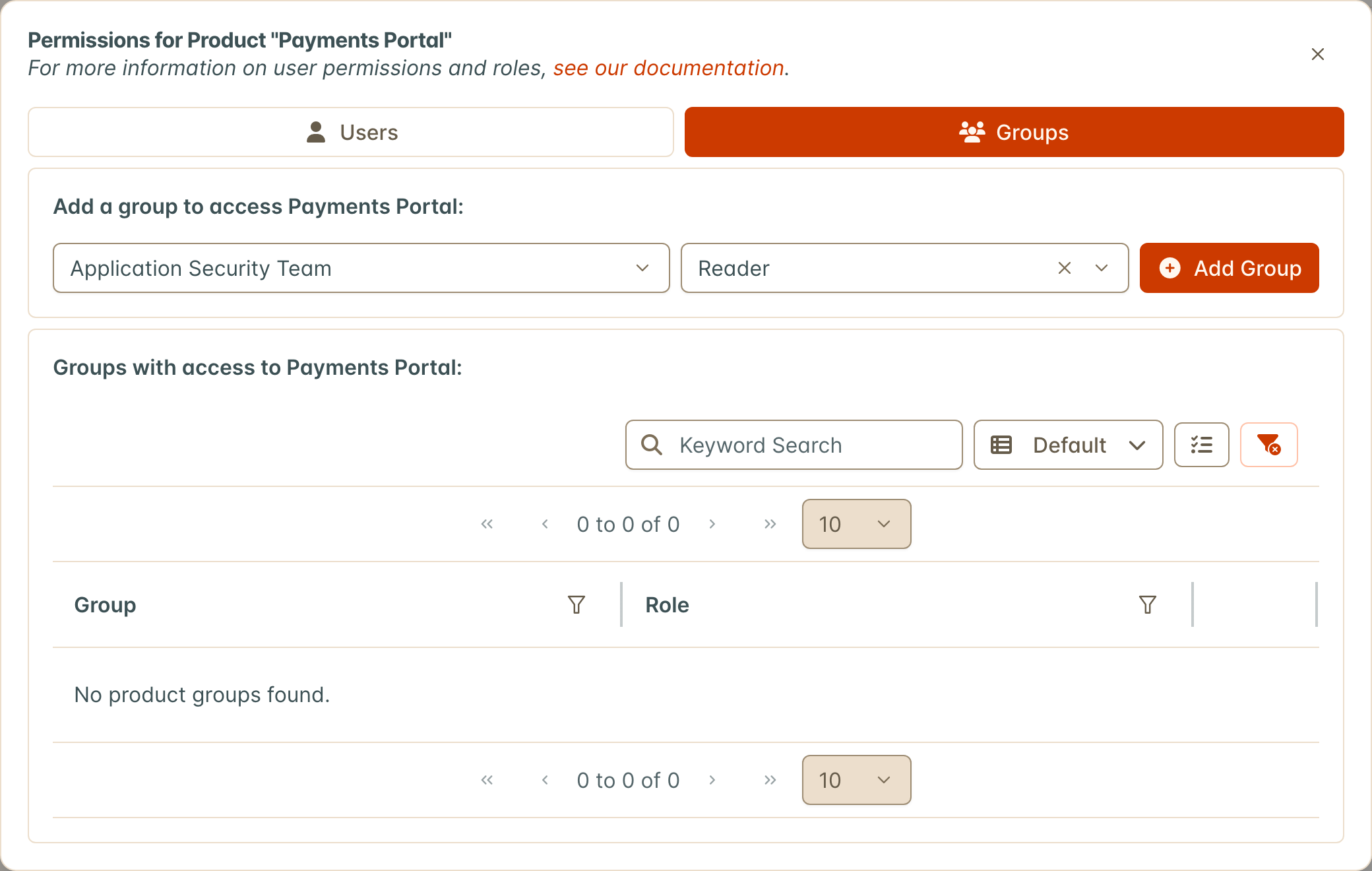
Groups cannot be assigned to Assets or Organizations without a Role. If you’re not sure which Role you want a Group to have, Reader is a good ‘default’ option. This will keep your Asset state secure until you make your final decision about the Group Role.
As with Group Members, a Group’s Role on an Asset or Organization can be changed from the Role shown in its row, and the Group can be removed with the 🗑️ button.
Depending on your instance’s settings, Assets and Organizations may be labelled Products and Product Types in the interface. They are the same objects.
Assign Configuration Permissions to a Group
If you want the Members in your Group to access Configuration functions, and control certain aspects of DefectDojo, give the Group a Global Role that carries those Configuration Permissions. Every Member of the Group then holds them.
- On the Settings > Users & Permissions > Roles page, create a Role for the settings pages (or open one that already carries them) and enable the rows you want in its Configuration Permissions table. See Custom Roles.
- Open the Group, choose Edit Group from the ⚙️ menu, and add that Role under the Group’s Global Roles. The Group’s other Global Roles stay as they are.
The Group page’s Configuration Permissions card shows the result. Only a Superuser can grant Configuration Permissions this way.