

Set a User's permissions (Pro)
DefectDojo Pro feature. The Members / Groups / Global Roles RBAC system described on this page is part of DefectDojo Pro. Open-source DefectDojo uses the Authorized Users model — see that page for open-source access control, and the 3.0 upgrade notes if you’re moving between editions.
Introduction to Permission Types
Individual users have four different kinds of permission that they can be assigned:
- Users can be assigned as Members to Assets or Organizations. This allows them to view and interact with Data Types (Organizations, Assets, Engagements, Tests and Findings) in DefectDojo depending on the role they are assigned on the specific Asset. Users can have multiple Asset or Organization memberships, with different levels of access.
- Users can also have Configuration Permissions assigned, which allow them to access configuration pages in DefectDojo. Configuration Permissions are not related to Assets or Organizations.
- Users can be assigned Global Roles, which give them a standardized level of access to all Assets and Organizations.
- Users can be set up as Superusers: administrator level roles which give them control and access to all DefectDojo data and configuration.
You can also create Groups if you want to assign Asset Membership, Configuration Permissions or Global Roles to a group of users at the same time. If you have a large number of users in DefectDojo, such as a dedicated testing team for a particular Asset, Groups may be a more helpful feature.
Superusers & Global Roles
Part of your Role-Based Access Control (RBAC) configuration may require you to create additional Superusers, or users with Global Roles.
- Superusers (Admins) have no limitations in the system. They can change all settings, manage users and have read / write access to all data. They can also change access rules for all users in DefectDojo. Superusers will also receive notifications for all system issues and alerts.
- Users with Global Roles can view and interact with any Data Type (Organizations, Assets, Engagements, Tests and Findings) in DefectDojo depending on their assigned Role. For more information about each Role and associated privileges, please refer to our Introduction to Roles article.
- Users can also have specific Configuration Permissions assigned, allowing them to access certain DefectDojo configuration pages. Users have no Configuration Permissions by default.
By default, the first account created on a new DefectDojo instance will have Superuser permissions. That user will be able to edit permissions for all subsequent DefectDojo users. Only an existing Superuser can add another superuser, or add a Global Role to a user.
Add Superuser or Global Role status to an existing user
Navigate to the Settings > Users & Permissions > Users page on the sidebar. You will see a list of all registered accounts on DefectDojo, along with each account’s Active status, Global Roles, and other relevant User data.
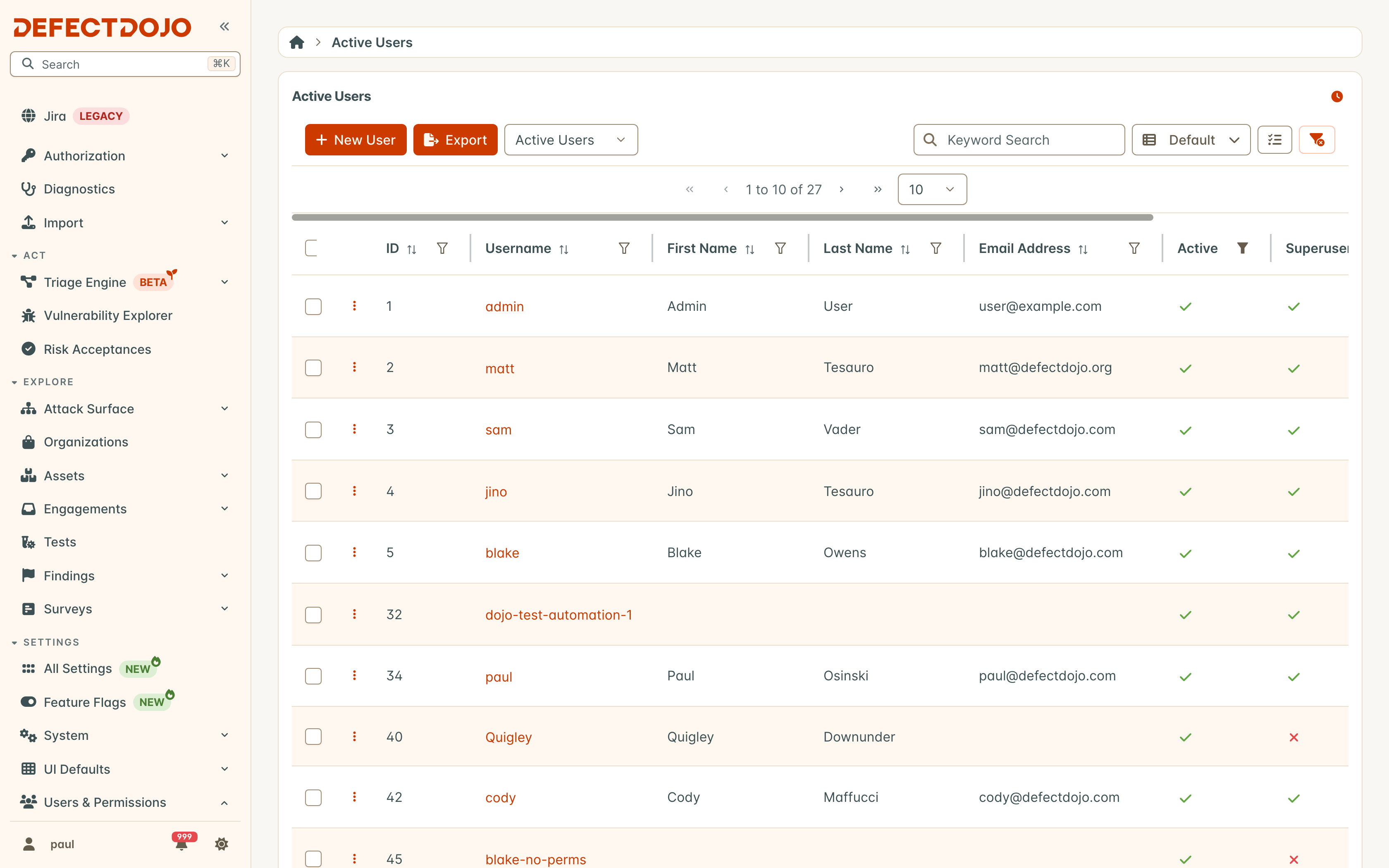
Click the name of the account that you wish to give Superuser privileges to. This will bring you to their User Page.
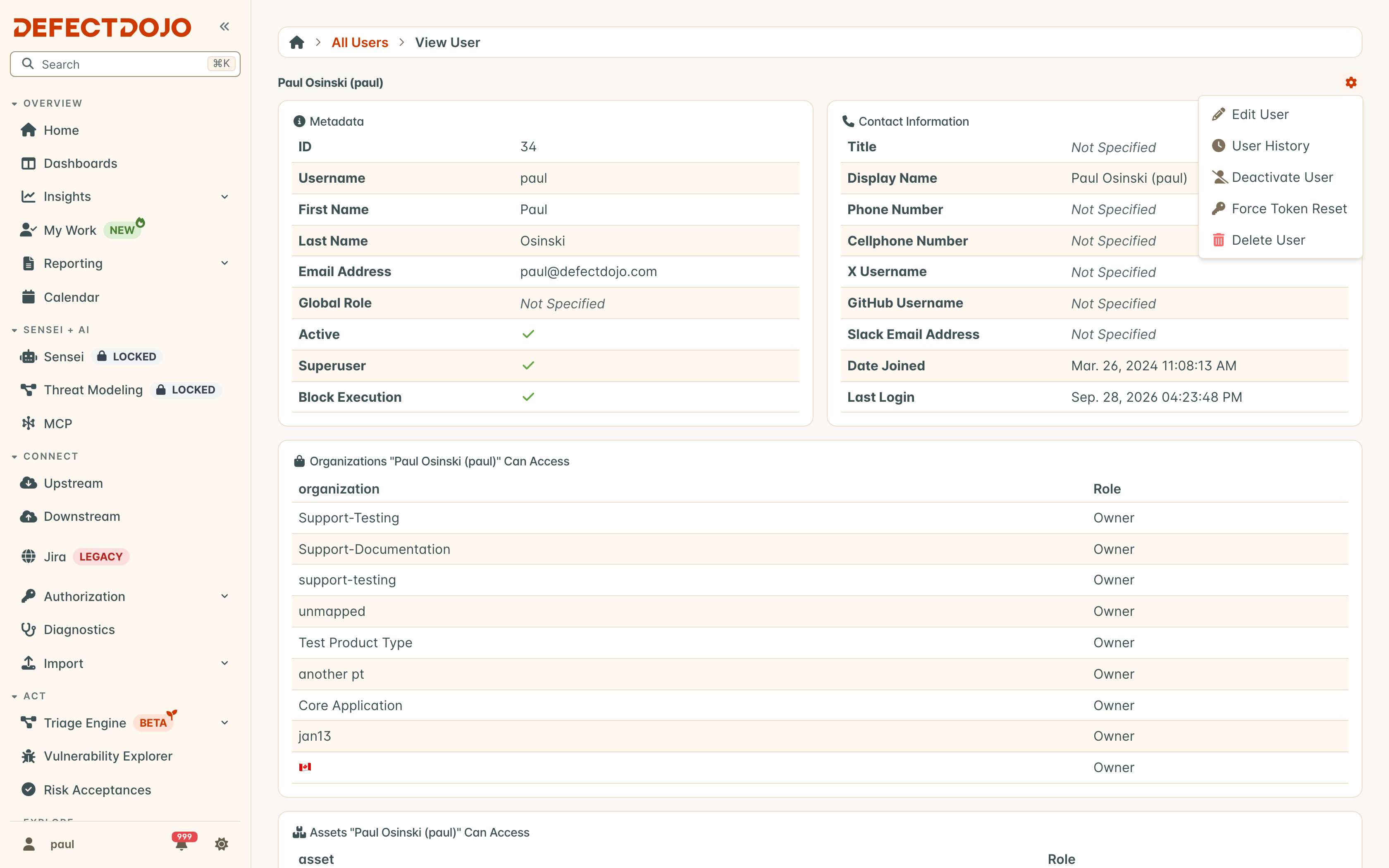
From the Default Information section of their User Page, open the ☰ menu and select Edit.
From the Edit User page:
For Superuser Status, check off the ☑️ Superuser Status box, located in the user’s Default Information.
To assign Global Roles, pick them in the Global Roles field at the bottom of the page. A user may hold several, and they add up: a Maintainer who also holds a Role carrying Configuration Permissions keeps everything Maintainer grants and reaches the settings pages as well.
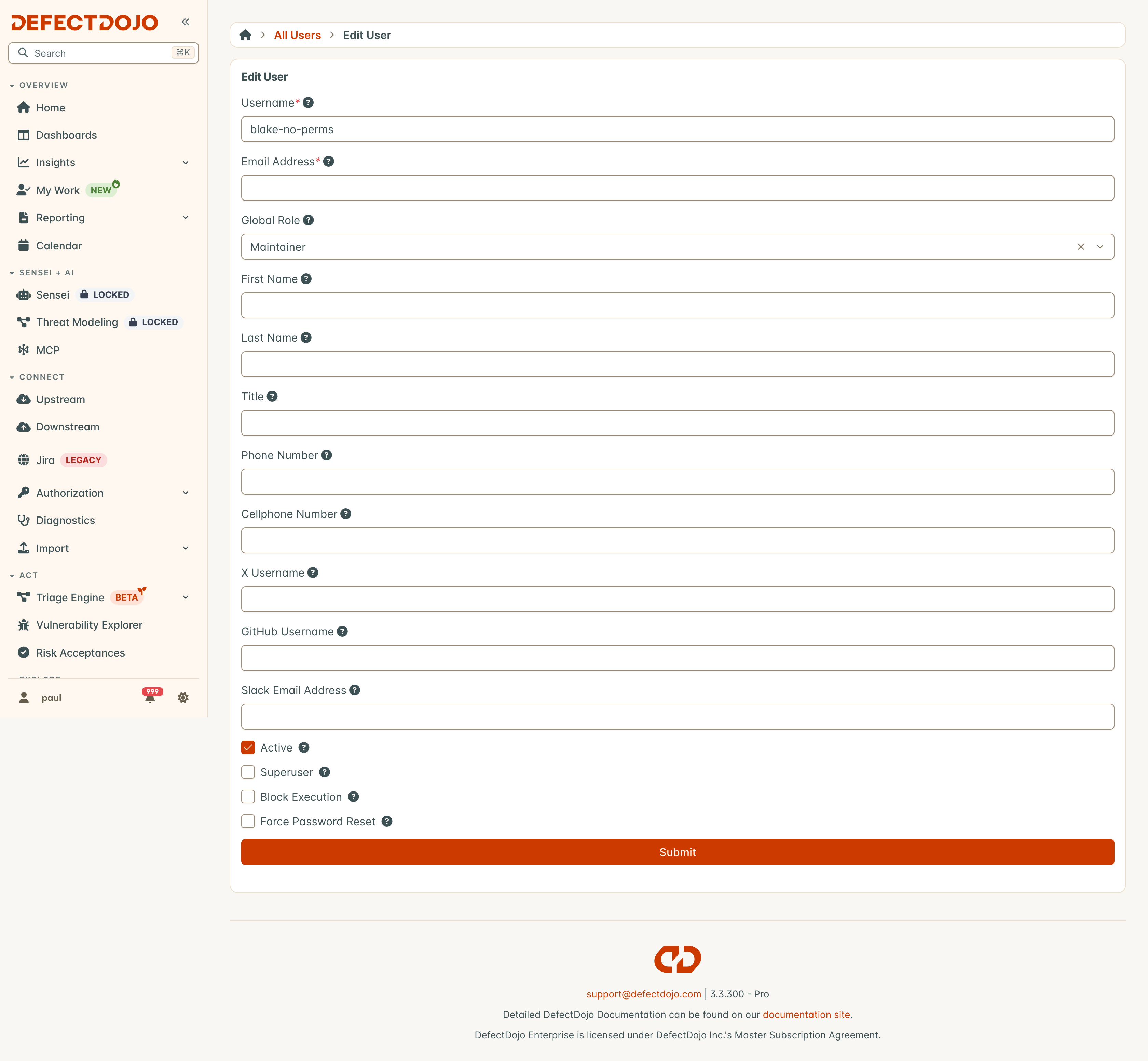
Click Submit to accept these changes.
Asset & Organization Membership
By default, any new account created on DefectDojo will not have permission to view any Asset Level Data. They will need to be assigned membership to each Asset they want to view and interact with.
- Asset & Organization membership can only be configured by Superusers, Maintainers or Owners.
- Maintainers & Owners can only configure membership on Assets / Organizations that they are already assigned to.
- Global Maintainers & Owners can configure membership on any Asset or Organization, as can Superusers.
Users can have two kinds of membership simultaneously at the Asset level:
- The Role conferred by their underlying Organization membership, if applicable
- Their Asset-specific Role, if one exists.
If a user has already been added as an Organization member, and does not require an additional level of permissions on a specific Asset, there is no need to add them as an Asset Member.
Adding a new Member
- Navigate to the Asset or Organization which you want to assign a user to. You can select the Asset from the list under Act > Explore > Assets > All.
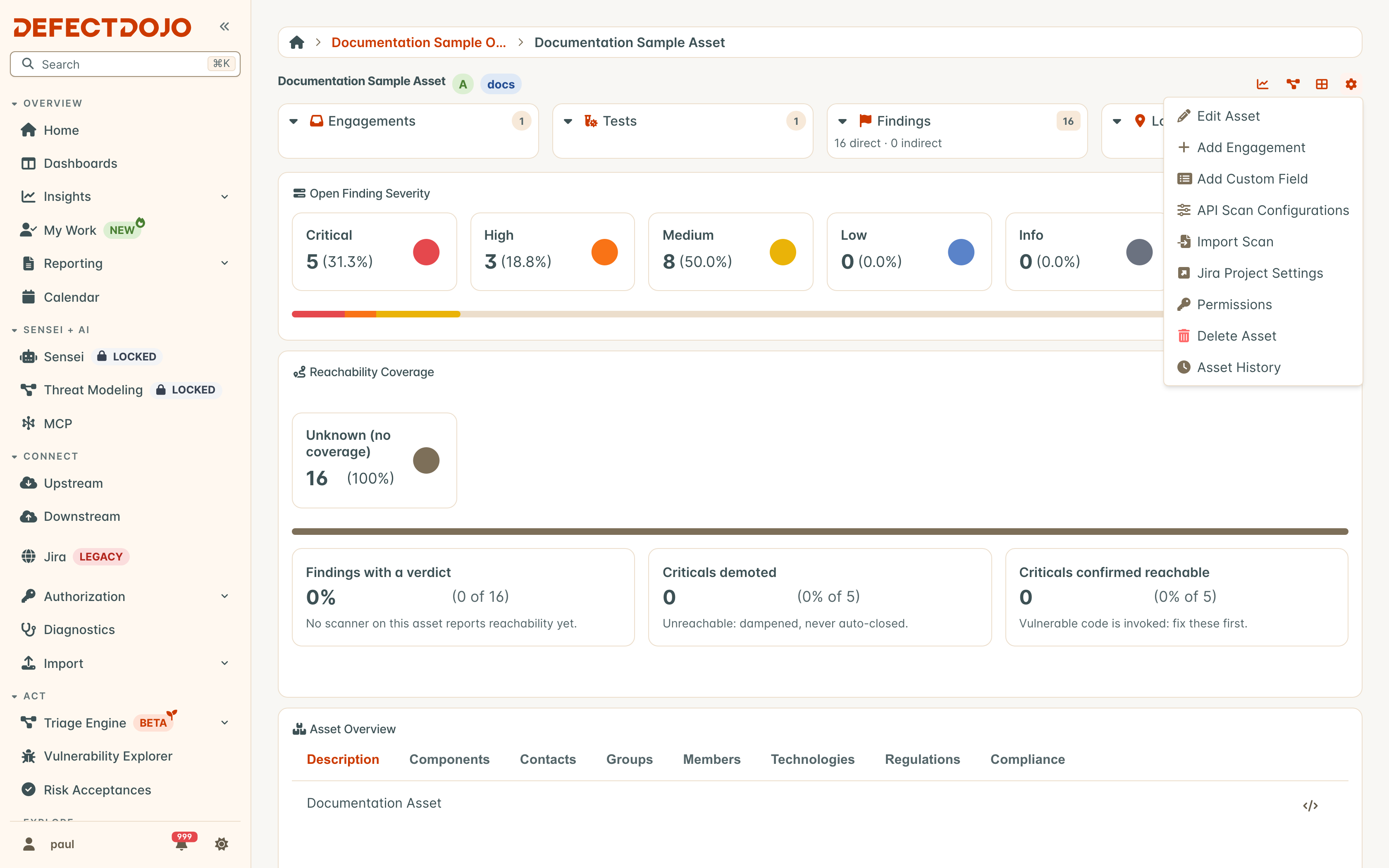
- Locate the Members heading, click the ☰ menu, and select + Add Users.
- This will take you to a page where you can Register new Members. Select a User from the dropdown Users menu.
- Select the Role that you want that User to have on this Asset or Organization: API Importer, Reader, Writer, Maintainer or Owner.
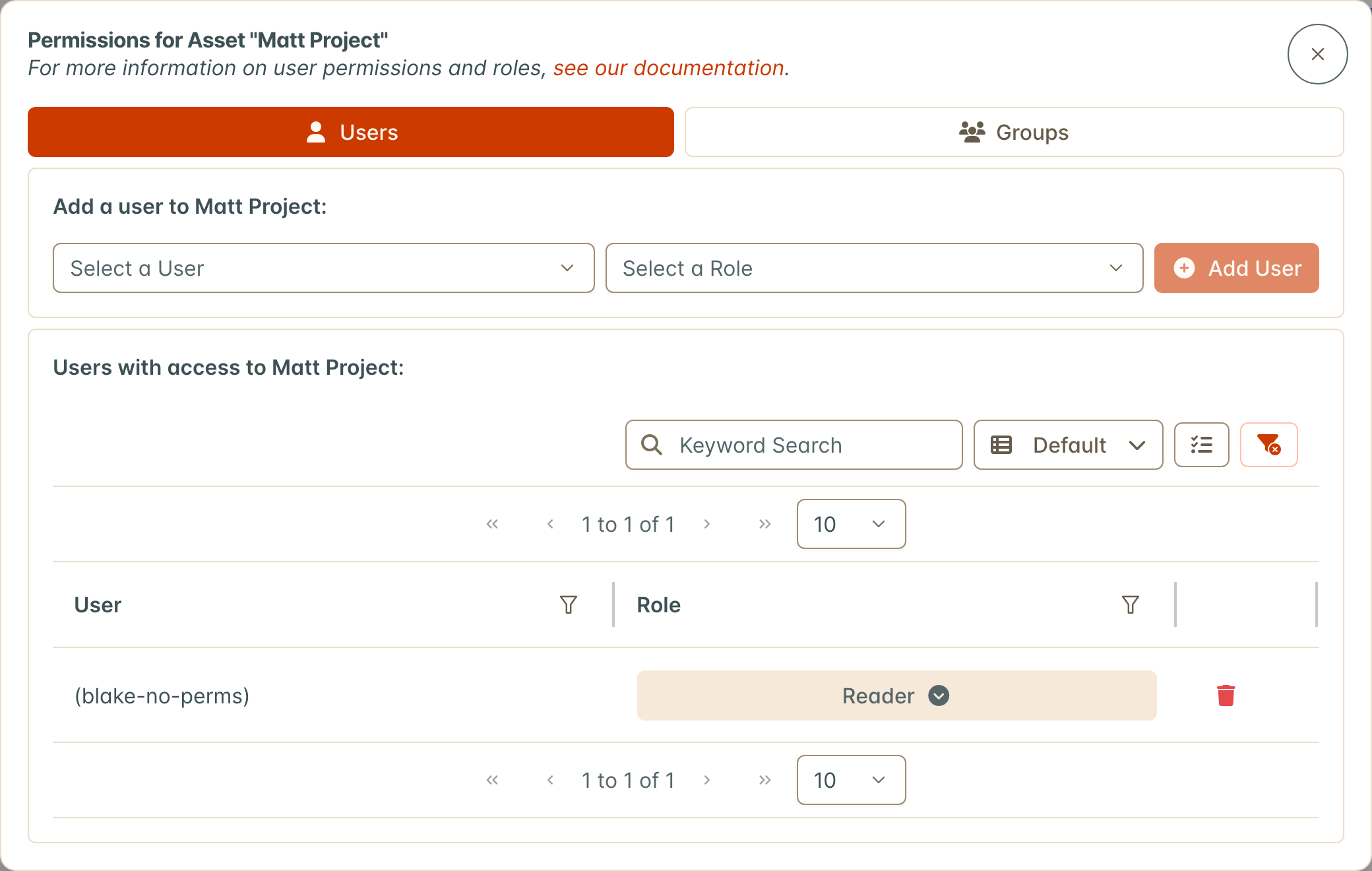
The Owner Role is only listed for users who are themselves allowed to grant it, such as Owners and Superusers, both here and when editing a Member’s Role. Changing or removing a Member who already holds the Owner Role needs that same permission, so for anyone else that Member’s Role cannot be changed and the Member cannot be removed.
Users cannot be assigned as Members on an Asset or Organization without also having a Role. If you’re not sure which Role you want a new user to have, Reader is a good ‘default’ option. This will keep your Asset state secure until you make your final decision about their Role.
Edit Or Delete a Member
Members can have their Role changed within an Asset or Organization.
Within the Asset or Organization page, navigate to the Members heading and click the ⋮ button next to the User who you want to Edit or Delete.
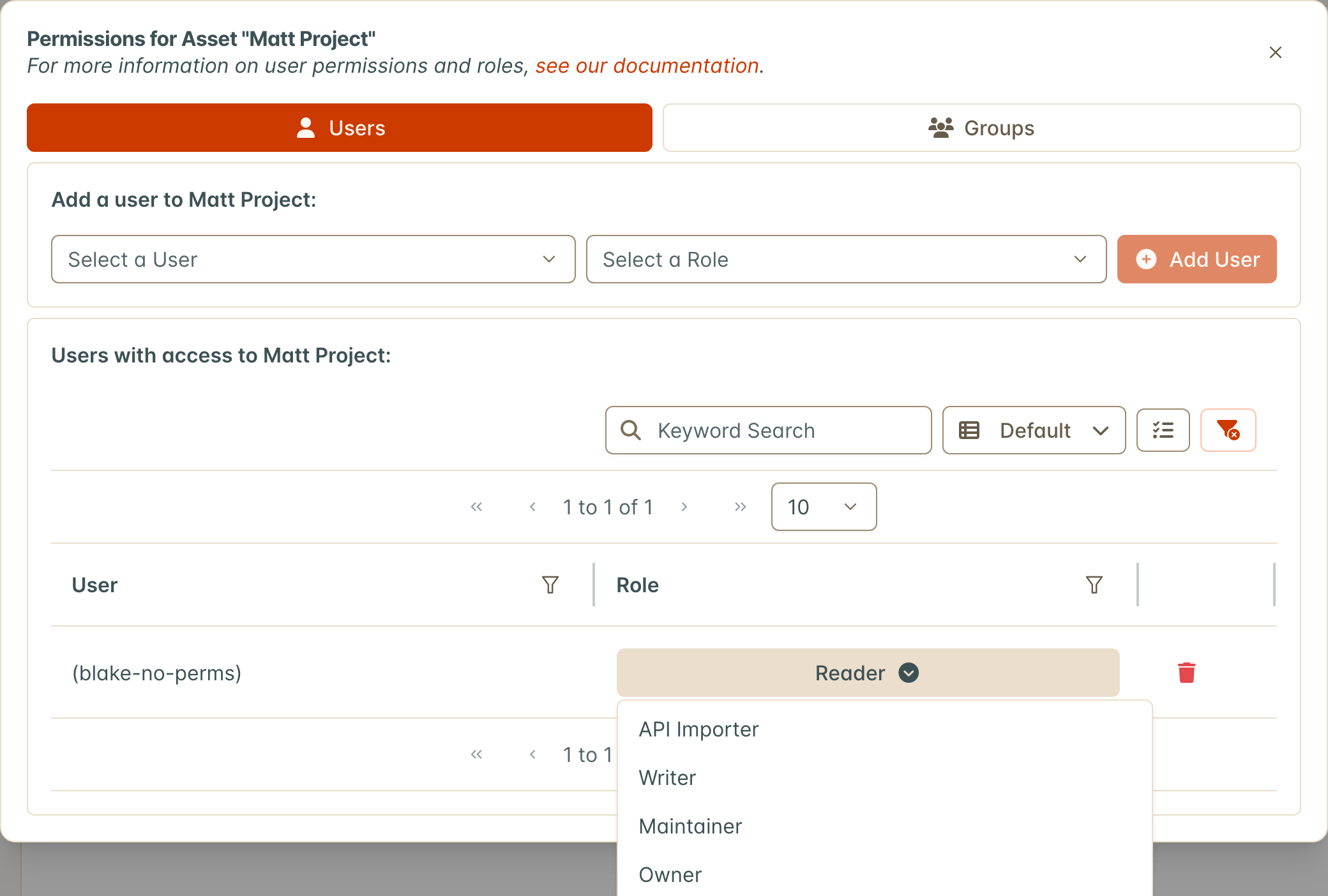
📝 Edit will take you to the Edit Member screen, where you can change this user’s Role (from API Importer, Reader, Writer, Maintainer or Owner to a different choice).
🗑️ Delete removes a User’s Membership altogether. It will not remove any contributions or changes the User has made to the Asset or Organization.
- If you can’t Edit or Delete a user’s Membership (the ⋮ is not visible) it’s because they have this Membership conferred at a Organization level.
- A user can have two levels of membership within an Asset - one assigned at the Organization level and another assigned at the Asset level.
Add an additional Asset role to a user with a related Organization role
If a User has an Organization-level Role, they will also be assigned Membership with this Role to every underlying Asset within the category. However, if you want this User to have a special Role on a specific Asset within that Organization, you can give them an additional Role on the Asset level.
- From the Asset page, navigate to the Members heading, click the ☰ menu, and select + Add Users (as if you were adding a new User to the Asset).
- Select the User’s name from the drop-down menu, and select the Asset Role you want that User to be assigned.
An Asset Role will supersede a user’s standard Organization Role or Global Role. For example, if a User has an Organization Role of Reader, but is also assigned as an Owner on an Asset nested under that Organization, they will have additional Owner permissions added for that Asset only.
However, this does not work in reverse. If a User has an Organization Role or Global Role of Owner, assigning them a Reader role on a particular Asset will not take away their Owner permissions. Roles cannot take away permissions granted to a User by other Roles, they can only add additional permissions.
Configuration Permissions
Many configuration dialogues and API endpoints can be enabled for users or groups of users, regardless of their superuser status. These Configuration Permissions allow regular users to access and contribute to parts of DefectDojo outside of their standard Asset or Asset Role assignment.
Configuration Permissions are not related to a specific Asset or Organization - users can hold them without the need for other statuses or Asset / Organization Membership. They are granted through Roles: a Role carries them in its Configuration Permissions table, and they take effect when that Role is held as a Global Role, by the user or by a Group the user belongs to.
List of Configuration Permissions
- Credential Manager: Access to the Credential Manager page
- Development Environments: Manage the Settings > Configuration > Environments list
- Finding Templates: Access to the Act > Explore > Findings > Templates page
- Groups: Access the Settings > Users & Permissions > Groups page
- Jira Instances: Access the Connect > Jira page
- Language Types:Access the Language Types API endpoint
- Login Banner: Edit the Settings > System > Login Banner page
- Announcements: Access Settings > System > Announcement Banner
- Note Types: Access the Settings > Configuration > Note Types page
- Organizations: Create a new Organization (the Add action of the Organizations row in the role editor’s Object Permissions table)
- Asset Platforms, Asset Lifecycles, Asset Origins: Access the Settings > Configuration > Asset Attributes pages
- Questionnaires: Access the Act > Explore > Surveys > Surveys page
- Questions: Access the Act > Explore > Surveys > Questions page
- Regulations: Access the Settings > Configuration > Regulations page
- SLA Configuration: Access the Settings > Finding Workflow > Service Level Agreements page
- Test Types: Add or edit a Test Type (under Settings > Configuration > Test Types)
- Tool Configuration: Access the Settings > Configuration > Tool Configurations page
- Tool Types: Access the Settings > Configuration > Tool Types page
- Users: Access the Settings > Users & Permissions > Users page
Add Configuration Permissions to a User
Only Superusers can grant Configuration Permissions. They are granted on a Role, and the Role is then added to the user’s Global Roles (or to the Global Roles of a Group the user belongs to), beside whatever Global Role the user already holds.
- Navigate to Settings > Users & Permissions > Roles and create a Role for the settings pages (for example Users Manager), or open one that already carries them. See Custom Roles.
- In the role editor, enable the rows you want in the Configuration Permissions table (for example Users: View and Users: Add) and save the Role.
- Navigate to Settings > Users & Permissions > Users, open the account you wish to edit, and add the Role under Global Roles on the Edit User form. The user’s other Global Roles stay as they are.
The Configuration Permissions card on the User page then lists what the user holds and where it comes from. It is read-only: to change it, edit the Role.
To grant the same permissions to a whole team, add the Role to the Global Roles of a Group instead; every member of the Group holds them.
For a detailed breakdown of User Configuration Permissions, please refer to our Permission Chart.