

Downstream Connectors (Pro)
Availability: Downstream Connectors are generally available and on for every DefectDojo Pro instance, both Cloud and On-Premise. There is nothing to enable, and they are no longer listed on the Feature Flags page.
Downstream Connectors let you push your Findings and Finding Groups to ticket tracking systems to easily integrate security remediation with your teams existing development workflow.
Supported Downstream Connectors:
- Azure Devops
- Bitbucket
- Freshservice
- GitHub
- GitLab Boards
- Jira
- Linear
- Opsgenie
- PagerDuty
- ServiceDesk Plus
- ServiceNow
- ServiceNow SecOps / Vulnerability Response
- Shortcut
- Zendesk
Opening the Downstream Connectors page
The Downstream Connectors page can be found under Connect > Downstream in the sidebar.
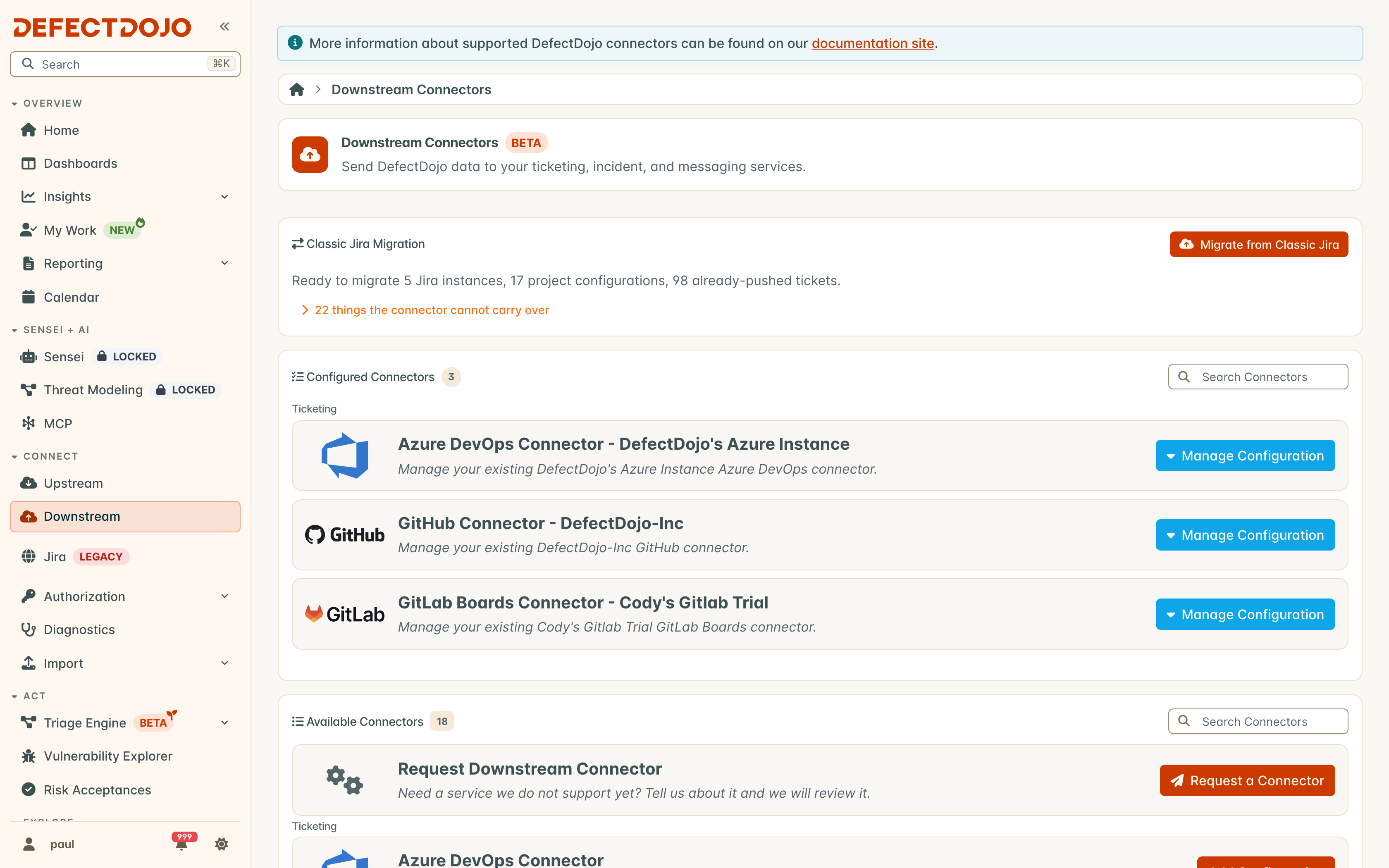
Setting up a Downstream Connector
A Downstream Connector is configured with three key components:
- Integration Instance: This is the primary connection method that DefectDojo will use with a third-party system. The Instance will include details such as a label, location and credentials to connect with, along with any other information that may be required by the vendor.
- Issue Tracker Mapping: This is where mapping information is stored - defining the details required to connect to a given “project” within the vendor. These details include the name or ID of the “project”, and mappings from DefectDojo Finding severity and status to the corresponding field in the vendor “ticket”. You may have multiple mappings configured if you are trying to push Findings to multiple “project” locations.
- Issue Tracker Assignment: This is where DefectDojo Assets and Engagements are assigned to a given Issue Tracker Mapping, with per-Asset/Engagement options to to define how a Finding will be pushed to a given vendor system.
These components are hierarchical: Each Instance has one or more Mappings, which then have one or more Tracker Assignments.
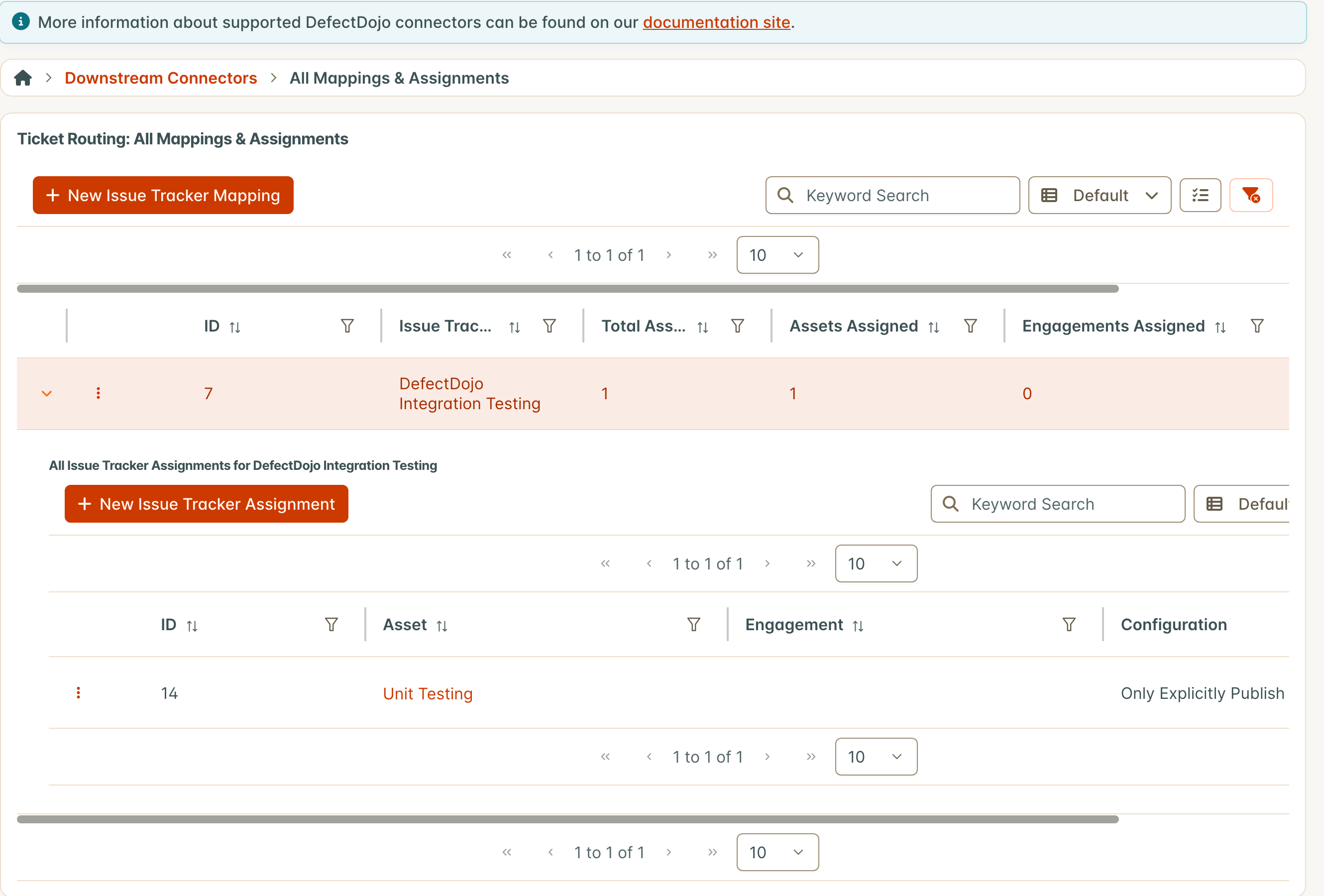
Pushing Findings and Finding Groups
Once these components are configured, Findings and Finding Groups can be sent to a given Issue Tracker in two ways; manually, or automatically.
Manually: Findings and Finding Groups have a Push to Connector action: in the gear menu, as a checkbox on the edit form, and in Bulk Edit for several Findings at once. When an Issue Tracker Assignment covers the Finding’s Engagement or Asset, this creates an Issue in the Issue Tracker with the corresponding Finding/Finding Group information, or updates the Issue it already has.
The gear menu offers Push to Connector only when an Issue Tracker Assignment covers the Finding’s or Finding Group’s Engagement or Asset. When none does, nothing would be sent, so the action is not shown; assign an Issue Tracker Mapping to the Asset or the Engagement first. The edit form and Bulk Edit still offer the push: a push that nothing covers shows a warning that no connector is assigned to its Asset or Engagement, and Bulk Edit reports how many of the selected Findings were not sent, and why.
A Finding that belongs to a Finding Group is pushed as its group, so its Issue is the group’s, and the result says the Finding was sent as part of its Finding Group. When a push reaches some connectors but not others, the result says how many it could not be sent to.
A push can take several seconds per connector. While it runs, the gear shows a spinner and does not open, so the same push cannot be started twice.
A push only hands the Finding or Finding Group to the connector: the Issue is created or updated in the background, so it can take a moment to appear in the Connector Tickets column.
Automatically Push Findings
Findings can also be pushed automatically, with the Issue Tracker Assignment dictating how those objects will be pushed. These are the four options:
- Only Explicitly Publish Changes to Target: This option disables any automatic behavior in the assigned Asset or Engagement. The only way to push a Finding or Finding Group will be explicitly, as mentioned above.
- Automatically Link New Finding to Target: When new Findings or Finding Groups are created in the assigned Asset or Engagement, DefectDojo will automatically push the object to the Issue Tracker. Once created, these Findings or Findings Groups will not be updated without a manual Push to Connector action.
- Automatically Update Existing Link on Finding Edit: When Findings or Finding Groups are updated in the assigned Asset or Engagement, automatically push the object to the Issue Tracker if an existing link has already been created manually.
- Automatically Link New and Update Existing Link on Finding Edit: When Findings or Finding Groups are created or updated in the assigned Asset or Engagement, automatically push the object to the Issue Tracker.
Push Filters
Each Issue Tracker Assignment can optionally narrow which Findings are pushed automatically:
- Minimum Severity: only automatically create tickets for Findings at or above the selected severity. Leave it blank to include every severity.
- Active Findings Only: only automatically create tickets for active Findings, skipping ones that are already mitigated, false positive, or risk accepted when the assignment first sees them.
These filters apply to automatic creation only. Updates to a Finding that already has a linked ticket are always sent, so status changes (including closures) continue to propagate. A manual Push to Connector always ignores the filters. Leaving both at their defaults preserves the original behavior of pushing every Finding.
Assigning multiple Assets
An Issue Tracker Assignment targets a single Asset or Engagement. To cover several assets, create one Assignment per Asset (or Engagement). If you also need vendor fields to differ per asset — for example a distinct ServiceNow Assignment group or Assigned to, or a different Jira project — create a separate Issue Tracker Mapping (with its own Custom Field Mappings) for each asset and point each Assignment at the matching Mapping.
Who can see and change an Assignment
An Issue Tracker Assignment belongs to the Asset or Engagement it targets, so on top of the Integration permissions that open Downstream Connectors, it follows that Asset’s or Engagement’s permissions:
- You see an Assignment, in lists and in the Assignment counts on the connector and mapping lists, only when you can view its Asset or Engagement.
- Creating, changing, or deleting an Assignment for an Asset requires permission to edit that Asset, such as the Maintainer or Owner role on it. For an Engagement, it requires permission to edit that Engagement, such as the Writer role or higher.
- Moving an Assignment to a different Asset or Engagement requires edit permission on both the current and the new one.
- The Asset and Engagement pickers on the Assignment form list only the ones you can edit, and an Assignment’s Edit and Delete actions are shown only when you can edit its Asset or Engagement.
- Deleting an Issue Tracker Mapping, or a connector, also deletes its Assignments. When any of them targets an Asset or Engagement you cannot edit, the delete is refused and nothing is removed.
Issue Tracker Ticket Representation
Issue Tracker Tickets are represented by a series of icons under the Connector Tickets column when viewing and listing Findings and Finding Groups. In the Findings list the column is hidden by default: turn it on from the column picker. The Finding Groups list shows it by default.
Icons from left to right:
- Integration Type: The type of Issue Tracker the Ticket is associated with
- Ticket ID: The ID of the Ticket, as defined by the Issue Tracker
- Ticket Link: The direct link to the Ticket, as define by the Issue Tracker
- Changelog: Specifies when the Issue Tracker Ticket was associated with a Finding or Finding Group, as well as the last time DefectDojo made a change to the ticket

Vendor-Specific Requirements
Each vendor will have varying requirements for how DefectDojo will need to interact with them. This could be in the form of an authentication mechanism, additional fields on a per “project” basis, or severity/status mappings.
For the complete list of requirements, please open the vendor specific pages below:
- Azure Devops
- Bitbucket
- Freshservice
- GitHub
- GitLab Boards
- Jira
- Linear
- Opsgenie
- PagerDuty
- ServiceDesk Plus
- ServiceNow
- ServiceNow SecOps / Vulnerability Response
- Shortcut
- Zendesk
Error Handling and Debugging
Downstream Connectors can produce errors for a variety of reasons such as connectivity, authentication, permissions, etc.. To assist in debugging these errors, each Issue Tracker Mapping has a table of errors that list when the error occurred, the reason it occurred, and the Finding or Finding Group that failed to be pushed.
These errors can be found by looking at the All Issue Tracker Mappings & Assignments page, under the ⚠️ Total Errors column.
Opening the Downstream Connectors pages requires the global Integration View permission. An error, and an Issue’s link to a Finding or Finding Group, is listed and counted only when you can view that Finding or Finding Group; errors about the connection itself, tied to no Finding, are listed for everyone who can open the page.
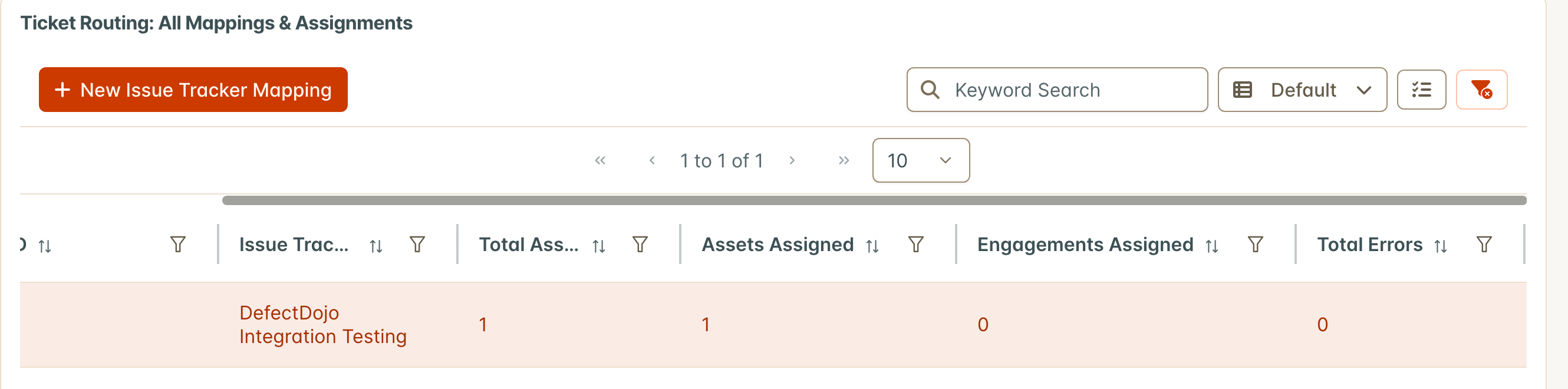
Clicking on the Total Errors entry will bring you to a page with more detailed descriptions of errors associated with this Downstream Connector.
Seeing every failure in one place
The per-mapping error table covers one Downstream Connector. Diagnostics covers all of them, alongside every other integration attempt on the instance — upstream connectors, imports, Jira, SSO, and the rules engine — with the same filtering and sorting over all of it.
Use it when the question is broader than one mapping:
- an attempt that never completed rather than failed, which no error table reports, because nothing errored
- whether a failure is specific to one integration or is happening across several at once
- who or what set an attempt off, and against which configuration
Credentials quoted in an error are removed before the row is stored, and the full technical detail is restricted to superusers.
Downstream Connectors page layout
Downstream Connectors are listed in two sections, Configured Connectors and Available Connectors, each sorted alphabetically with a count of what is shown beside its heading. A tool can hold several configurations; each is its own tile, titled <Tool> - <label>, ordered by label. The Request Downstream Connector tile on DefectDojo Pro Cloud is not counted.