

Managing Operations
Note: Upstream Connectors are a DefectDojo Pro-only feature.
Once an Upstream Connector is set up, it will run two Operations on a recurring basis:
- Discover will learn the connected tool’s structure, and will create records in DefectDojo of any unmapped data;
- Sync will import new Findings from the tool based on your mappings.
Both of these Operations are managed on the Operations page of a Connector. The table will also track past runs of these Operations so that you can ensure your Connector is up to date.
To access a Connector’s Operations Page, open Manage Records and Operations for the Connector you wish to work with, and then switch to the </> Operations From (tool) tab.
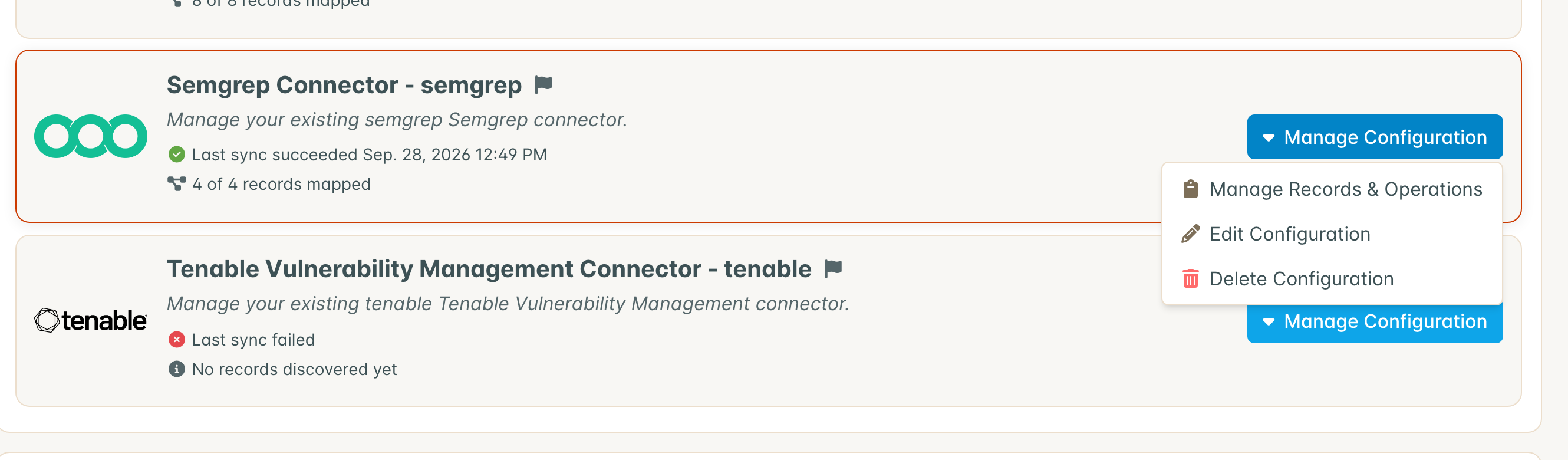
The Manage Records and Operations page can also be used to handle Records; which are the individual Asset mappings of your connected tool. See Managing Records for more information.
The Operations Page
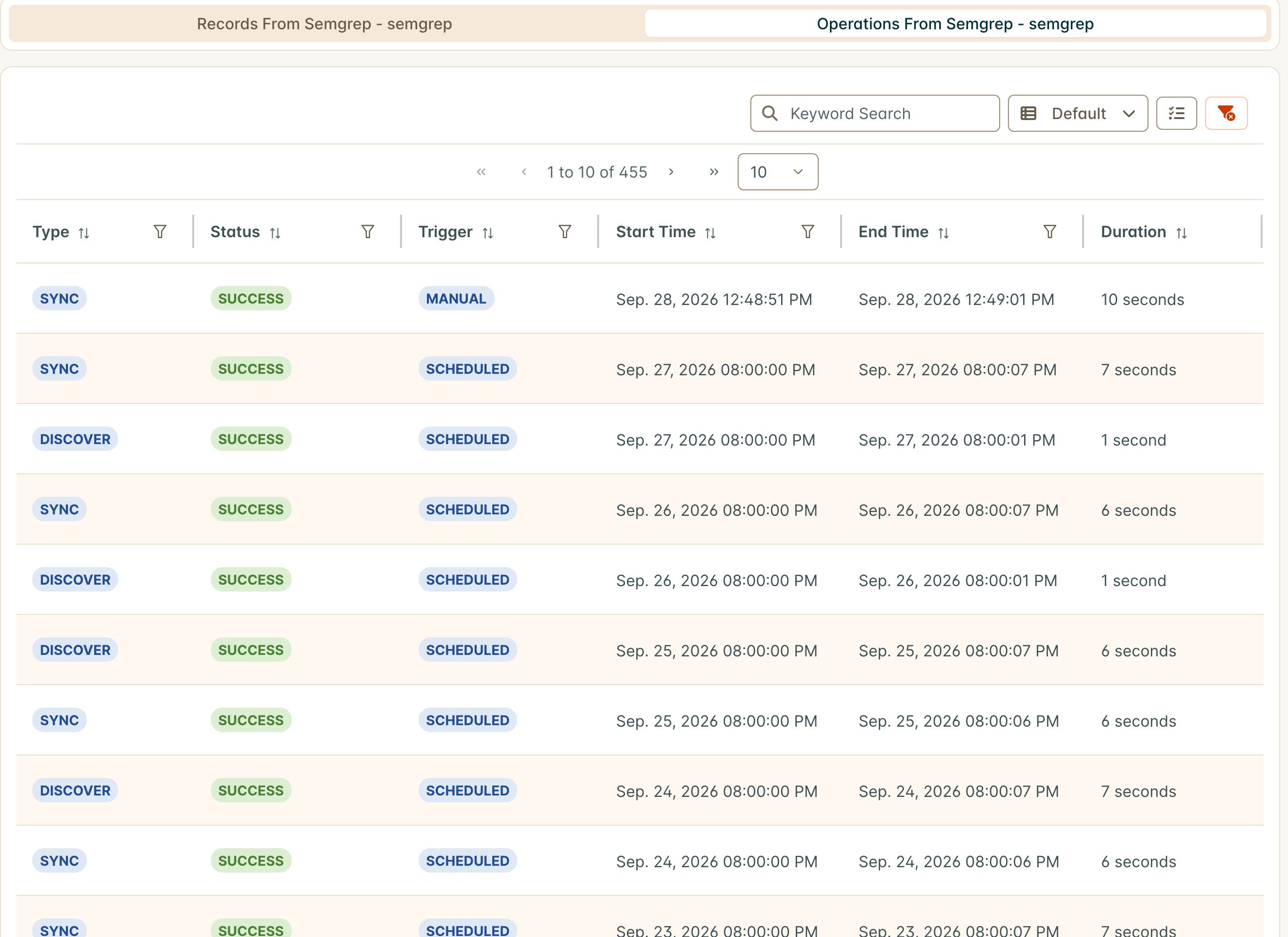
Each entry on the Operations Page’s table is a record of an operation event, with the following traits:
- Type describes whether the event was a Sync or a Discover operation.
- Status describes how the event went: Success, Error or Timeout once it has finished, or Pending while it is still running. The Status filter offers all four.
- Trigger describes how the event was triggered - was it a Scheduled operation which ran automatically, or a Manual operation which was triggered by a DefectDojo user?
- The Start & End Time of each operation is recorded here, along with the Duration.
When the next run is scheduled
The Connector’s tile on the Upstream Connectors page and its Manage Records and Operations page show when the next Discover and Sync are scheduled, in your browser’s time zone: Next discovery scheduled for and Next sync scheduled for on the tile, and each one under the card it updates (Sync under Mapped Records, Discover under Unmapped Records).
The time comes from the Connector’s schedule, so it says when the run is scheduled, not that it has started. A scheduled run can start a little later than that while other Connectors’ runs finish. While the tile shows Sync Stalled or Discovery Stalled, the next run is not shown, because the schedule cannot promise it. If you would rather not wait for the next scheduled run, use Run Discover Manually or run a Sync from the Mapped Records card.
When a Connector runs but imports nothing
An operation that succeeds is not the same as an operation that found something. If the account you connected cannot see any data in the tool, Discover completes normally and finds nothing to create, so the Connector reports success while importing no Findings.
The Upstream Connectors page flags this on the Connector’s tile:
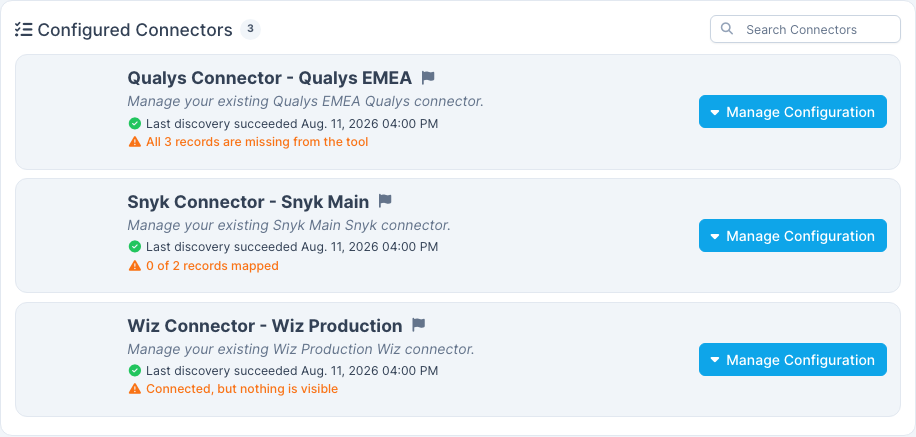
- Connected, but Nothing Visible means the last operation succeeded and the tool reported no data at all for these credentials. This almost always means the account is missing a grant in the tool rather than in DefectDojo. Hover the warning to see what to grant for that specific tool.
- All n Records Missing From the Tool means the Connector previously saw data and no longer does. Records that disappear from the tool are kept and marked Missing rather than deleted, so your mappings survive. Common causes are a revoked permission, a rotated credential with a narrower scope, or projects deleted in the tool.
Both warnings clear on their own. Once the tool reports the data again, the next Discover restores the records to Good, your existing mappings are reused, and Sync resumes importing. You do not need to recreate the Connector. To check a fix immediately rather than waiting for the next scheduled run, use Run Discover Manually.
Zero Results
A Connector can also keep its records and keep syncing successfully while every Sync imports nothing. The tile shows an orange Zero Results: n Runs chip when every actively mapped record has returned zero Findings for at least two Syncs in a row, after importing Findings at some point in the previous 30 days. Hover the chip to see when the run of empty Syncs began.
A few things keep the chip honest:
- Each scan type of a record is counted on its own, because each one syncs separately. A scan type that has not imported anything in the last 30 days is treated as a clean project, not a failure, and does not count toward the chip.
- One record, or one scan type, that still imports Findings is enough to keep the chip off: an empty project among busy ones is normal.
- A single empty Sync is not reported. Two in a row is.
The chip clears on the next Sync that imports anything. The usual causes are the same as for missing records: a credential whose scope was narrowed, or a filter in the tool that now excludes everything.
With the Ingestion Health feature turned on, a Connector that has a baseline shows how many Findings it usually returns in place of the chip, and the quiet period can be acknowledged with a reason. See Ingestion Health.
Discover Operations
The first step a DefectDojo Connector needs to take is to Discover your tool’s environment to see how you’re organizing your scan data.
Let’s say you have a BurpSuite tool, which is set up to scan five different repositories for vulnerabilities. Your Connector will take note of this organizational structure and set up Records to help you translate those separate repositories into DefectDojos Asset/Engagement/Test hierarchy.
Creating New Records
Each time your Connector runs a Discover operation, it will look for new Vendor-Equivalent-Products (VEPs). DefectDojo looks at the way the Vendor tool is set up and will create Records of VEPs based on how your tool is organized.
Run Discover Manually
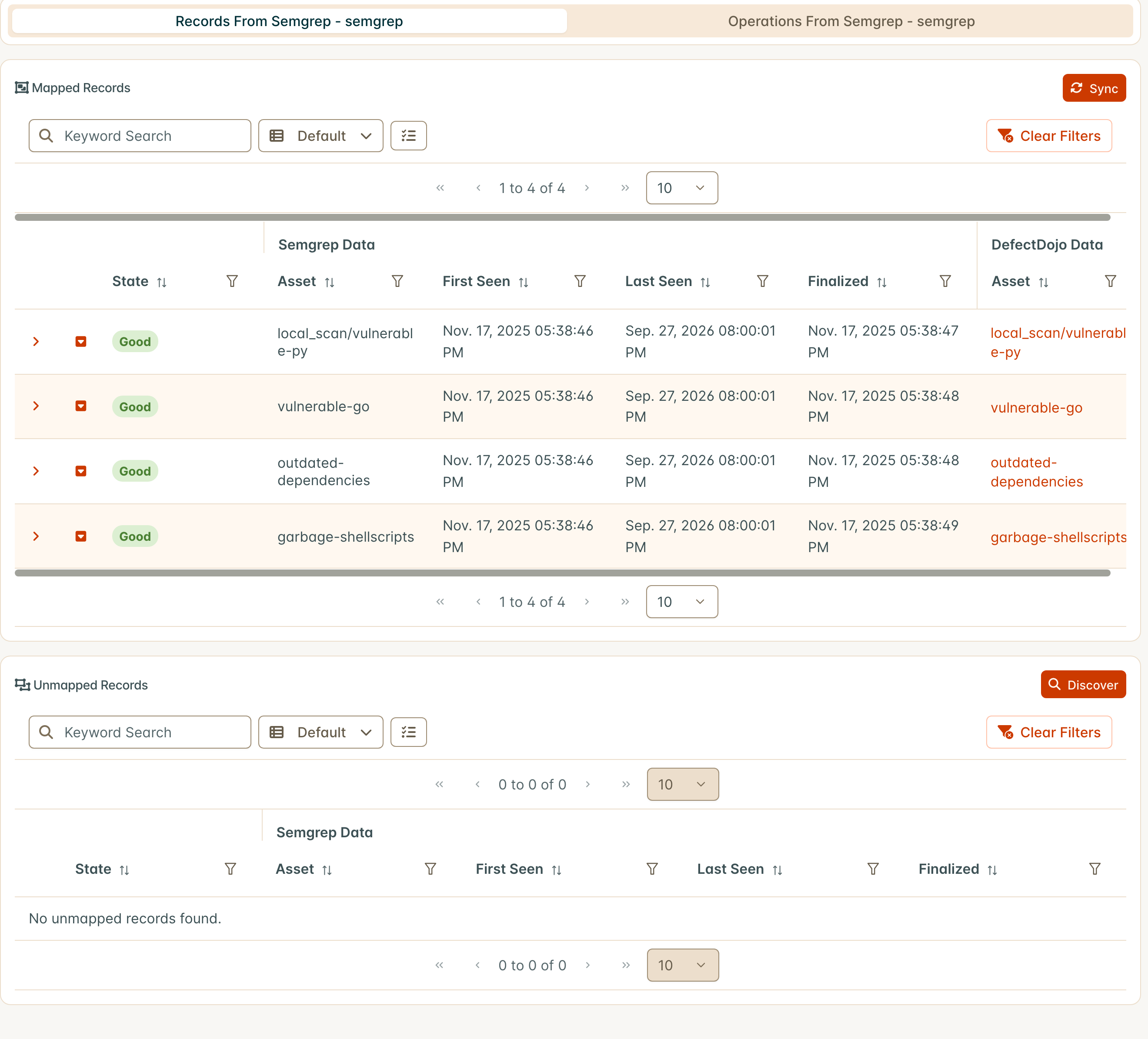
Discover operations will automatically run on a regular basis, but they can also be run manually. If you’re setting up this Connector for the first time, you can click the Discover button next to the Unmapped Records header. Discover runs in the background: when it finishes, the page reloads its Records and Operations on its own, and your initial list of Records appears.
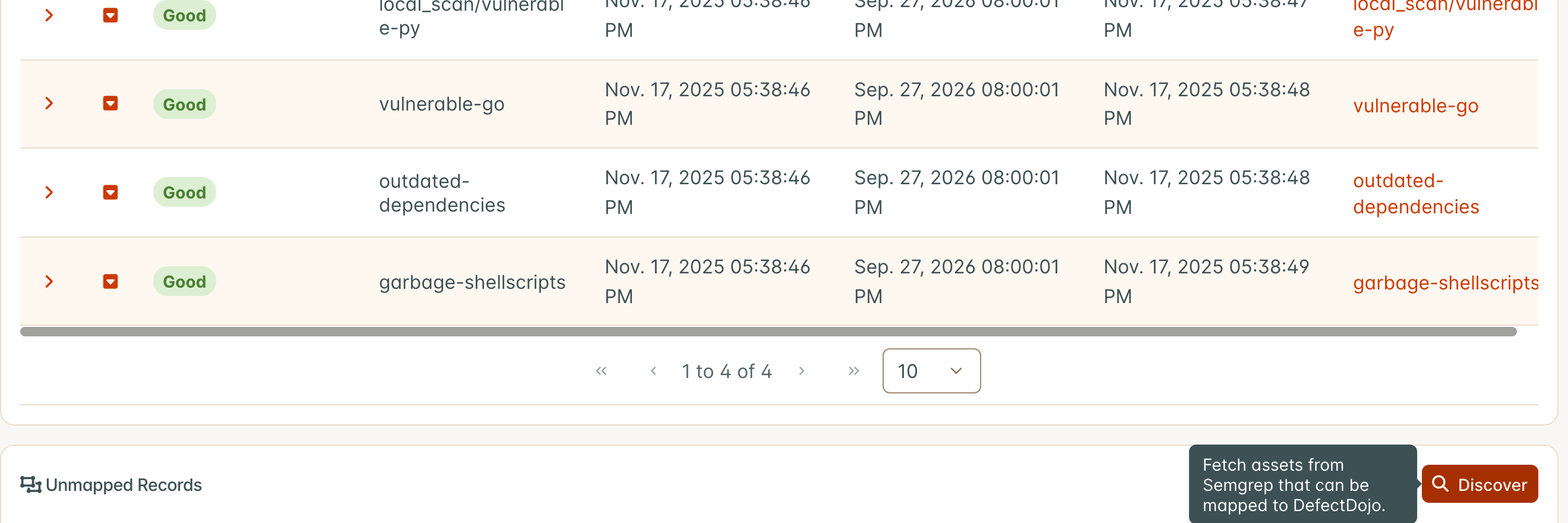
To learn more about working with records and setting up mappings to Assets, see our guide to Managing Records.
Sync Operations
On a daily basis, DefectDojo will look at each Mapped Record for new scan data. DefectDojo will then run a Reimport, which compares the state of existing scan data to an incoming report.
Where is vulnerability data stored?
- DefectDojo will create an Engagement nested under the Asset specified in the Record Mapping. This Engagement will be called Global Connectors.
- The Global Connectors Engagement will track each separate Connector associated with the Asset as a Test.
- On this sync, and each subsequent sync, the Test will store each vulnerability found by the tool as a Finding.
How Sync handles new vulnerability data
Whenever Sync runs, it will compare the latest scan data against the existing list of Findings for changes.
- If there are new Findings detected, they will be added to the Test as new Findings.
- If there are any Findings which aren’t detected in the latest scan, they will be marked as Inactive in the Test.
To learn more about Assets, Engagements, Tests and Findings, see our Asset Hierarchy Overview.
Running Sync Manually
To have DefectDojo run a Sync operation off-schedule:
- Navigate to the Manage Records & Operations page for the connector you want to use. From the Upstream Connectors page, click the Manage Configuration drop-down menu on the Connector you wish to work with, and select Manage Records & Operations.
- From this page, click the Sync button. This button is located next to the Mapped Records header.
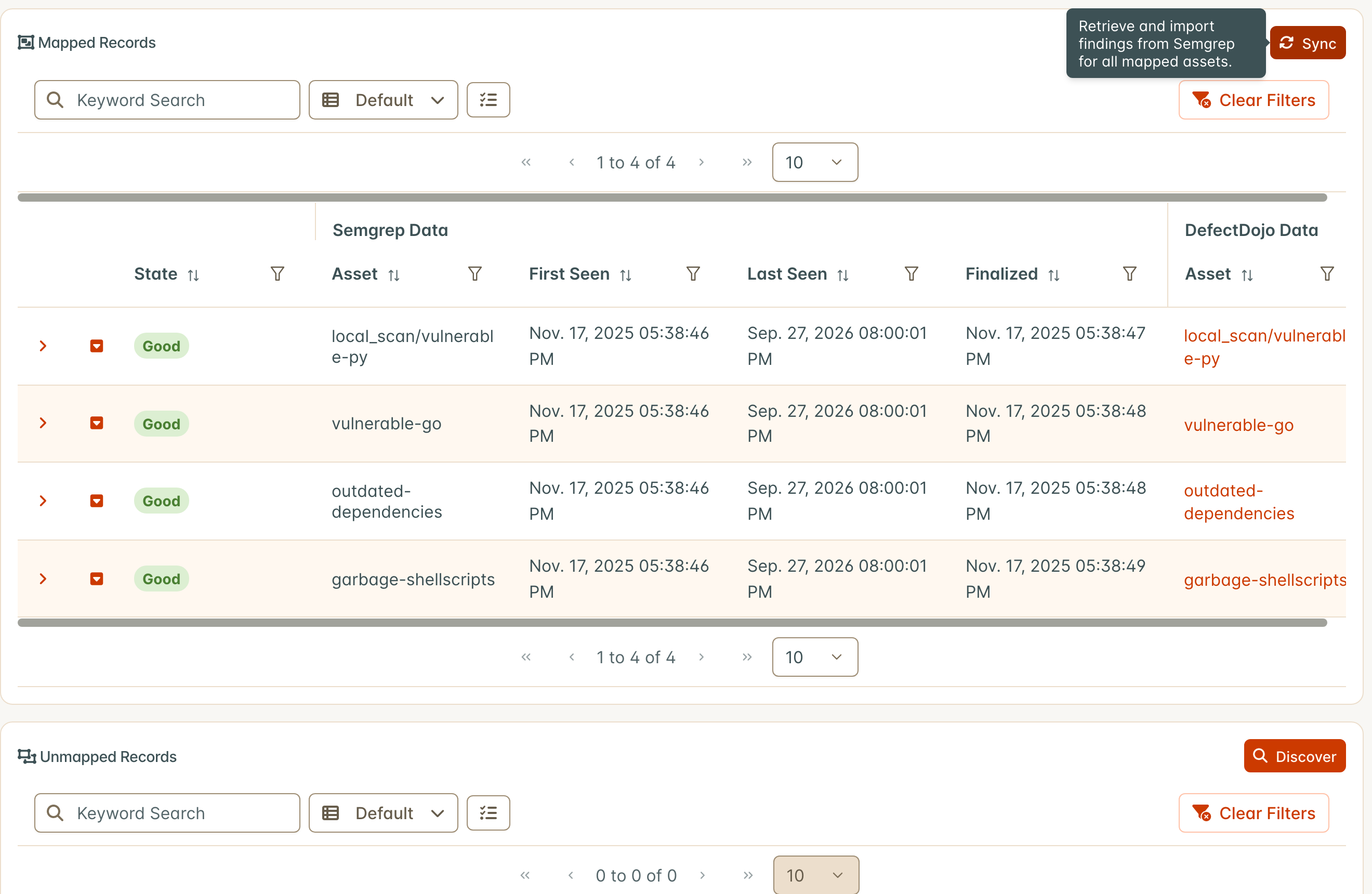
Sync runs in the background. When it finishes, the page reloads its Records and Operations on its own.
The connectors service runs one operation at a time across all Connectors, so a manual run can wait while another Connector’s operation finishes. The page keeps checking for up to two hours. If the run has still not started by then, a message says so; refresh the page later to see its results. Operations that start on their schedule while the page is open appear the next time the page loads.
When a manual run is refused
If DefectDojo cannot start a manual Discover or Sync, a message says why. The two most common reasons are:
- Request was throttled: a user can start at most three Discover runs and three Sync runs a minute, across all Connectors. The message says how many seconds to wait before trying again.
- The connectors service could not be reached: the service that runs Connector operations is not answering. Try again in a few minutes. If the message persists, ask an administrator to check that the connectors service is running.
Getting told when a Connector stops working
The Operations Page is a record, not an alarm. If you do not want to check it, turn on the Connector Health Warning notification, which messages you when a Connector’s runs start failing, when its tool stops returning the records it used to return, and when its Syncs start returning zero results.
Set it on your notification settings page, under Connections. See Connector Health Notifications for what each message covers and how often it arrives.