

🎨 Pro UI Changes (Pro)
DefectDojo Pro has its own user interface, built in Vue.js and separate from the open-source UI. It is the only interface in Pro: the Classic UI that earlier releases offered alongside it has been retired.
The Pro UI gives you:
- An interface built for large datasets.
- The Command Center home page and the Insights dashboards.
- Every Pro feature, including Upstream and Downstream Connectors, the Triage Engine, Sensei and the Universal Importer.
- Global search (Cmd+K / Ctrl+K), saved table layouts, light and dark themes, and guided walkthroughs of each area.
The Classic UI has been retired
- Pro 3.3.0 removed the user-menu switch between the Pro UI and the Classic UI, along with the Open in Classic UI links.
- Pro 3.3.300 retired the Classic UI. A link or bookmark to a Classic page now opens the matching Pro page. If there is no matching page, you see a “not found” page. Forms submitted to a Classic page are refused, so scripts that post to Classic UI URLs need to move to the API.
No pages in Pro open in the Classic UI.
The home page
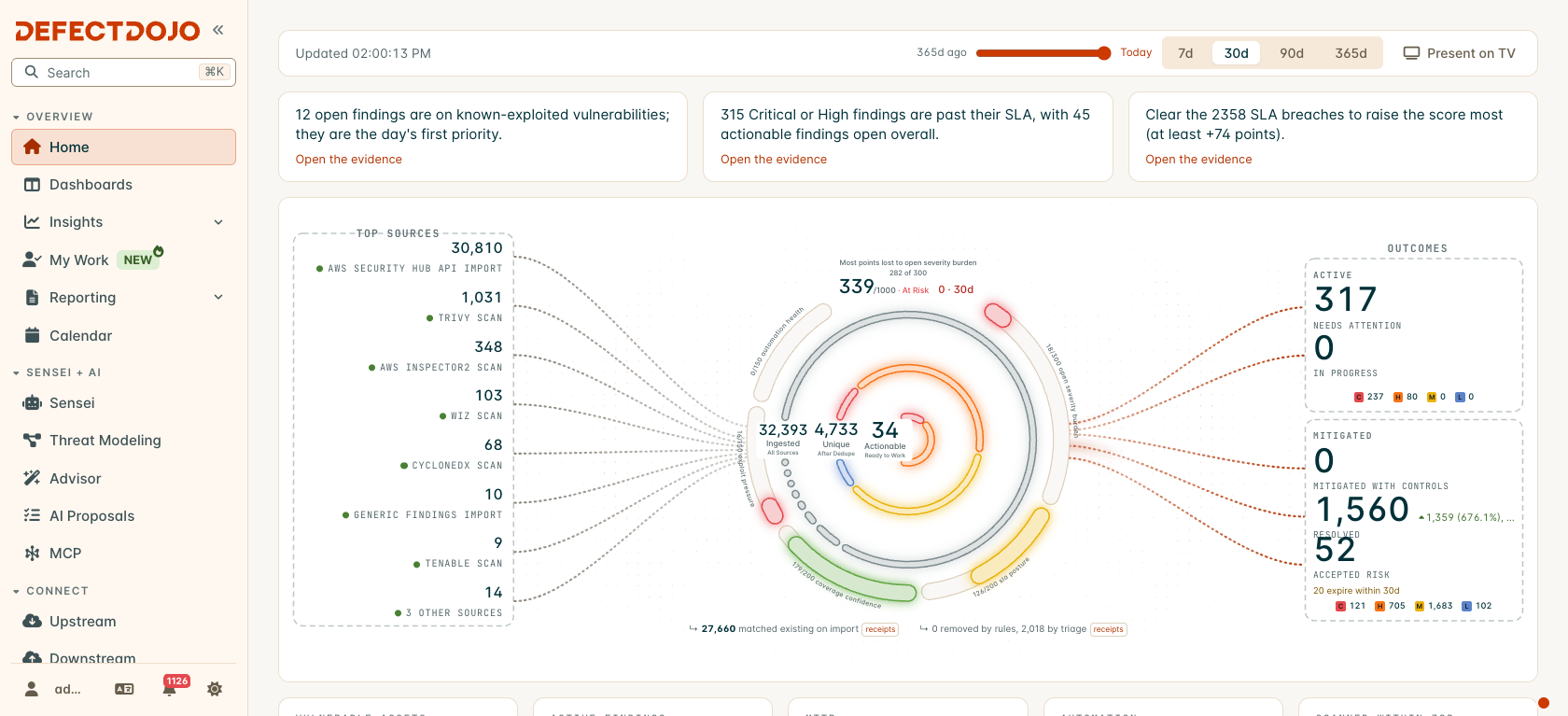
After you log in, you land on the Command Center. It shows your security program on one screen:
- A short brief at the top with the day’s most important facts, each linking to the Findings behind it.
- Top sources: the tools your Findings come from.
- How many Findings were ingested, how many were unique after deduplication, and how many are actionable, inside your Posture Score (0 to 1000).
- Outcomes: what needs attention, what is in progress, and what has been mitigated, resolved or risk-accepted.
- A strip of headline numbers: vulnerable Assets, active Findings, mean time to remediate, how much the automation handled, and Assets scanned in the last 30 days.
The time controls at the top change the window (7, 30, 90 or 365 days) or show the page as it was on an earlier day. Present on TV runs it as a full-screen display.
Navigation
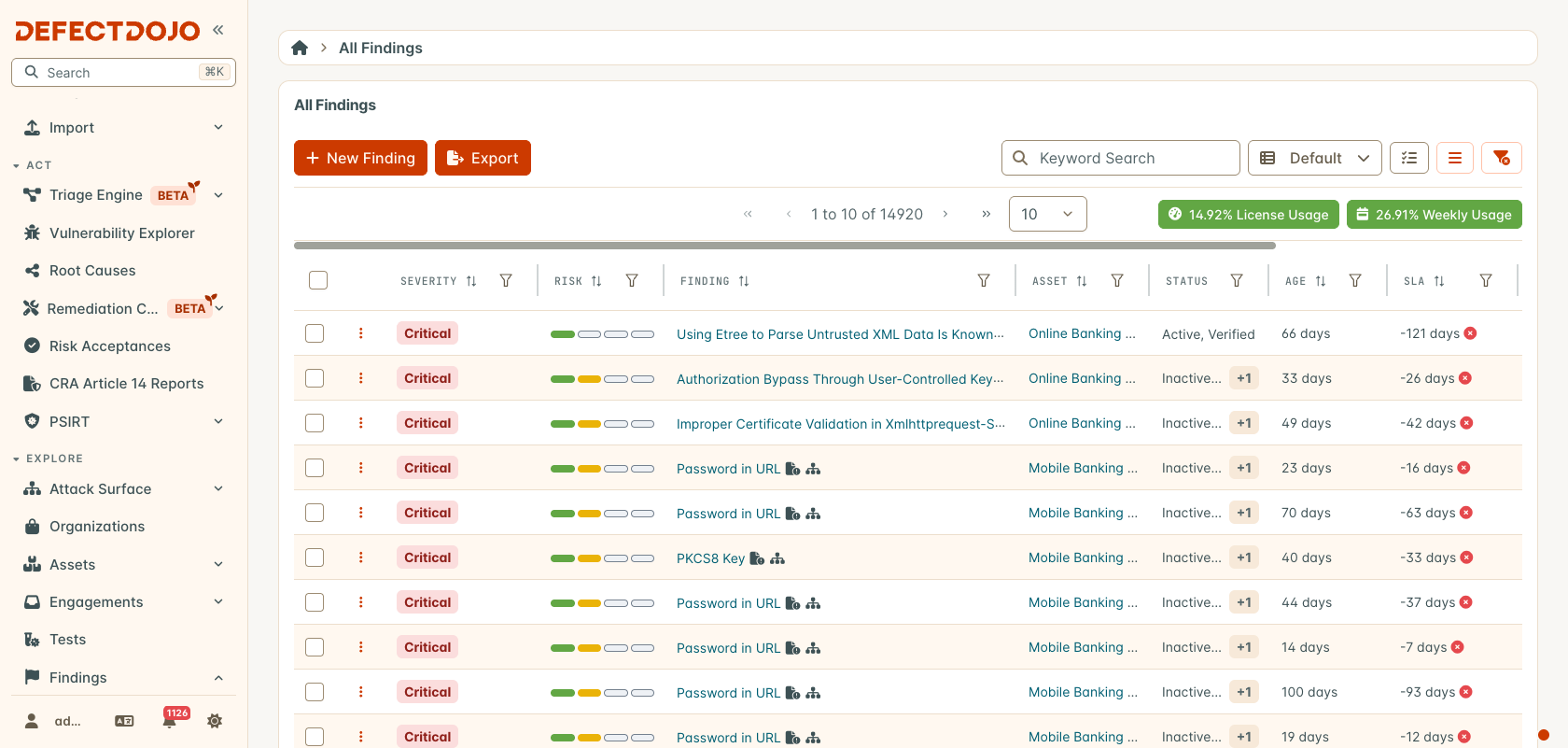
The sidebar groups every page into six sections. Which entries you see depends on your permissions, your license and which Feature Flags are on. The screenshot above, for example, comes from an instance with the Remediation Center, PSIRT and CRA reporting switched on.
Overview: the Home page, the Dashboard (Dashboards once customizable dashboards are on), the five Insights views (Executive, Priority, Program, Remediation and Tool), My Work, Reporting (generated reports, templates, blocks and themes) and the Calendar.
Sensei + AI: Sensei, Threat Modeling, Sensei Advisor, AI Proposals (verdicts left by the Triage Engine’s AI steps) and the MCP server.
Connect: everything that moves data in or out.
- Upstream and Downstream Connectors.
- The older Jira integration, marked Legacy.
- Authorization: SSO providers, login settings and MFA settings.
- Diagnostics.
- Import: the Add Findings form, Smart Upload and its unassigned Findings, the Universal Importer downloads and the Universal Parser.
Act: where the work happens.
- The Triage Engine: rules, runs, deliveries, webhook receivers, and the older Rules Engine as Classic Rules.
- Vulnerability Explorer and Root Causes.
- The Remediation Center and Risk Acceptances.
- When licensed or switched on: compliance reporting (PCI DSS and CRA Article 14) and PSIRT.
Explore: the records themselves.
- The Attack Surface: Endpoints, or Locations once they are enabled, plus Components.
- Organizations, Assets (including the Asset Hierarchy), Engagements, Tests and Findings.
- Surveys.
Settings: administration, in eight groups.
- The groups are System, UI Defaults, Users & Permissions, Finding Workflow, Configuration, Notifications, Operations, and License & Support.
- All Settings lists and searches every settings page.
- Superusers also see Feature Flags at the top of this section.
The bottom of the sidebar holds your account row (your username and email, with the alerts bell beside them) and, where they apply, a What’s New button and a button to switch between Production and the Sandbox. Ask Sensei is an Ask button in the sidebar’s search field. The account menu has your profile, your API token, the API documentation, the external tools downloads, links to this documentation, your language and the light/dark theme switch, and Logout.
See The Sidebar Menu for searching, pinning and collapsing the sidebar.
Tables
Most lists in the Pro UI (Findings, Assets, Engagements and the rest) share one table. Customizing Tables covers it in full. In short:
- Filter bar: add filters with Add Filter, and choose whether a row must match all of them or any of them. Each column header also has its own filter menu with a Match Mode.
- Columns: choose which columns are shown. You can drag columns to reorder them and drag their edges to resize them.
- Preferences: save a column layout, filters and sort order under a name. You can share it with your team or make it the default for everyone.
- Grid view: the Findings list can show cards instead of rows.
- Export: download the rows on screen as CSV, Excel or JSON, or run a quick export.
Insights dashboards
The Insights group in Overview holds five dashboards. Each one can be filtered and exported to PDF.
- Executive Insights shows the current state of your Organizations and Assets.
- Priority Insights shows the most critical Findings, filtered by time range, Organization, Asset and tag.
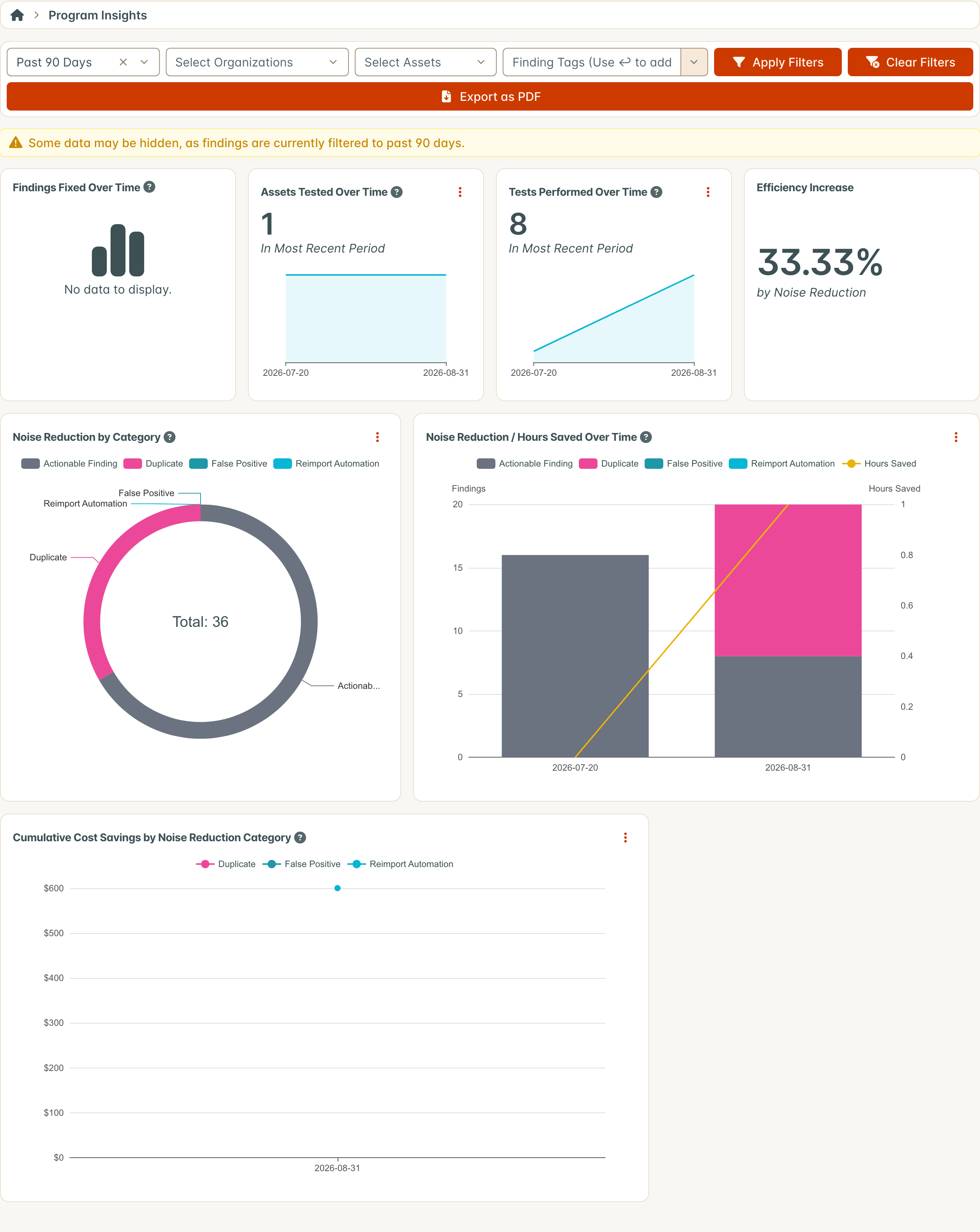
- Program Insights shows how effective your security team is, and the time saved by separating duplicates and false positives from actionable Findings.
- Remediation Insights shows how well your team remediates Findings.
- Tool Insights shows how well your tools (and Upstream Connectors) detect and report vulnerabilities.
For dashboards you build yourself, see Customizable Dashboards. An administrator switches them on under Feature Flags.