

Set up an additional Cloud instance (Pro)
The process for adding a second Cloud instance is more or less the same as adding your first instance. This guide assumes you’ve already set up your initial DefectDojo server, and have an agreement with our Sales team to add another instance.
If you have not already requested an additional Cloud instance, please contact info@defectdojo.com before proceeding.
Step 1: Open the New Subscription process
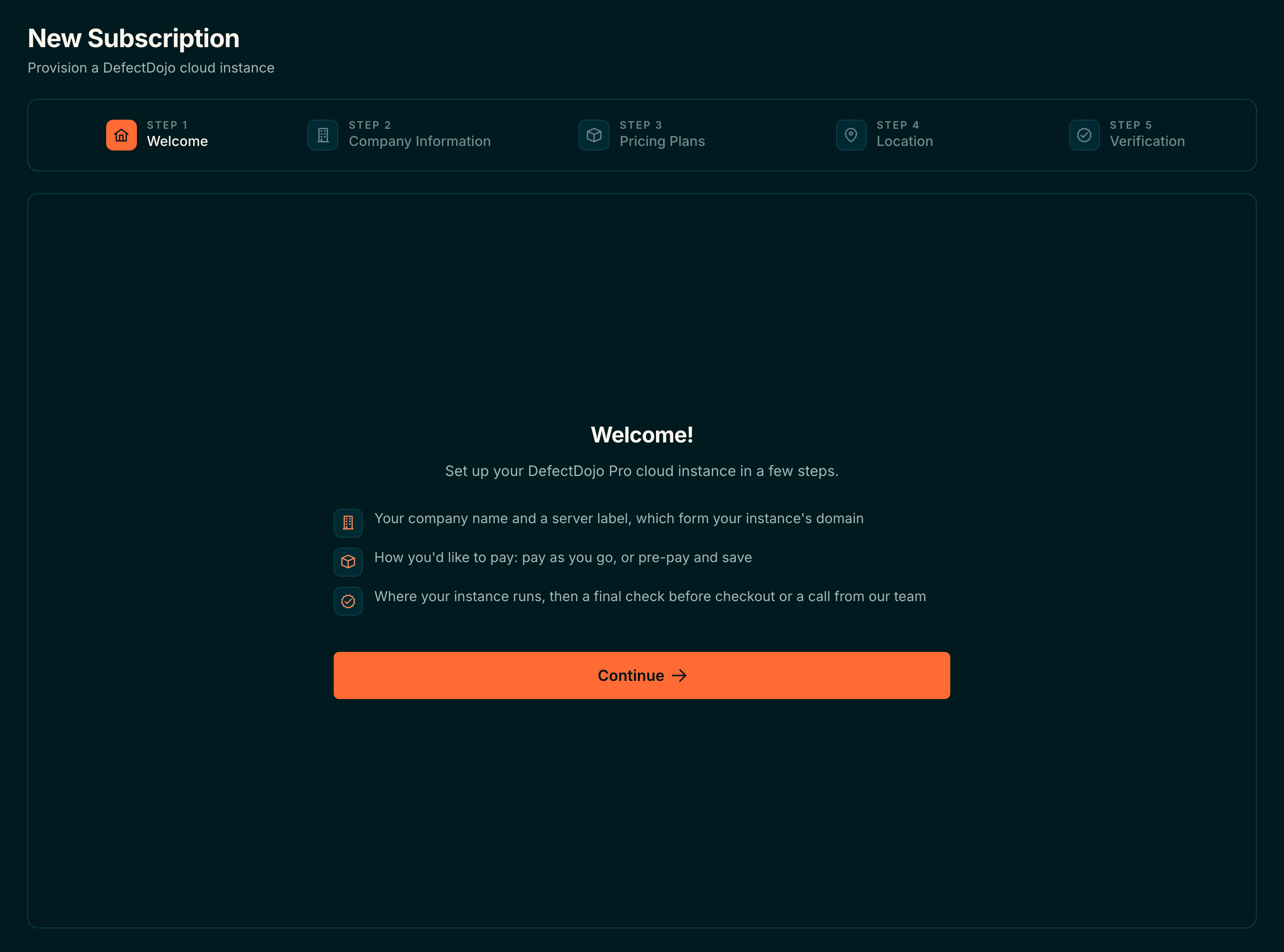
You can start this process from the following link: https://cloud.defectdojo.com/onboarding, or by selecting New Subscription in the Cloud Manager sidebar (cloud.defectdojo.com). The first step summarises what you will be asked for; select Continue.
Step 2: Set your Server Label
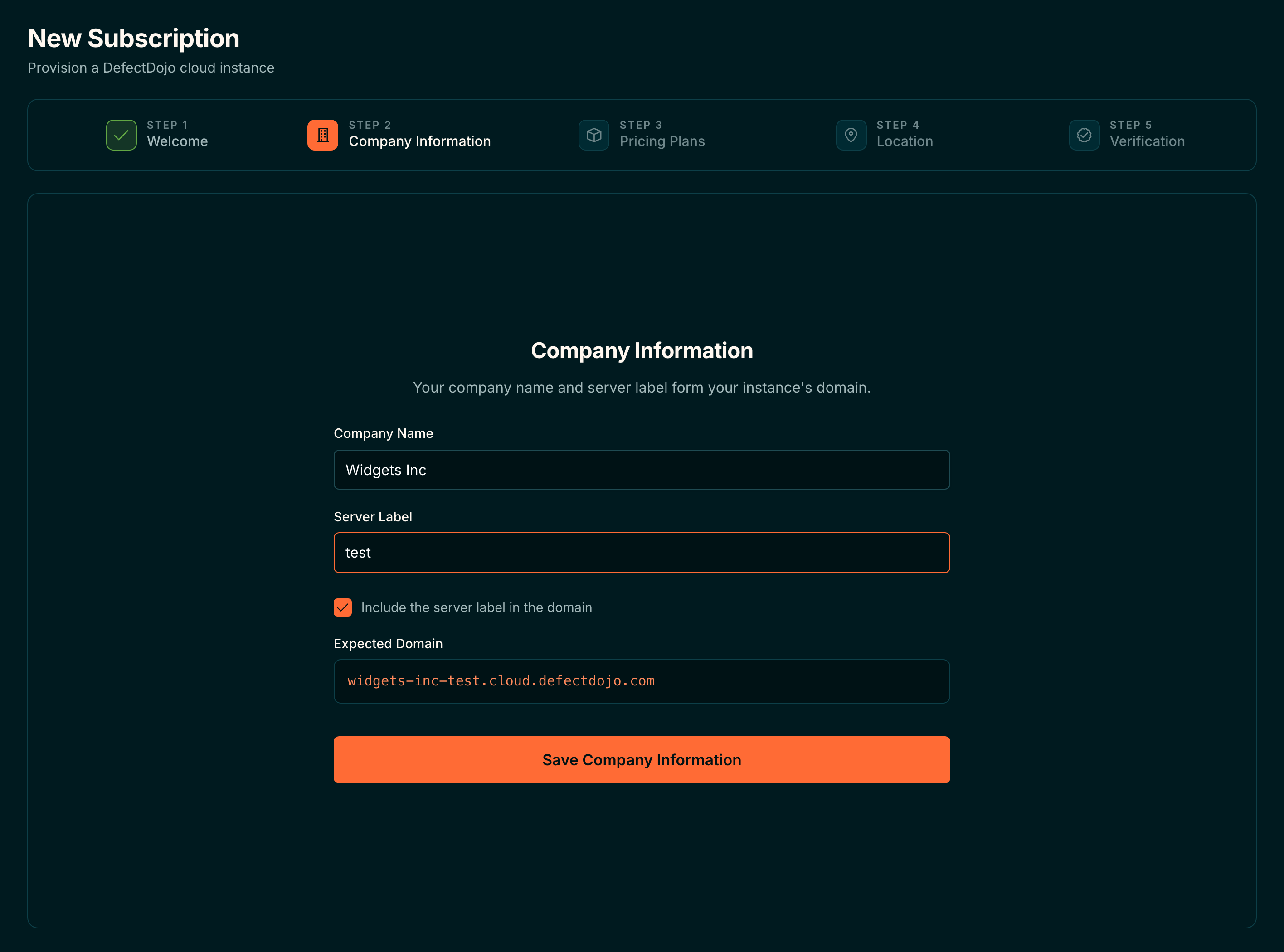
Enter your company’s Company Name and the Server Label you want to use with the new instance. Together they form the domain of your instance, which is previewed under Expected Domain.
Keep your company name the same as before, but choose a new Server Label and leave Include the server label in the domain checked, so that you can easily differentiate between your servers. Select Save Company Information to continue.
Step 3: Choose a Pricing Plan
Choose between Pay As You Go, billed monthly on usage with no annual commitment, and Pre-Pay & Save, an annual plan sized to the number of findings you process each year. At the end of the process you’ll be put in touch with our Sales team, who can accurately quote your new server.
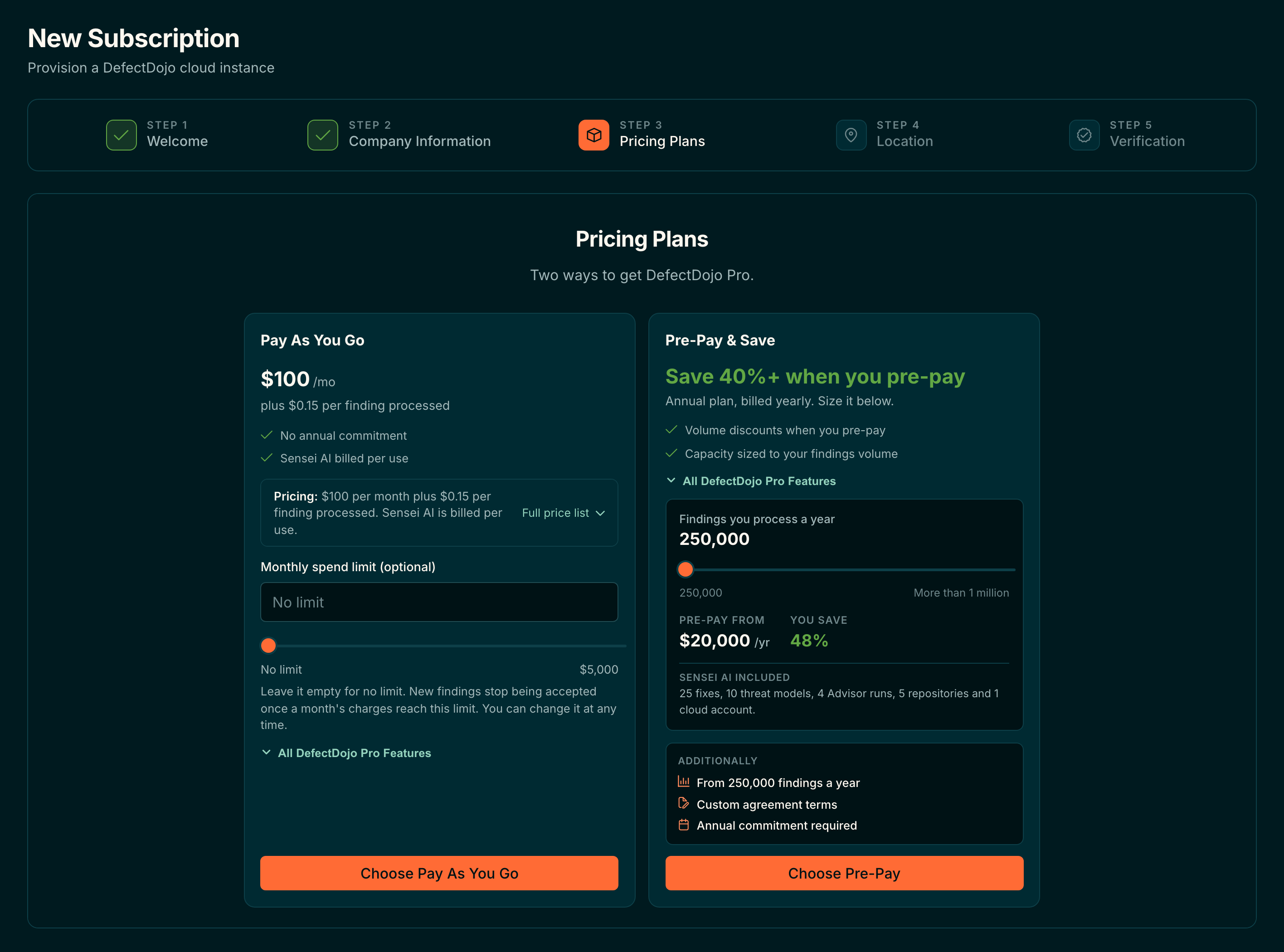
A second server may not require the same capacity as your ‘main’ instance, but this will depend on your team’s technical requirements.
Step 4: Select a Server Location
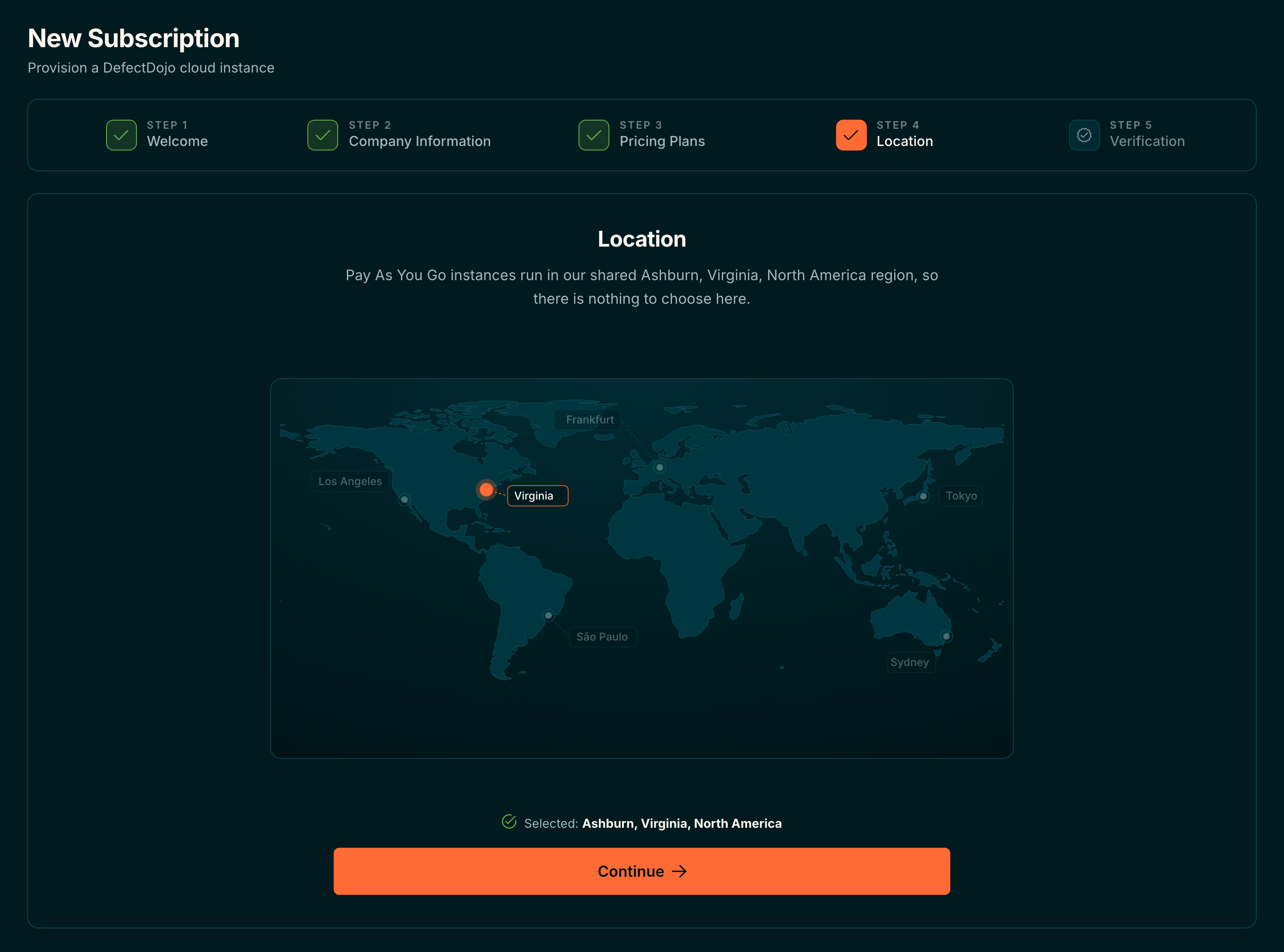
On a Pre-Pay plan, choose the region where the server will be hosted by selecting a pin on the map: Tokyo, Sydney, Frankfurt, Los Angeles, Virginia or São Paulo. As before, we recommend selecting the region geographically closest to your users to reduce latency. Pay As You Go instances run in our shared Virginia region, so there is nothing to choose.
Step 5: Review and Submit your Request
We’ll prompt you to look over your request one more time. Once submitted, only Firewall rules can be changed by your team without assistance from Support.
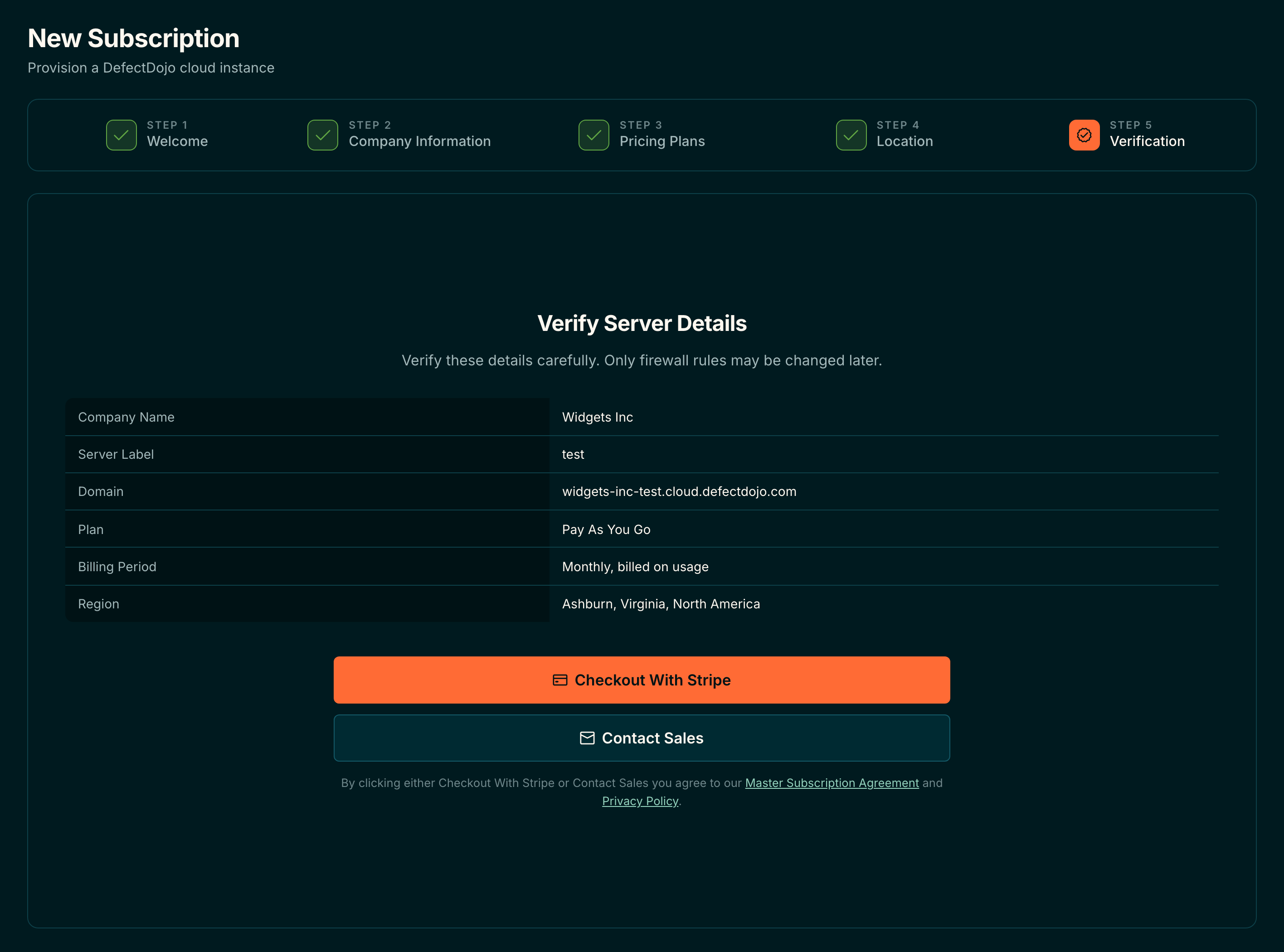
Proceeding with either button means accepting DefectDojo’s Master Subscription Agreement. You can proceed to Checkout With Stripe, or if you have an existing billing arrangement you can select Contact Sales.
Our Support team will reach out to you with login credentials when your server has been approved and provisioned.
Configure your Firewall Rules
New instances start open to the public internet. Once the instance has been provisioned, set the IP ranges that may reach it from the subscription’s Firewall rules section in the Cloud Manager, as described in Using the Cloud Manager. If you wish, these rules can be different from the rules on your main DefectDojo instance.