

Using the Cloud Manager (Pro)
The Cloud Manager at https://cloud.defectdojo.com is where you request DefectDojo Cloud instances, manage the subscriptions you own or are linked to, download companion tools, contact Support, and manage your own Cloud Manager account.
The sidebar has two groups:
- Subscriptions: New Subscription, Subscriptions and Billing.
- Resources: Tools, Documentation and Contact support.
Your name at the bottom of the sidebar opens your account settings. Next to it are a light / dark theme toggle and Log out.
New Subscription
https://cloud.defectdojo.com/onboarding
This page starts the guided process for requesting a new, or additional, Cloud instance from DefectDojo. The steps are described in Contact Sales.
Subscriptions
https://cloud.defectdojo.com/subscriptions
The Subscriptions page lists every Cloud instance you own or are linked to, with its host name, plan, region and status. A subscription that has been requested but not yet provisioned shows an In progress tag.
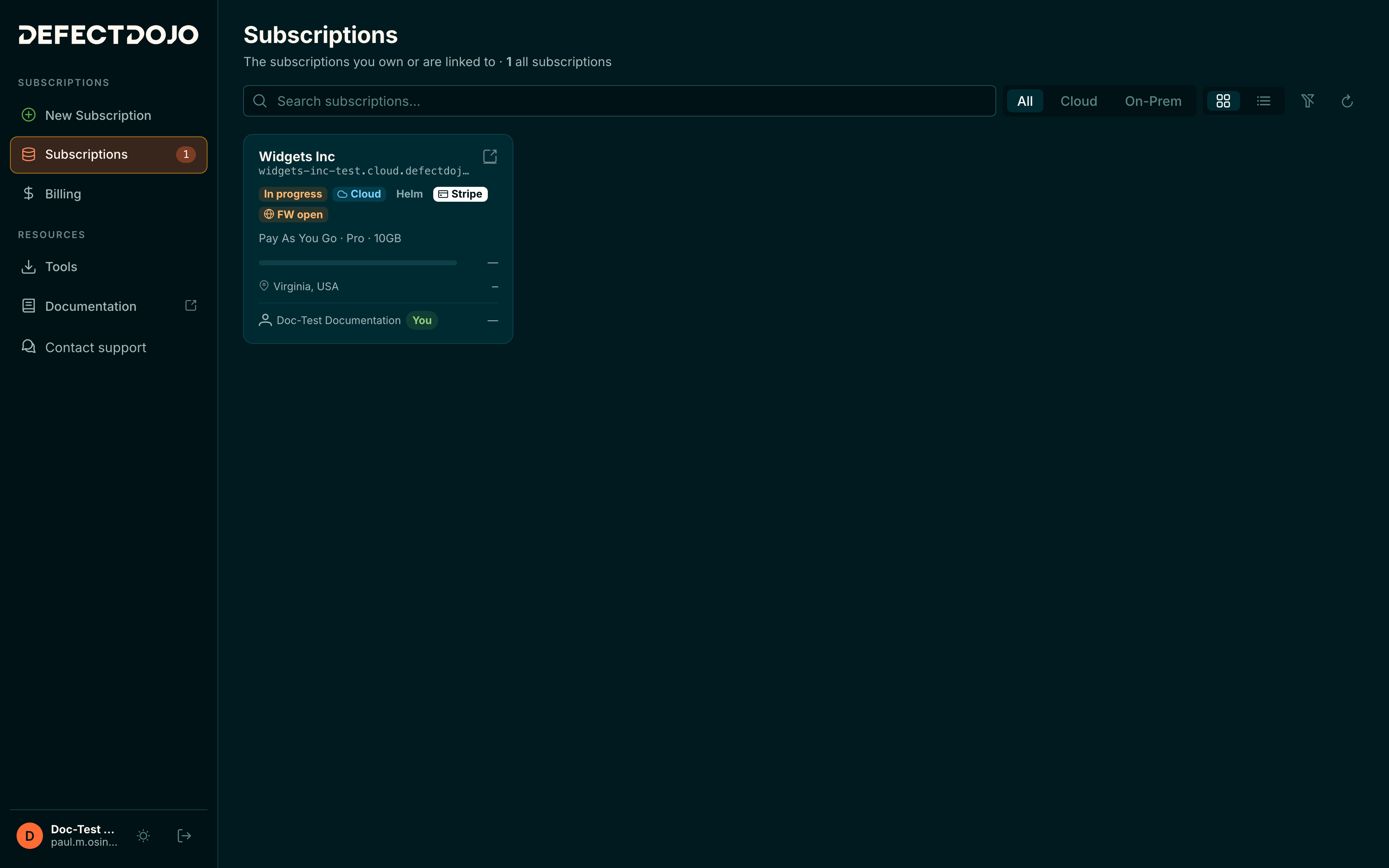
Select a subscription to open its details: the host, plan, deployment type, version and expiration, usage metrics, the Firewall rules in force, and the users who can manage it under Users & access. Open full page shows the same details on their own page.
Changing your Firewall Settings
Firewall rules are the one part of a subscription your team can change after the instance has been provisioned. The Firewall rules section lists each allowed range as a CIDR block with a label. A single 0.0.0.0/0 rule means the instance is open to the public internet, which the subscription list marks with a FW open tag.
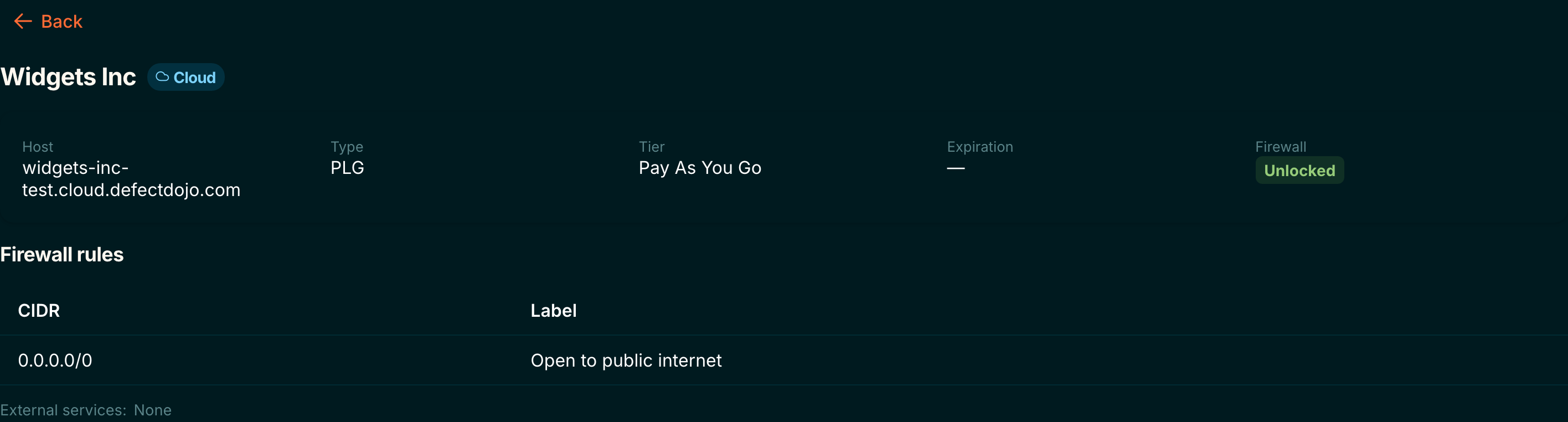
Add a rule for each network that should be able to reach your instance, for example your office egress address or your VPN’s public address, and give it a label you will recognise later. External services that DefectDojo should accept connections from, such as GitHub or Jira Cloud, are listed under the rules as External services.
Rules cannot be edited while a subscription is still being provisioned. If you cannot change a rule on an active subscription, contact Support.
Adding additional users to the Cloud Manager
If more than one person should be able to manage your subscription, add them under Users & access on the subscription’s details. Each person needs their own Cloud Manager account at cloud.defectdojo.com first; having an account on your DefectDojo instance is not sufficient.
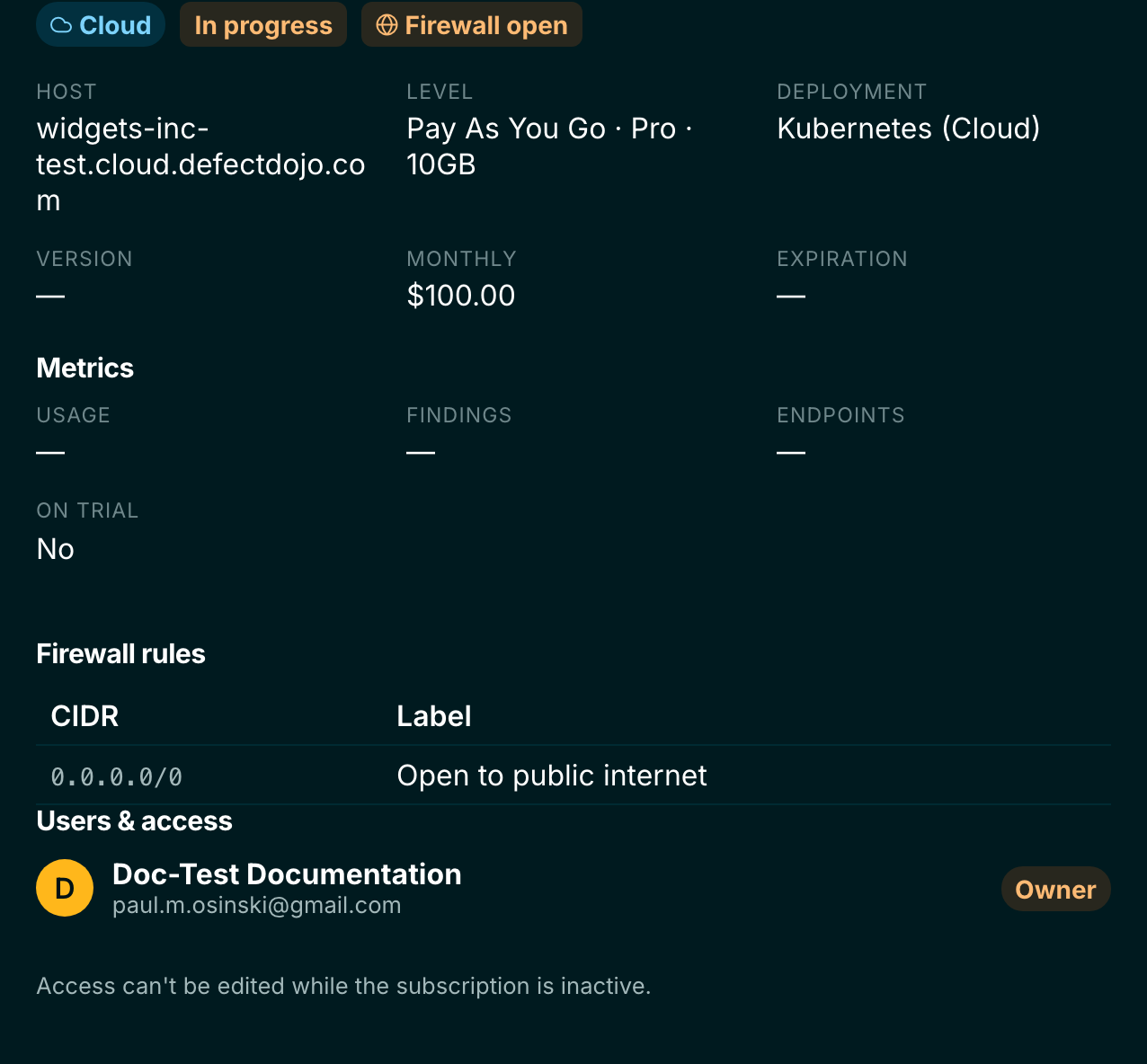
The owner of the subscription is listed first. Add a user by the email address of their Cloud Manager account, and they will see the subscription on their own Subscriptions page and be able to manage it. Access cannot be edited while the subscription is inactive.
Billing
https://cloud.defectdojo.com/billing
The Billing page lists your subscriptions with View, Manage and Cancel actions, along with the billing account and invoices for subscriptions paid through Stripe. Subscriptions arranged through our Sales team may show no billing account here.
Contact support
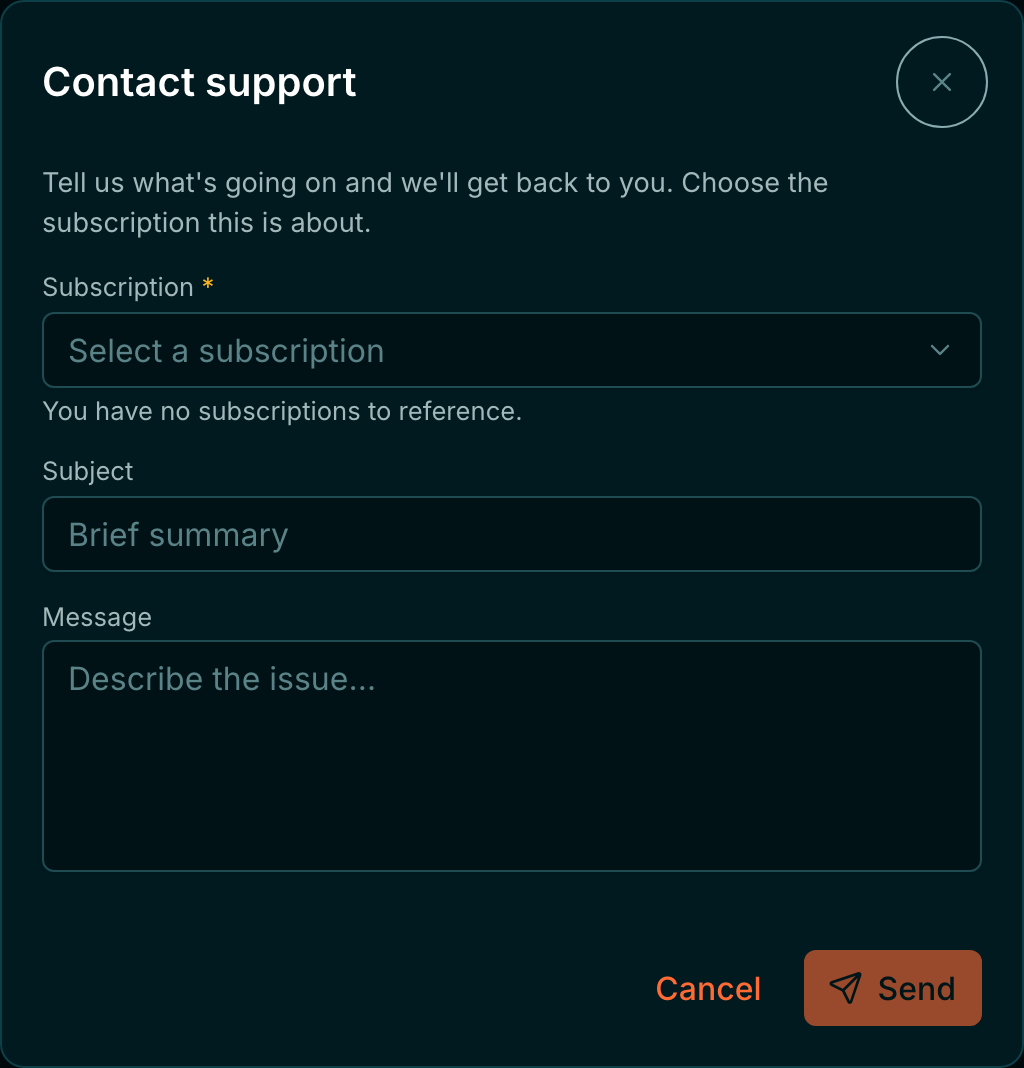
Contact support in the sidebar opens a dialog. Choose the subscription the request is about, add a subject and a message, and select Send. This reaches the same Support team as support@defectdojo.com.
Tools
https://cloud.defectdojo.com/tools
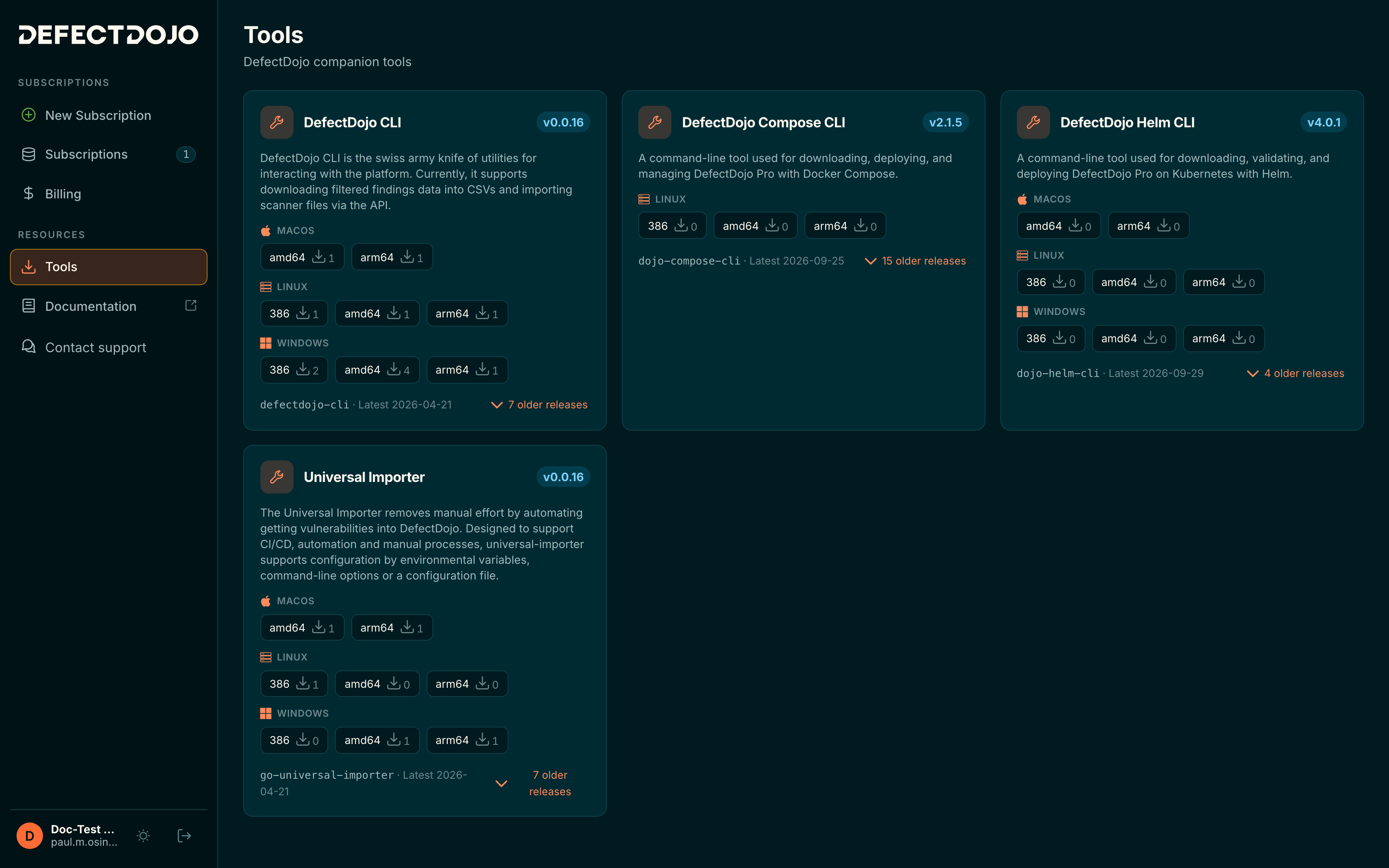
The Tools page is one of the places where you can download DefectDojo’s companion tools: the DefectDojo CLI, the DefectDojo Compose CLI and DefectDojo Helm CLI used to deploy DefectDojo Pro on-premise, and the Universal Importer. Each tool offers a download per operating system and architecture, and lists its older releases. For more information about the import tools, see the External Tools documentation.
Account Settings
https://cloud.defectdojo.com/account
Open your account settings from your name at the bottom of the sidebar. The page has three sections:
- Profile holds your first name, last name and username. Your email address is shown but cannot be changed here.
- Two-factor authentication adds a time-based code from an authenticator app to your Cloud Manager sign-in.
- Connected accounts lets you link your GitHub or Google account, which you can then use to sign in instead of a username and password.
Add MFA to your Cloud Manager login
Note that this adds a second factor to your Cloud Manager login only. MFA for your DefectDojo instance is configured separately.
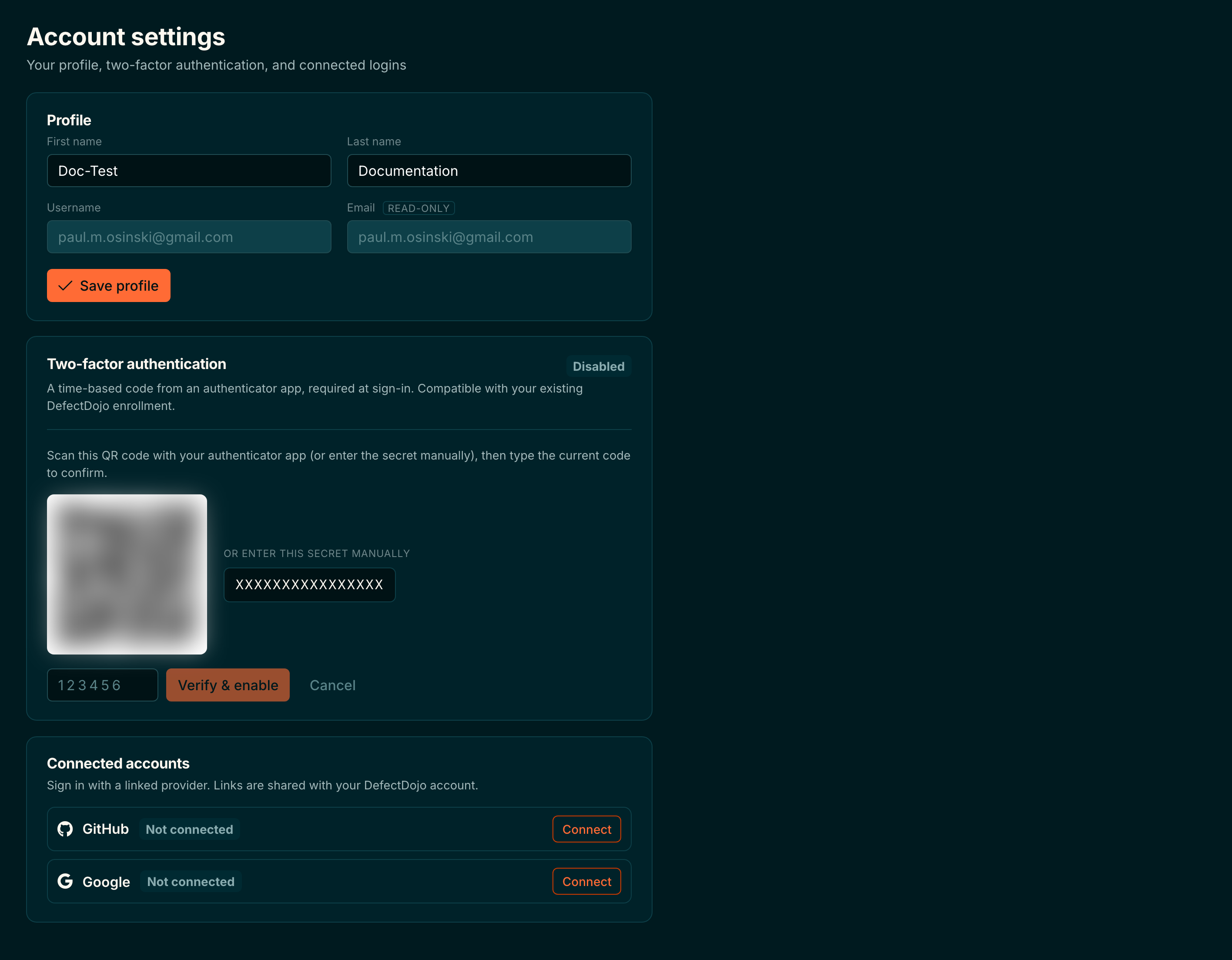
- Begin by installing an authenticator app which supports QR codes on your smartphone or computer.
- Under Two-factor authentication, select Enable 2FA.
- Scan the QR code with your authenticator app, or enter the secret shown beside it manually, and then enter the six-digit code the app provides.
- Select Verify & enable.