

Add Findings form (Pro)
If you have a brand new DefectDojo instance, the Import Scan Form is a logical first step to learn the software and set up your environment. From this form, you upload a scan file from a supported tool, which will create Findings to represent those vulnerabilities. While filling out the form, you can decide whether to:
- Store these Findings under an existing Organization / Asset / Engagement or
- Create a new Organization / Asset / Engagement to store these Findings
It’s easy to reorganize your Asset Hierarchy in DefectDojo, so it’s ok if you’re not sure how to set things up yet.
For now, it’s good to know that Engagements can store data from multiple tools, which can be useful if you’re running different tools concurrently as part of a single testing effort.
Accessing the Import Scan Form (Pro UI)
The Import Scan form can be accessed from multiple locations:
- Via Connect > Import > Add Findings on the sidebar
- From a Asset’s ‘⋮’ (horizontal dots) Menu, from a Assets Table
- From the ⚙️Gear Menu on a Asset Page
Completing the Import Scan Form
The Import Scan form will create a new Test nested under an Engagement, which will contain a unique Finding for each vulnerability contained within your scan file.
The Test will be created with a name that matches the Scan Type: e.g. a Tenable scan will be titled ‘Tenable Scan’.
Form Options
- Scan File: by clicking on the Choose button, you can select a file from your computer to upload.
- Scan Date (optional): this field starts empty. Leave it empty to keep the dates the tool wrote into the report: each Finding takes its date from the report, or today’s date if the report has none. Select a date only if you want that single date applied to every Finding from this import.
SLAs for each Finding are calculated from its date, so Findings from an older report keep their original dates and can already be past their SLA when they arrive. - Scan Type: select the tool used to create this data.
- Organization / Asset / Engagement Name: select the Organization, Asset, and Engagement Name which you want to create a new Test under. You can also create a new Organization, Asset and/or Engagement at this time if you wish to, by entering the names of the objects that you want to create.
- Environment: select an Environment that corresponds to the data you’re uploading.
- Tags: if you want to use tags to further organize your Test data, you can add Tags using this form. Type in the name of the tag you want to create, and press Enter on your keyboard to add it to the list of tags.
- Process Findings Asynchronously: this field is enabled by default, but it can be disabled if you wish. See explanation below.
Process Findings Asynchronously
When this field is enabled, DefectDojo will use a background process to populate your Test file with Findings. This allows you to continue working with DefectDojo while Findings are being created from your scan file.
When this field is disabled, DefectDojo will wait until all Findings have been successfully created before you can proceed to the next screen. This could take significant time depending on the size of your file.
This option is especially relevant when using the API to import data. If uploading data with Process Findings Asynchronously turned off, DefectDojo will not return a successful response until all Findings have been created successfully,
Optional Fields
To open Optional Fields, click the button labelled “Optional Fields +” above the Submit button
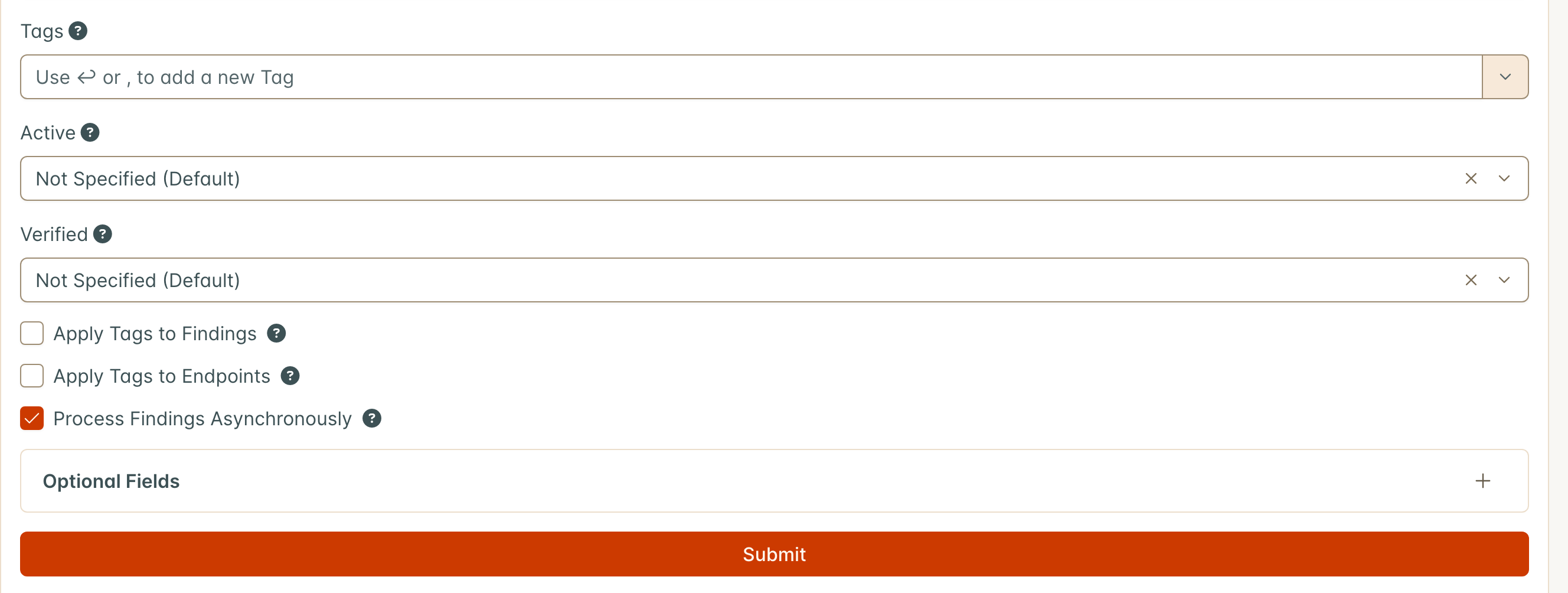
Optional Fields descriptions
- Minimum Severity: If you only want to create Findings for a particular Severity level and above, you can select the minimum Severity level here. All vulnerabilities with lower severity than this field will be ignored.
- Active: if you want to set all of the incoming Findings to either Active or Inactive, you can specify that here. Otherwise, DefectDojo will use the tool’s vulnerability data to determine whether the Finding is Active or Inactive. This option is relevant if you need your team to manually triage and verify Findings from a particular tool.
- Verified: as with Active you can set the new set of Findings to either Verified or Unverified by default. This depends on your workflow preferences. For example, if your team prefers to assume Findings are verified unless proven otherwise, you can set this field to True.
- Version, Branch Tag, Commit Hash, Build ID, Service can all be specified if you want to include these details in the Test.
- Source Code Management URI can also be specified. This form option must be a valid URI.
- Group By: if you want to create Finding Groups out of this File, you can specify the grouping method here.
- Close Old Findings and Close Old Findings Within This Asset: see Close Old Findings below.
Close Old Findings
When importing a scan, you can automatically close Findings from previous scans that are no longer present in the new report. Enable this by checking the Close Old Findings checkbox (under Optional Fields) in the UI or setting close_old_findings: true in the API.
Scope: Engagement vs. Asset
By default, close_old_findings closes Findings of the same scan type in the other Tests of the same Engagement. The Test that the import creates is never affected, since every Finding in it comes from the new report. DefectDojo Pro adds a second option, Close Old Findings Within This Asset, which widens the scope to all Findings of the same scan type across the entire Asset, regardless of which Engagement they belong to.
| Option | UI checkbox | API parameter | Scope |
|---|---|---|---|
| Close old findings (engagement scope) | Close Old Findings | close_old_findings: true | Other Tests in the same Engagement |
| Close old findings (Asset scope) | Close Old Findings Within This Asset | close_old_findings_product_scope: true | Other Tests in the entire Asset |
close_old_findings_product_scope requires close_old_findings to also be enabled. Setting close_old_findings_product_scope without close_old_findings has no effect.
Note:
close_old_findings_product_scopeonly applies to the Import (/import-scan) endpoint. It has no effect on the Reimport (/reimport-scan) endpoint, where the scope is always limited to the current Test.
The service field is also respected: only Findings with an identical service value (or no service value, if none was specified at import time) will be considered for closure.
Triage-less scanners: Do Not Reactivate field
Some scanners might not include triage information in their reports (e.g. tfsec). They simply scan code or dependencies, flag issues, and return everything, regardless of whether a vulnerability has already been triaged or not.
To handle this case, the Reimport form has a Do Not Reactivate checkbox (API: do_not_reactivate on /reimport-scan), so you can use DefectDojo as the source of truth for triage. When it is checked, a closed Finding that appears again in the report stays closed instead of being reactivated. New Findings are still created, and Findings that are already open are processed as usual.
The Import form has no Do Not Reactivate checkbox: an import always creates a new Test, so it never reactivates a Finding. See Reimport for how reactivation works.
Using the Scan Completion Date (API: scan_date) field
DefectDojo offers a plethora of supported scanner reports, but not all of them contain the
information most important to a user. The scan_date field is a flexible smart feature that
allows users to set the completion date of the a given scan report, and have it propagate
down to all the findings imported. This field is not mandatory, but the default value for
this field is the date of import (whenever the request is processed and a successful response is returned).
Here are the following use cases for using this field:
- The report does not set the date, and
scan_dateis not set at import- Finding date will be the default value of
scan_date
- Finding date will be the default value of
- The report sets the date, and the
scan_dateis not set at import- Finding date will be whatever the report sets
- The report does not set the date, and the
scan_dateis set at import- Finding date will be whatever the user set for
scan_date
- Finding date will be whatever the user set for
- The report sets the date, and the
scan_dateis set at import- Finding date will be whatever the user set for
scan_date
- Finding date will be whatever the user set for
In the Pro UI, the Scan Date field on both the Import and Reimport forms starts empty, so cases 1 and 2 apply unless you select a date. On Reimport, a Scan Date applies only to the Findings the Reimport creates: Findings that already exist in the Test keep their dates.
A Scan Date is also the mitigated date of the Findings that Close Old Findings closes, on both forms. With the field empty, those Findings are marked mitigated at the time of the import.