

Report Builder (Pro)
Note: The reusable Report Builder (Themes, Blocks, Templates, and saved Generated Reports) is a DefectDojo Pro feature.
The DefectDojo Pro Report Builder lets you compose polished reports out of reusable parts, so you can build the pieces once and reuse them everywhere instead of rebuilding a report from scratch each time. You reach it from Overview > Reporting in the sidebar.
How it compares to open source
Open source DefectDojo can build a report, run it, and let you retrieve the output, but it does not save report templates or persist the reports you generate. Each report is a one-time effort.
DefectDojo Pro turns reporting into reusable building blocks. You save Themes, Blocks, and Templates that you can mix, match, and reuse, and every report you run is persisted as a Generated Report you can open or download later. Pro also exposes the entire workflow through a full REST API and supports LLM-assisted authoring, so reports can be built and run programmatically.
💡 Tip: If you are using open source DefectDojo, see the open source report builder instead.
Core concepts
The Report Builder is made of four pieces, each available as a REST resource under /api/v2/: report_themes, report_blocks, report_templates, and generated_reports. Understanding how they fit together is the key to building reports efficiently.
Themes
A Theme controls the visual style and branding of a report: the colors, the header and footer imagery, and the footer text. By defining a Theme once, you can apply consistent corporate branding to every report you produce.
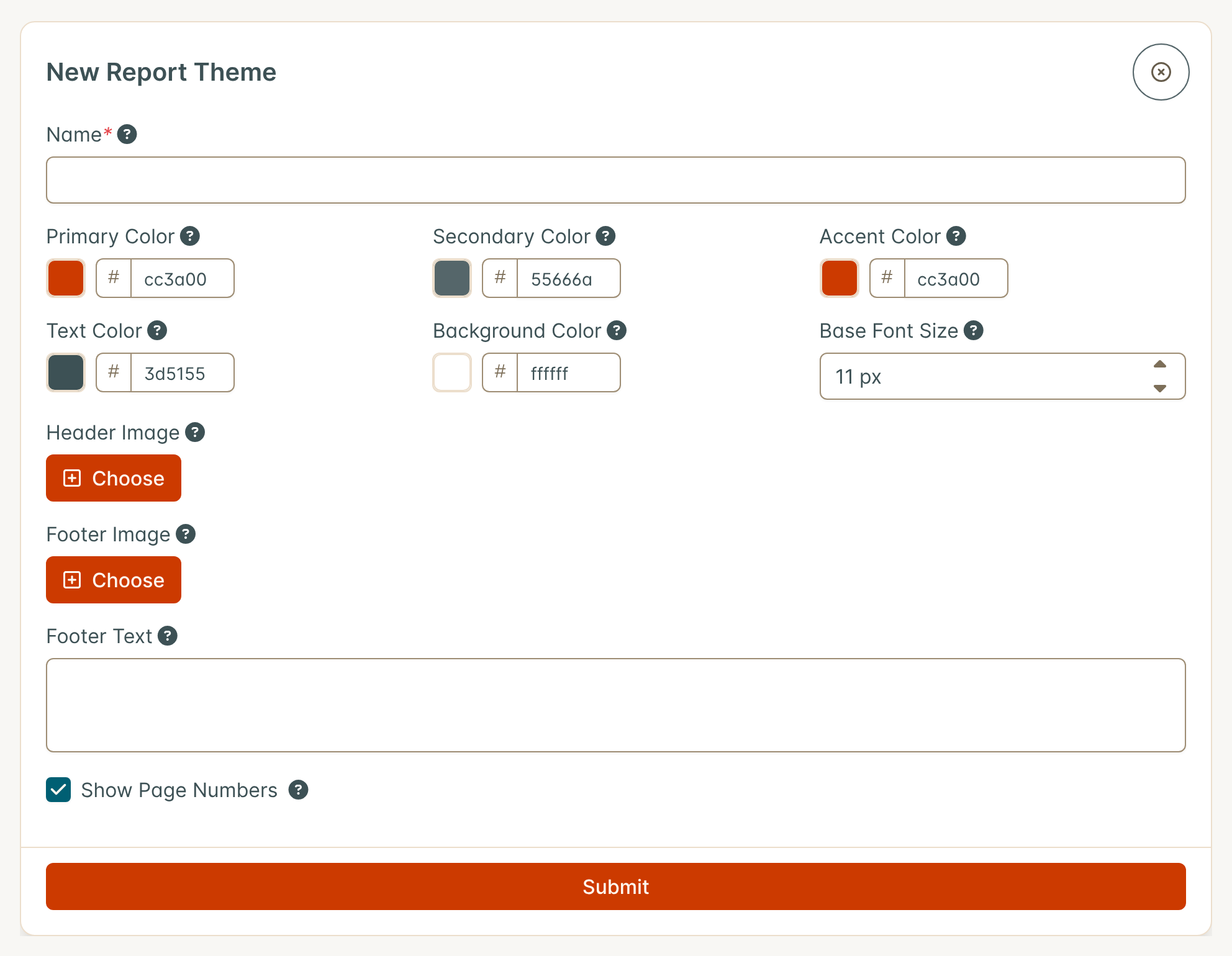
A Theme has the following settings. A new Theme starts from the colors set on the Appearance page, and a report with no Theme selected uses those same colors.
| Setting | Purpose | Default |
|---|---|---|
| Name | A label for the Theme | — |
| Primary color | Main brand color: headings and table headers | Your instance’s primary color, darkened where needed to stay readable on white |
| Secondary color | Supporting brand color | Your instance’s secondary text color |
| Accent color | Highlight color: the cover bar and table of contents numbers | Your instance’s primary color |
| Text color | Body text color | Your instance’s body text color |
| Background color | Page background color | #ffffff |
| Footer text | Text shown in the page footer | — |
| Show page numbers | Whether to print page numbers | On |
| Header image | Image displayed in the header | — |
| Footer image | Image displayed in the footer | — |
💡 Tip: All five colors are expressed as 7-character hex values (for example,
#1e3a5f), so you can match your organization’s exact brand palette.
You can build this in the UI (below) or automate it with the API.
Blocks
A Block is a reusable unit of content. You build a Block once, configure what it shows, and then drop it into as many Templates as you like. There are five block types:
| Block type | What it produces |
|---|---|
| Stock | Non-data content such as a cover page, a table of contents, a page break, an image, or a text block. |
| Tabular | A table of records drawn from a single entity. |
| Detail | A per-record layout, best for long-form fields that render as markdown (for example, description, impact, mitigation, and references). |
| Chart | A single chart, chosen from the same catalog of charts used on the Insights dashboards. |
| Widget | A dashboard widget, rendered in the report. Requires Customizable Dashboards. |
A Stock block is configured by choosing one of five stock types, along with a title, subtitle, text content, or image as appropriate:
- Cover page
- Table of contents
- Page break
- Image
- Text block
Tabular and Detail blocks both pull live records from one entity. You pick the entity with a model choice, then select which fields to include and how to order the records. The model choice is one of these entities:
- Organization
- Asset
- Engagement
- Test
- Finding
- Test type
- Risk acceptance
- Location (only when Locations are enabled). A switch under the model choice picks what each row is: Location (every location, whatever its type), URL, Dependency, or Location per Asset.
💡 Tip: In DefectDojo Pro, Assets were formerly called Products and Organizations were formerly Product Types. You may still encounter the legacy wording in some underlying field and filter names.
The difference is presentation: a Tabular block lays the records out as a table of columns, which is ideal for summaries and inventories, while a Detail block renders one record at a time in a long-form layout that is best suited to markdown-rich fields like description, impact, mitigation, and references.
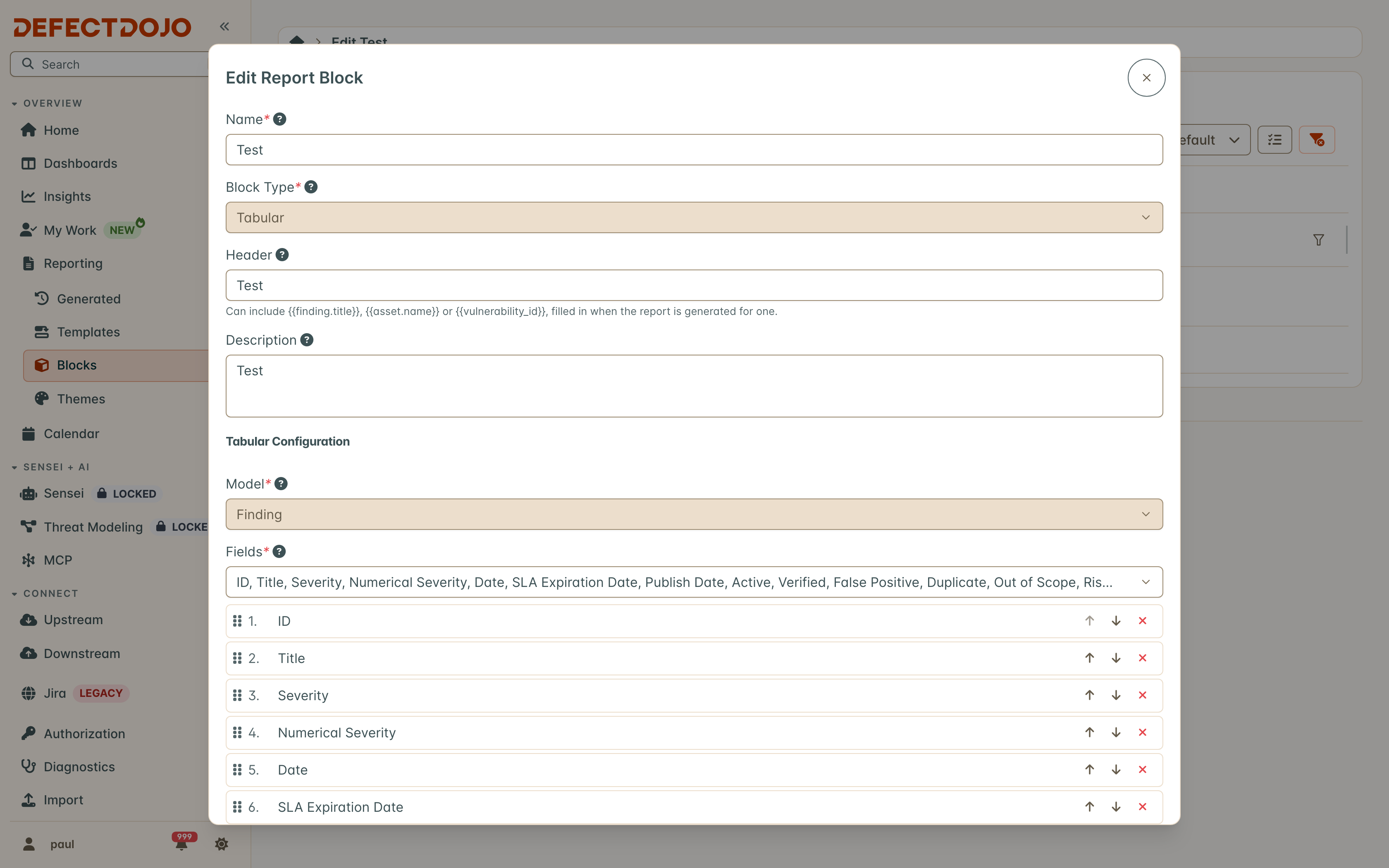
Fields render in the order they are listed. Selecting a field adds it to the end of the list, and the Fields section of the block editor shows the selection as a numbered list you can rearrange: drag a field by its handle, or use the arrow buttons to move it up or down. Removing a field from that list deselects it. Columns in a Tabular block, and the label and value pairs in a Detail block, follow this order when the report is generated.
On the Organization, Asset, Engagement, Test and Finding entities, the Fields and Order By pickers list their fields under the same headings as that entity’s list page uses for Add Filter, in the same order: on Finding, for example, Finding, Threat Intel, Asset, Engagement and Test, Dates and People. A search in the Fields picker shows only the headings that still hold a matching field. The headings only arrange the picker: the numbered list under it, and the generated report, keep the order you set. The other entities list their fields without headings.
The records are sorted by the block’s Order By field, in the Order Direction you choose. A block saved with a sort field its entity no longer offers (one renamed since the block was built, say) is generated unsorted rather than failing the report, and the server log names the block and the field.
When Locations are enabled, each of the Organization, Asset, Engagement, Test, and Finding entities offers a Location Count field. An Asset counts the locations it references directly and a Finding counts the locations attached to it. An Organization rolls up the distinct locations across its Assets, and an Engagement or Test counts the distinct locations touched by its Findings, so a host shared by several findings counts once. The counts respect the viewer’s permissions, so a user who can only see some Assets in an Organization sees only those Assets’ locations in its count.
The Finding entity additionally offers a Locations field that names the affected systems rather than counting them: each Finding’s row lists the values of its Locations, comma-separated and in a stable order. This is the column to pick when a report has to pair each Finding with its vulnerable hosts, such as a per-Test findings table handed to a platform team for patching. Like the counts, it only names Locations the viewer has permission to see.
Reporting which Assets a location belongs to
DefectDojo stores each location once, so a single host or URL can belong to several Assets, and those Assets can sit in different Organizations. There are two ways to report on that link, and you can use either one in the same report.
Location per Asset gives one row for each pairing of a location and an Asset. If three Assets reference a location, it appears on three rows. Each row carries the location’s type and value, the Asset’s name, the Organization’s name, and the status of that link (Active or Mitigated), so you can filter to live links only. Use this for exports you want to sort, pivot, or match against another inventory such as a CMDB.
Location, URL, and Dependency blocks also offer three columns that list the Assets on one row per location:
- Asset Names: every Asset that references the location.
- Active Asset Names: only the Assets whose link to the location is Active.
- Organization Names: the distinct Organizations of those Assets, which can be fewer than the Assets.
Names are sorted and separated by ; . A location referenced by so many Assets that the list goes past 32,000 characters is cut off with …, which keeps each value inside the Excel cell limit. The Location per Asset block has no such limit, so use it for locations shared very widely.
Both follow the viewer’s permissions. The Assets and Organizations named are only the ones the person the report is generated for can see, the same rule the Active and Total Asset counts already follow.
A Chart block draws one chart from the catalog below — the same charts the Insights dashboards use, so a figure in a report matches the figure your team already reads on screen. You choose the chart, and the chart decides what it can be filtered by:
- Charts of findings expose the Finding filter, and the filter narrows the findings the chart counts.
- Charts of assets expose the Asset filter, and the filter selects assets, scoping the chart to the findings belonging to them.
- Portfolio-wide charts take no filter, because they summarize the whole instance by design.
A Chart also has a Date Range setting. Leave it on All Time (the default, and how every existing Chart behaves) to draw on the full history, or pick a trailing window (the last 30, 90, or 180 days, the last year, or the last two years) to limit the chart to findings from that period. It is the same date window the Insights dashboards apply, so a report chart and the matching dashboard chart cover the same span. The window is measured against each finding’s date (when the finding was found), not when its scan was imported, so a time chart extends forward only as findings carrying newer dates arrive.
| Chart | What it shows |
|---|---|
| Active Findings by Severity | Open findings over time, split by severity |
| Active, Mitigated, and Risk Accepted Findings | Finding status mix over time |
| Average Finding Age by Severity | Mean age in days of the findings currently open, per severity |
| Average Finding Age by Risk | The same, grouped by risk category |
| Average Time to Remediation | Mean days from discovery to mitigation, over time |
| Findings Fixed Over Time | Count of findings mitigated in each period |
| Tests Performed Over Time | Count of tests recorded in each period |
| Average Risk Over Time | Mean risk score across open findings, over time |
| Total Findings by Risk Category | Open findings split across the four risk categories |
| Finding Priority Distribution | Open findings bucketed by priority score |
| Open Findings Over Time | Running total of open findings |
| Noise Reduction by Category | Ingested findings split into actionable, duplicate, false positive, and reimport automation |
| Noise Reduction / Hours Saved Over Time | The same categories per period, with estimated hours saved |
| Findings Past SLA by Asset | Findings past their SLA, sized per asset |
| Findings Past SLA by Organization | The same, grouped by organization |
| Severity of Findings Past SLA by Asset | Past-SLA findings per asset, broken out by severity |
| Assets Tested Over Time | Count of distinct assets tested in each period |
Charts appear in Block and Template previews and in the reports you generate, in both HTML and PDF output. Reports created through the API, and reports delivered automatically by a rule, include their charts as well. The CSV, Excel and JSON formats carry rows rather than a document, so a Chart Block is left out of those.
💡 Tip: A Chart block carries its filters like any other Block, so the same chart filtered two ways is two Blocks. Duplicate the Block and adjust the copy rather than editing one shared Block.
Widget blocks
A Widget block puts a Customizable Dashboards widget into a report. It is the same widget, configured by the same settings dialog you use on a dashboard, filters included, so a figure your team already reads on screen can go into the document you send out without being rebuilt.
The block type appears only while Customizable Dashboards is enabled, because everything that configures a widget lives there. A Widget block saved earlier keeps working and keeps generating if the feature is later turned off.
Choose a widget, then click Configure Widget to open that widget’s own settings, exactly as you would from the gear icon on a dashboard tile. A Widget block keeps its filters inside the widget’s settings rather than in the Block’s own filter table, which is why that table is not shown for this block type. The one exception is Variable Filters, shown below Configure Widget, which narrow the widget to the finding or asset a report is generated for (see Template variables).
Not every widget can go in a report, and the picker lists only the ones that can. How each one is drawn depends on the widget:
| Widget | Drawn as |
|---|---|
| Count | A headline number |
| MTTR / MTTD | A pair of headline numbers, in days |
| Gauge | A threshold-banded arc with the percentage in the middle |
| Graph | A bar, line, area, pie, or doughnut chart, as configured |
| Finding Velocity | A line chart of findings created against findings closed |
| Vulnerability Aging | A bar chart of age bands, stacked by severity |
| Priority Histogram | A bar chart of priority bands |
| Portfolio Treemap | Area-proportional tiles |
| Rate by Category | A table of per-category rates |
| Top-N Leaderboard | A ranked table |
| Scan Coverage | A table of coverage per window |
Some widgets are left out on purpose. Widgets that are relative to whoever is looking (My Work, SLA Burndown, Recent Activity) would mean something different to every reader of the same PDF. License Usage requires the Maintainer role, which a report’s readers need not have. KPI / Trend is covered by a Count block for its headline number. A Table widget is what a Tabular block already does, and a Markdown widget is what a Stock text block is for.
Sankey, Sunburst, Risk Matrix, and Activity Heatmap cannot be drawn in a report yet.
💡 Tip: Widget blocks are drawn on the server in every case, so a Widget block looks the same whether you generated the report from the UI, through the API, or automatically from a rule. The Block preview shows exactly what the report will contain.
Moving a figure between a dashboard and a report
The two features share one widget catalog, so a figure can start on either side and move to the other. Both directions copy rather than link: the copy is what the original was at that moment, and editing either one afterwards does not change the other.
- From a dashboard into a report. Click the export icon on any widget that a report can draw and choose Add to Report. Name the block, optionally pick a Template to append it to, and it is created with the widget’s current filters.
- From a report onto a dashboard. Open the menu on a Chart or Widget block and choose Add to Dashboard, then pick which of your dashboards to add it to. You can also browse saved blocks from the dashboard side: in Add Widget, the From Reports tab lists your Chart and Widget blocks.
A Chart block that carries its own filters has no faithful dashboard equivalent, because a dashboard Insights Plot widget is scoped by a date window rather than by a filter set. Those blocks are refused rather than being placed on a dashboard with a wider scope than the block they came from.
💡 Tip: Filters live on the Block, not on the Template. A Block carries its own filters with it, so reusing a Block reuses its filters identically everywhere it appears. If you need the same content but with a different filter, duplicate the Block and adjust the copy.
You can build this in the UI (below) or automate it with the API.
Templates
A Template is an ordered list of Blocks bound to a single Theme. The Template defines what appears in the report and in what order, while the Theme it is bound to controls how it looks.
Because a Template references Blocks by inclusion, the same Block can appear in a Template more than once. A reusable page-break Block, for instance, can be inserted between several sections of the same report.
You can build this in the UI (below) or automate it with the API.
Generated Reports
Running a Template produces a Generated Report: a persisted file that you can open or download from the Generated Reports list whenever you need it. Each Generated Report is frozen in time: it captures your DefectDojo data at the moment it was generated and does not update automatically when the underlying data later changes. To get a fresh snapshot, generate the Template again.
A Generated Report comes in one of five formats, in two groups:
| Format | Group | What it contains |
|---|---|---|
| HTML | Document | The whole Template, laid out: every Block, in order |
| Document | The same, paginated for print and distribution | |
| CSV | Data | The rows of the Template’s Tabular and Detail Blocks |
| Excel | Data | The same rows, one worksheet per Block |
| JSON | Data | The same rows, with each Block’s columns and labels |
The documents are what you send to a reader. The data formats are what you hand to a script, a spreadsheet, or a downstream system: they carry the rows a report is built from rather than the document built around them.
A data format includes only the Blocks that have rows: Tabular and Detail Blocks. A Cover Page, a Chart, a Widget and the other Stock Blocks have nothing to put in a cell, so they are left out. The generate dialog names exactly which of your Template’s Blocks will be included and which will be left out before you generate, and a Template with no Tabular or Detail Block at all cannot be generated as a data format.
Within a data format, the shape follows the Template:
- CSV. A Template with one data Block produces a plain CSV: a header row of your chosen column labels, then the rows. A Template with several data Blocks writes them one after another, each preceded by a
# <Block header>comment line and separated by a blank line. - Excel. Each data Block becomes its own worksheet, named after the Block’s header.
- JSON. One object carrying the report’s name and generation time, then a
blocksarray. Each Block lists itscolumns(the field path and the label you see in the UI) and itsrows, keyed by field path so a consumer is not broken by a label being renamed.
If a Block hits the row limit, the export says so: CSV and Excel add a trailing “rows omitted” line, and JSON carries an omitted_rows count per Block.
💡 Tip: Rules can generate a report too. A rule’s Generate a Report action offers the same five formats, which is how a scheduled rule delivers a spreadsheet to a downstream system rather than a document somebody has to read. See the Triage Engine’s Node Reference.
A Generated Report moves through these statuses as it is built:
| Status | Meaning |
|---|---|
| Pending | The report has been requested and is queued. |
| Processing | The report is being assembled. |
| Completed | The report is ready to download. |
| Failed | The report could not be generated. The Generated Reports list shows why, under the status, in the language of the person who requested the report. |
A reason names what the report itself could not do: a variable it was not given, a finding that no longer exists or is no longer visible, a Block that could not be built (named, with its own reason), or a report that ran past the generation time limit (about nine minutes), which suggests a narrower filter or fewer Blocks and, for a PDF or HTML report, a data format (CSV, Excel or JSON) instead. A failure the report cannot explain, such as a database or storage error, reads “An unexpected error occurred. The server log has the details.” and the full error goes to the server log rather than to the page.
🔑 Important: Reporting is on by default. A superuser can turn it on or off from Settings > Feature Flags (see Feature Flags). Viewing respects DefectDojo’s role-based access control (RBAC): users only ever see data they are authorized to view, even inside a report.
You can build this in the UI (below) or automate it with the API.
Who can see Generated Reports
The Generated Reports list is open to anyone who can view generated reports, either through a global role or through a role on any Organization (every built-in role includes it). An Organization Reader who runs a Quick Export from a Findings list finds the stored report there afterwards. Everyone sees the reports they requested themselves. A report somebody else requested appears only when the viewer could see everything that report could show, because a report is rendered with the access of the person who requested it. Deleting a Generated Report needs a global role.
Templates, Blocks and Themes are shared across every Organization, so their pages, and the matching entries under Reporting in the sidebar, need a global role. A user whose access comes only from an Organization role sees Generated Reports alone under Reporting.
Report retention
Generated Reports are kept until someone deletes them, unless an administrator sets a retention window. In Settings > System Settings, under Application Settings, Delete Generated Reports After (Days) removes completed and failed reports older than that many days, each night, together with their files. The default, 0, keeps every report indefinitely, so nothing is deleted until the setting is changed.
While a window is set, the Generated Reports page says how long reports are kept. Reports still being generated are never removed. A report is deleted a set number of days after it finished, not after it was last downloaded, so download anything you need to keep longer.
Template variables
A template variable is a blank in a Template that is filled in each time the report is generated. It lets you build one Template, such as a single-finding page or a per-CVE exposure report, and generate it for any finding, asset or CVE without editing its filters.
Three variables exist:
| Variable | Tokens | Supplied as |
|---|---|---|
| Finding | {{finding.id}}, {{finding.title}}, {{finding.severity}} | a finding |
| Asset | {{asset.id}}, {{asset.name}} | an asset, or taken from the finding |
| Vulnerability ID | {{vulnerability_id}} | a vulnerability ID such as a CVE, or taken from the finding’s primary one |
Tokens can go in two places:
- Block filters. Under Variable Filters in a Tabular, Detail, Graph or Widget Block, tick the filter the Block should take from the report: for a Finding Block, Finding is the report’s finding (
{{finding.id}}), Asset is the report’s asset ({{asset.id}}) or Vulnerability ID is the report’s vulnerability ID ({{vulnerability_id}}). Only Blocks with a variable filter are narrowed. The other Blocks in the same Template keep their own filters, so a page about one finding can still end with a table of every open Critical. In a Widget Block, the rows offered follow what the widget counts (a Count widget set to Assets offers Asset is the report’s asset), and a ticked row replaces the same filter set in the widget’s own settings. - Text. A Block header, a cover page title, a text Block, a theme footer: type a token and it is replaced with the value when the report is generated, for example
Exposure Report for {{vulnerability_id}}.
A variable is filled in from wherever the report is generated:
- the Generate Report dialog, and Quick Export with a Template chosen, ask for each variable the Template uses;
- the API takes them as
variables(see the API guide); - the Triage Engine’s Generate a Report node fills them from each matched finding or asset (see Generate a Report).
A report can only be about a finding or asset its requester is allowed to see. A generation that is missing a variable its Template uses is refused with a message naming it, rather than silently reporting on everything. A Template preview shows tokens as written and shows a placeholder in place of any Block that filters on a variable.
The CSV, Excel and JSON formats read the same Blocks, so an export of a Template with variables is scoped exactly as its PDF. Widget Blocks are not part of those exports, but a Template’s variables are one set whatever the format, so an export still asks for a variable that only a Widget Block uses.
Building a report in the UI
The following steps walk through building a report end to end: create a Theme, create the Blocks that hold your content, assemble them into a Template, and generate the final report.
Step 1: Create a Theme
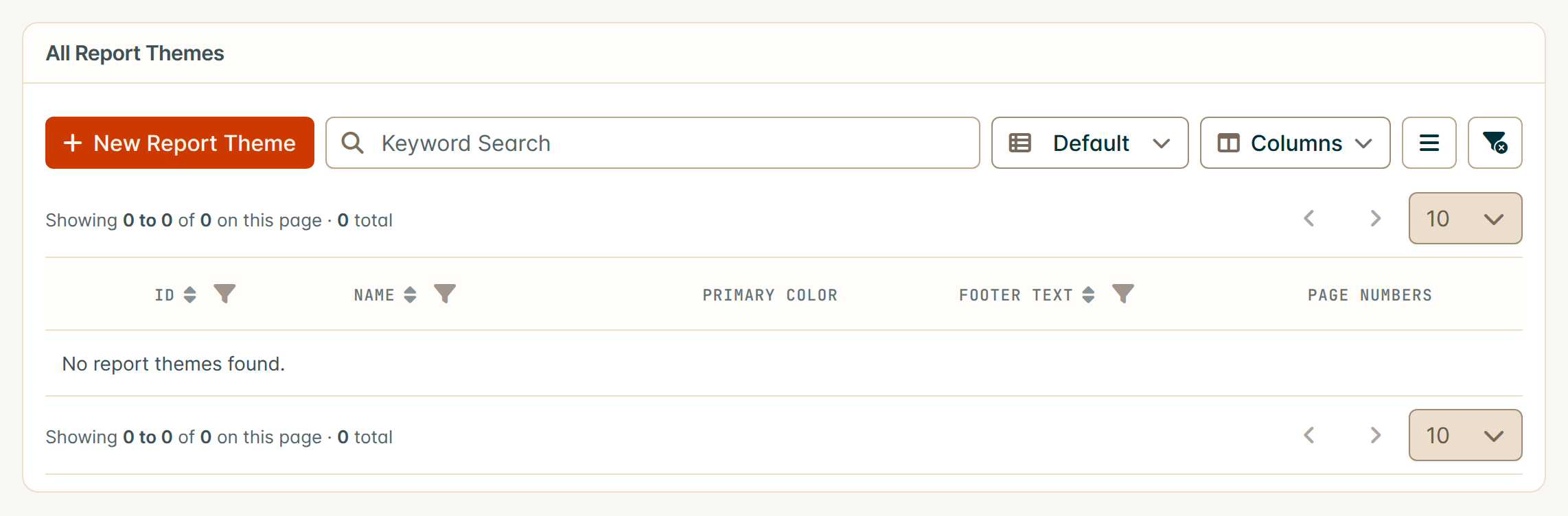
Start in the Themes area. The Themes list shows every Theme you have defined and lets you create a new one.
Open a new Theme to set its branding. The Theme form exposes the five colors, an optional header and footer image, the footer text, and the toggle for page numbers. Choose colors that match your organization’s brand so every report you produce looks consistent.
Step 2: Create Blocks
Next, build the content Blocks. The Blocks list shows all of your Blocks across every type.
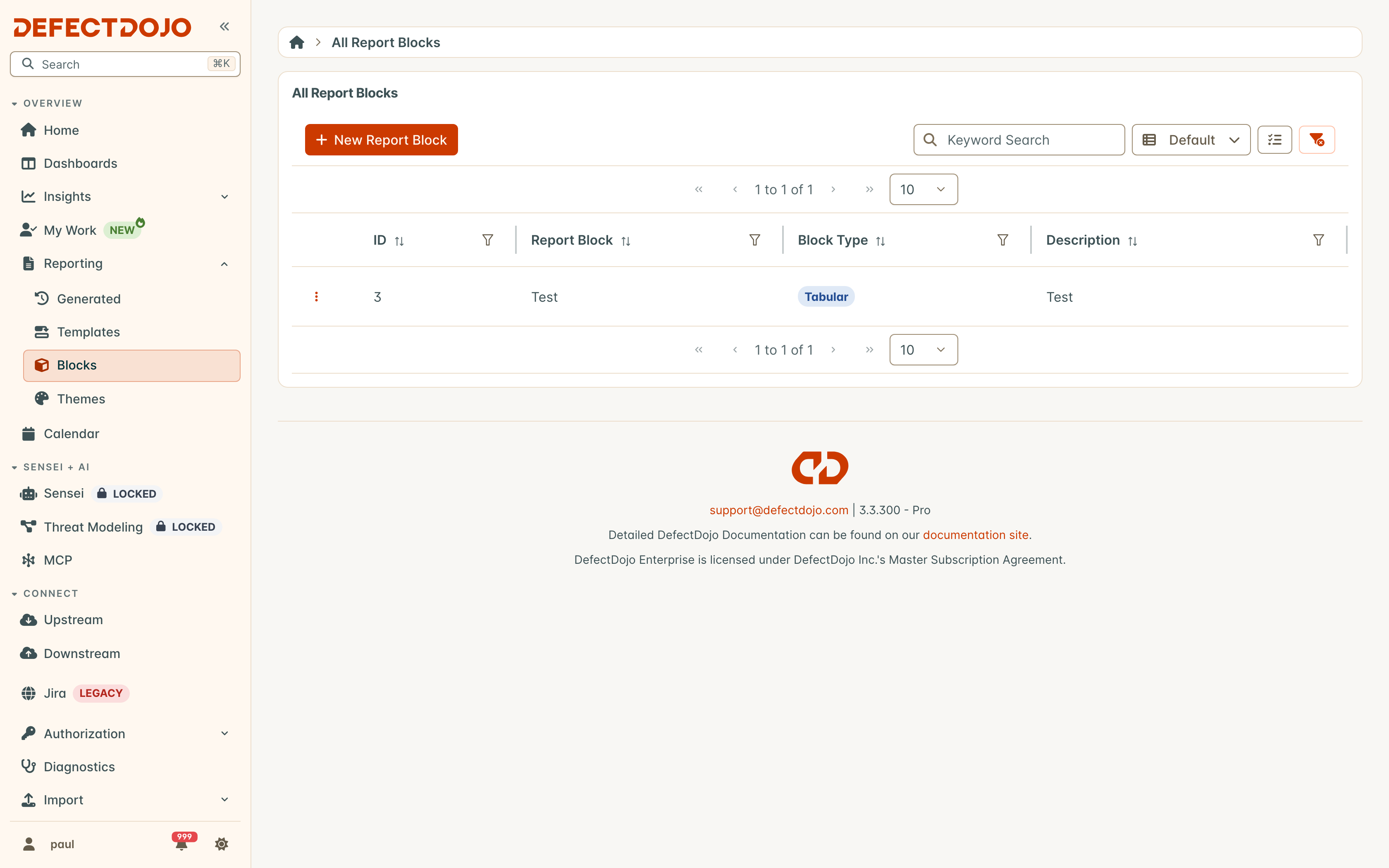
To create a data-driven Block, choose its type and configure it. The example below is a Tabular Block named for open findings: the Block Type is set to Tabular, a header is supplied, the Model is Finding, the selected fields are Severity, Title, Asset, Age (Days), and SLA Days Remaining, and the records are ordered by Numerical Severity in descending order. The selected fields appear as a numbered list under the field picker; drag them, or use the arrows, to set the column order without deselecting anything. Because filters live on the Block, the Filter Entries here scope exactly which records this Block will pull wherever it is used.
A new Block starts with no filters, so it includes every record of the chosen Model. To narrow it, click Add Filters under Filter Entries: the Model’s table opens inside the form, and the filters you apply in that table become the Block’s filter entries. When you edit a Block that already has filter entries, the table is shown right away. Changing the Model clears the Block’s filters and closes the table, because filters for one Model do not apply to another.
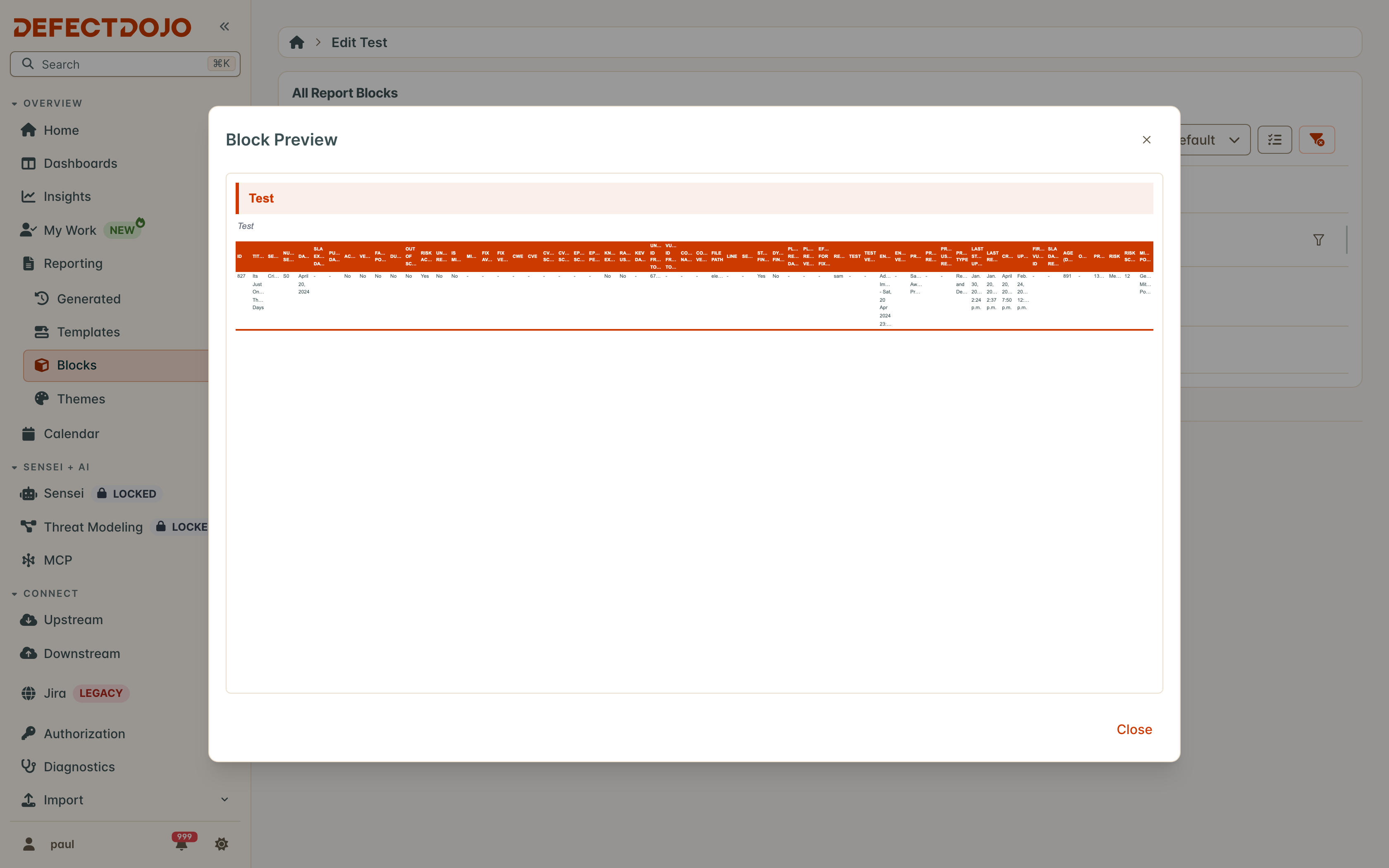
You can Preview a Block to see how it will render with a Theme applied before you commit it to a Template. The preview below shows a styled cover page (“DefectDojo Security Report”) picking up the Theme’s colors and branding.
💡 Tip: Use Duplicate to copy an existing Block when you need the same layout with a different filter. Since filters travel with the Block, duplicating is the right way to produce, say, a “Critical findings” table and a “High findings” table from the same column layout. DefectDojo asks you to confirm first, and the copy is named after the original with “(Copy)” added.
Step 3: Assemble a Template
With your Blocks ready, build a Template. The Templates list shows your saved Templates.
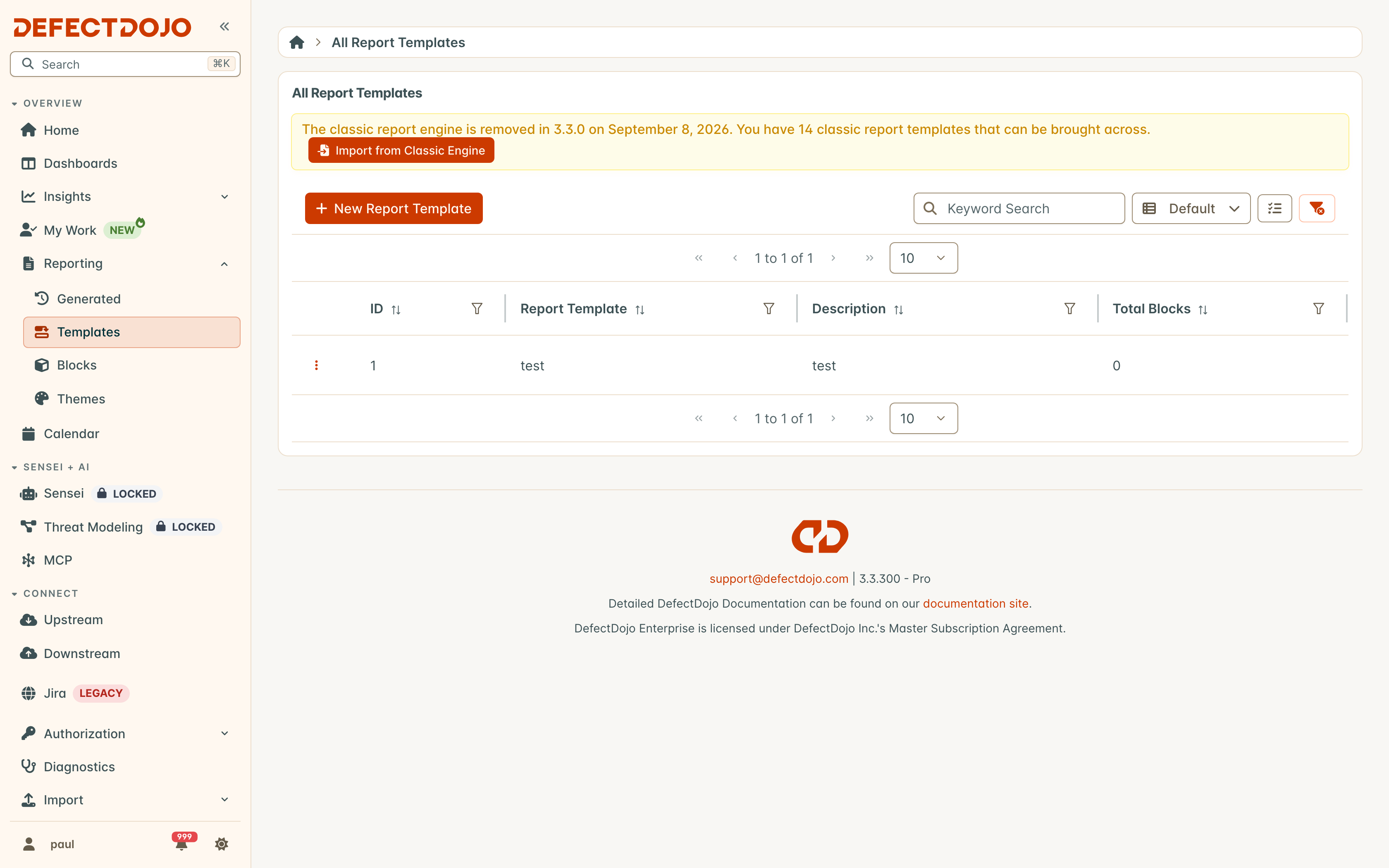
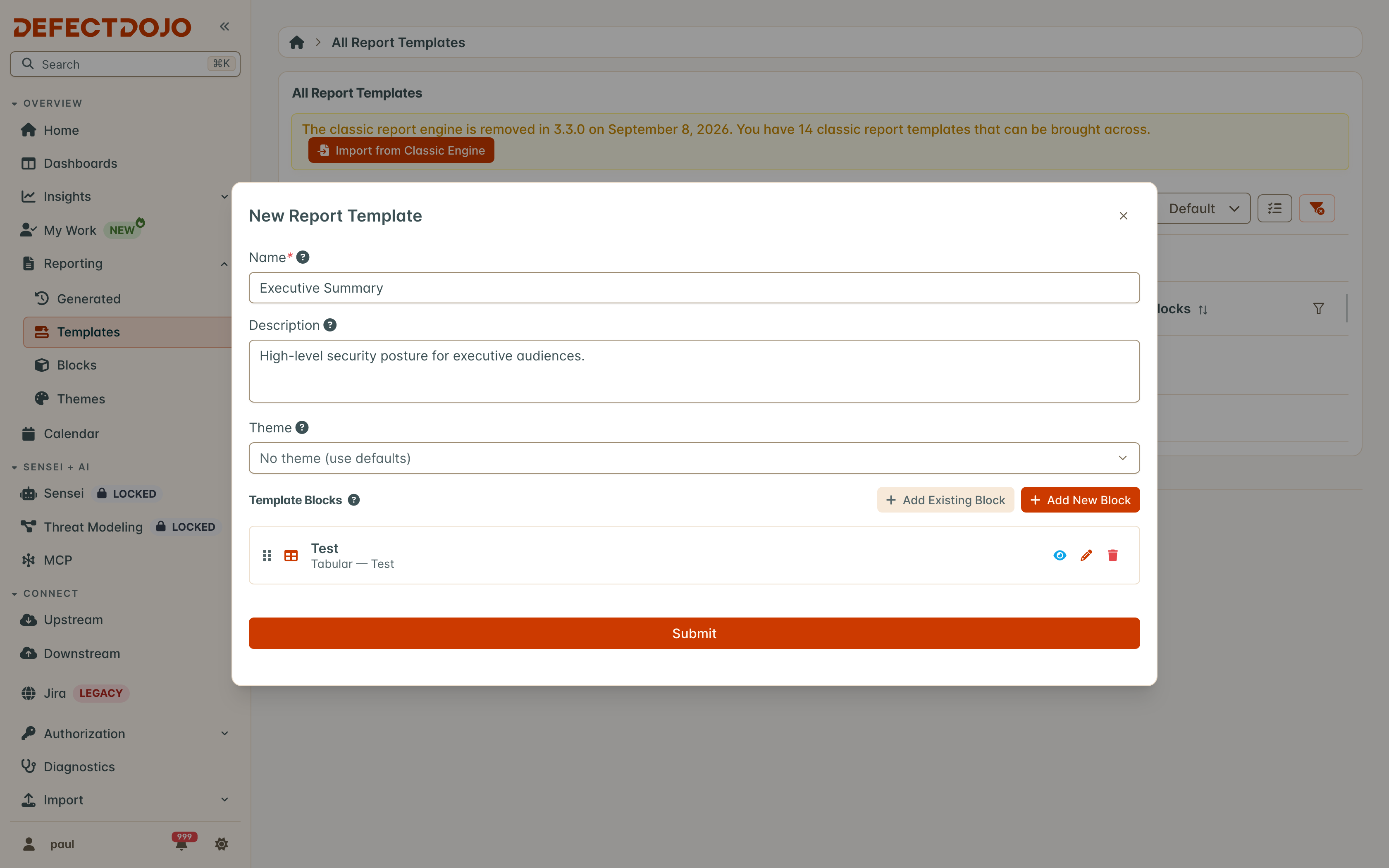
In the Template editor, you select a Theme and arrange the Blocks in the order they should appear. The example below sequences Cover Page → Executive Intro → Open Findings → KEV → Page Break → Asset Inventory. Use Add Existing Block to reuse a Block you already built, or Add New Block to create one on the spot, and use the drag handles to reorder. Remember that the same Block can appear more than once — a single page-break Block can be inserted between several sections.
The trash icon on a Block’s row takes it out of this Template only; the Block itself stays, and other Templates that use it are unchanged. It needs the permission that saves the Template: Report Template Edit for an existing Template, Report Template Add for a new one. Add Existing Block needs the same permission. Add New Block also creates a Block, so it needs Report Template Add as well. Deleting a whole Template or Block needs Report Template Delete.
Step 4: Generate and download
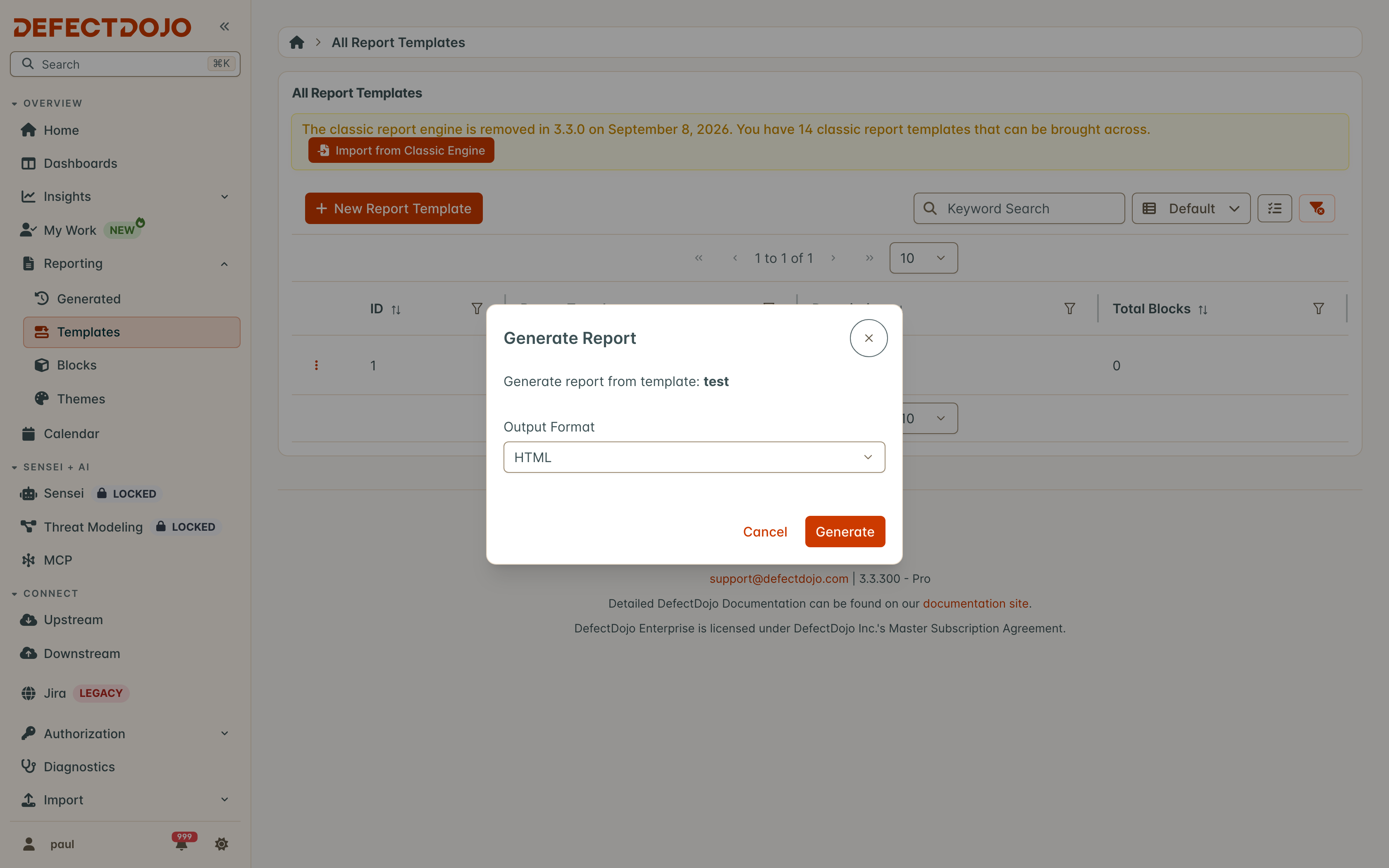
When the Template is ready, generate the report. If the Template uses template variables, the dialog first asks what the report is about: a finding, an asset or a vulnerability ID, only the ones the Template uses. The generate dialog confirms the Template and lets you choose the output format: HTML, PDF, CSV, Excel, or JSON. Pick one of the data formats and the dialog tells you which of the Template’s Blocks it will include and which it will leave out, so you know before you generate rather than after you open the file.
When the report finishes, a notice says it is ready and links to its row in the Generated Reports list. A large report can take longer than the dialog waits for (about a minute). It then keeps generating in the background, the dialog closes, and the notice links to its row in the Generated Reports list.
Generated reports are collected in the Generated Reports list, which shows each report’s status (with the reason, when a report could not be generated), its file format, and the time it was requested and completed. Open a report’s menu to open it in the browser or download it.
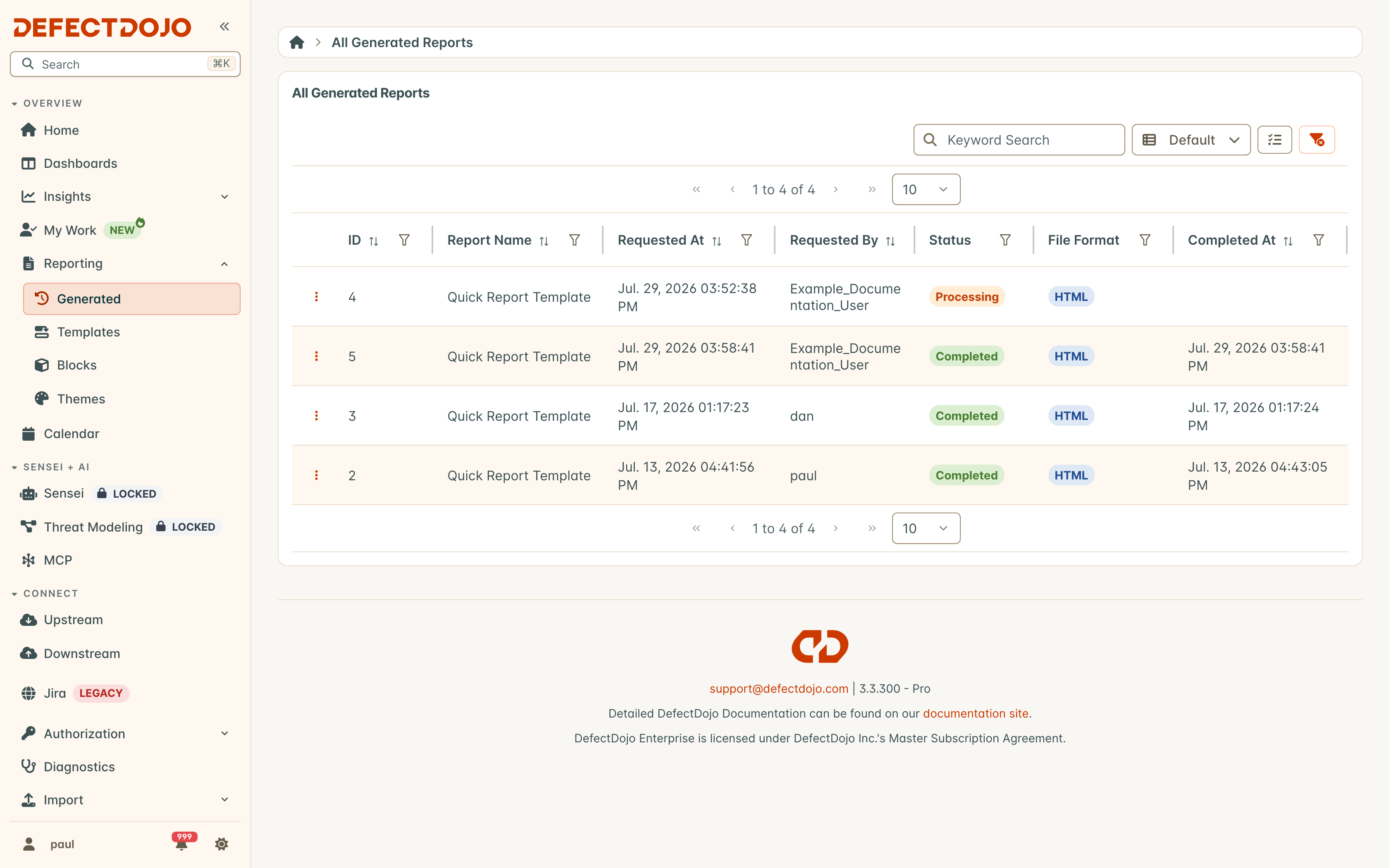
You can generate a Template again at any time to produce a fresh report. Keep in mind that each Generated Report is frozen in time: it reflects your data as of when it was generated and will not change as DefectDojo data changes, so generate the Template again whenever you need an up-to-date snapshot.
Moving off the classic report engine
The classic report engine — the Report Builder, Report Templates and Generated Reports pages listed under Classic Report Engine in the sidebar — is removed in 3.3.0 (September 8, 2026). Until then those pages carry a banner reminding you of the date, and both they and this Report Builder offer a one-click migration.
Migrating your saved templates
Use Migrate to the new engine on any classic page, or Import From Classic Engine on All Report Templates here. Both run the same conversion, so it does not matter which you start from, and both are safe to run more than once: a classic template whose name already exists here is reported as already migrated rather than duplicated.
Each classic widget becomes a Block:
| Classic widget | Becomes |
|---|---|
| Cover Page | Cover Page stock Block |
| Table Of Contents | Table of Contents stock Block |
| Page Break | Page Break stock Block |
| Custom Content / WYSIWYG | Text Block |
| Findings | Tabular Block over Findings, keeping the widget’s filters |
| Vulnerable Endpoints | Tabular Block over URLs |
| Severities | Active Findings by Severity chart Block |
Two do not carry across, and the migration says so per template rather than converting them into something approximate:
- Executive Summary — the classic engine derived this from whichever Findings widgets sat in the same report. There is no equivalent aggregate Block; rebuild it as a Text Block if you need it.
- Report Options — not a Block. Its Report name becomes the new Template’s name. Finding notes, finding images and per-widget page breaks are Theme-level settings in the new engine.
What happens to reports you have already run
Nothing. Generated Reports produced by the classic engine are finished files, so there is nothing to convert. They stay listed and downloadable until the engine is removed — save anything you want to keep beyond 3.3.0.
If the Report Builder is switched off
Migration still works with the Reporting feature flag disabled. The converted Templates simply do not appear until the flag is switched back on, so you can move your templates across on your own schedule.
Next steps
- Report Builder API — script the whole workflow (Themes, Blocks, Templates, and Generated Reports) for repeatable, automated reporting.
- Report Builder with an LLM — use LLM-assisted authoring to design and build reports conversationally.