

The Sidebar Menu (Pro)
The DefectDojo Pro sidebar is the application shell: it runs the full height of the window and carries the brand, the search field, the menu, and a footer. The footer ends with your account row: your username, your email address under it, and the alerts bell beside them. Above that row, where they apply to your instance and account, sit a What’s New button while a release has highlights you have not opened (see What’s New) and a button that says whether you are in Production or the Sandbox and switches to the other. Your username opens the account menu just above the row: User Profile, API v2 Token (when your instance has API tokens enabled), the API docs, External Tools and Documentation, then your preferences (Language, with the language in use shown beside it, when your instance offers more than one, and the switch between light and dark mode), then Logout. When the sidebar is collapsed to its icon strip, each of these becomes an icon in one column, with its name on hover. There is no separate top bar on desktop; on phones and small windows the sidebar becomes a drawer behind a top-bar menu button.
The menu groups every page in the product into six sections, ordered by how the product is used rather than by how its data is structured. The views you open to find work come first; the record catalogs you browse follow in their own section. It is the only layout; the classic sidebar has been removed (see The classic sidebar).
Every page keeps the same URL whichever section it sits in. Bookmarks, saved links and anything in your own runbooks continue to work.
The six sections
| Section | What it holds |
|---|---|
| Overview | Home, Dashboard, Insights, My Work, Reporting, Calendar |
| Sensei + AI | Sensei, Threat Modeling, Advisor, AI Proposals, MCP, AI Model Settings |
| Connect | Upstream, Downstream, Jira, Authorization, Diagnostics, Import |
| Act | Triage Engine, Vulnerability Explorer, Root Causes, Remediation Center, Risk Acceptances, the compliance records, PSIRT |
| Explore | Attack Surface, Organizations, Assets, Engagements, Tests, Findings, Surveys |
| Settings | All Settings, Feature Flags, plus the eight groups described under The Settings section |
You only ever see the entries your account has permission to open, your license includes, and your Feature Flags switch on. A group disappears entirely when none of its pages are available to you.
Searching
The Search field at the top of the sidebar, and Cmd+K (Mac) or Ctrl+K anywhere, open one Global Search dialog with two modes, switched with Tab. Where Ask Sensei is available to you, the field also carries an Ask button that opens the Sensei panel, so asking and searching start in the same place (a wand icon under the search icon when the sidebar is collapsed).
- Search: your records (findings, assets, engagements and the rest), through the same engine as the full results page, with the pages whose name matches ranked in. See All Results at the end opens that page. See Global Search.
- Navigate: pages only, every menu destination your account can currently reach. Its tabs are the sidebar’s top-level sections.
Page results match more than the entry’s label. Each destination is also searchable by its position in the menu and by related vocabulary, so finding surfaces Findings > All even though the entry itself is labelled “All”, and sso surfaces the authorization providers. Each result shows where the entry lives in the menu, and its one line description appears when you hover it.
Before you type anything, the dialog offers your recent places, one Enter away; in Navigate mode your pinned pages come first. Recents are kept in your browser for each user, and cleared when you log out.
Move through results with the arrow keys, open one with Enter (or in a new tab with Cmd+Enter / Ctrl+Enter), and close the search with Escape. The search only ever lists pages you could also reach through the sidebar: permissions, feature flags, and license entitlements apply to it identically.
Four conventions run through the whole menu:
- There are no separate “New” entries. Each list page has a New button (New Asset, New Finding, and so on) that opens the create form, so the menu carries one entry per catalog instead of two. If your account can create a record but not list them, the menu entry takes you straight to the create form.
- Nothing nests more than one level below a section. Reaching a page is at most section, group, page.
- A feature occupies one entry, not one per screen. PSIRT’s ten pages, the Triage Engine’s four and the record catalogs all sit behind a single entry each, instead of spreading across the menu.
- An entry is not repeated inside itself. Where a group already names the thing, its entries do not name it again: Findings holds Active, Mitigated and All rather than “All Findings”, and Attack Surface holds Endpoints and Hosts rather than “All Endpoints”.
Pinned pages
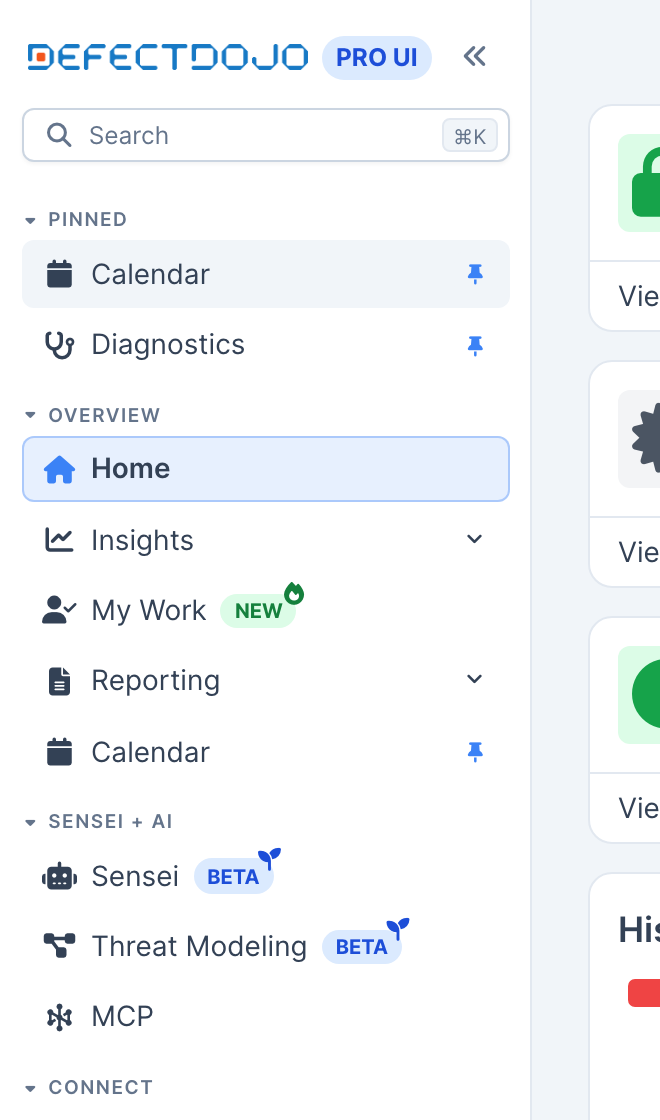
Hover any page row in the sidebar or in a collapsed-rail flyout and a pin appears at its end; on touch screens the pin always shows. In Global Search, a page result’s row actions menu (the … button, or Option+Enter / Alt+Enter) offers Pin to Sidebar and Remove Sidebar Pin. Pinning a page adds it to a Pinned section at the very top of the menu, which exists only while you have pins. A pinned row is the real menu entry, so its badge, its permissions, and the active highlight all keep working, and a page you lose access to simply stops appearing without losing its pin. The pin stands upright on rows that are pinned; select it again to unpin.
A page pinned from inside a group keeps the group’s name and icon, since the entry’s own name often leans on the group it came from: pinning All from Findings shows Findings › All, so it cannot be mistaken for the All under Assets. When the sidebar is too narrow, the group name shortens first and the page name stays whole; hover the row to see its full location. Pages that sit directly in a section, such as My Work, show just their name.
Pins are stored per user on the server, so they survive a browser reset and follow you across machines. When the Restrict Layout Customization switch is on (see UI Defaults), pins count as layout customization: only superusers can change them, and everyone else sees their existing pins read-only.
Your preferences follow you
The shape you give the shell is stored per user on the server, not just in the browser: pinned pages, folded sections, whether the rail is collapsed, and the light/dark choice. Clearing your browser or signing in on a new machine brings it all back on the next sign-in. The first time you sign in on an instance that has this, whatever shape your browser already had is imported automatically, so nothing resets.
Alerts
The bell in the sidebar footer opens your notification inbox: unread alerts grouped by the record they are about, with the number of unread alerts on the bell. See Notification Inbox.
What’s New
The What’s New button in the sidebar footer, which names the release and counts the highlights you have not opened, opens the highlights of the release your instance runs: the new features and enhancements from the Pro changelog, each tagged with the area of the product it changes, with an Open link to that area’s page where there is one. Opening the panel clears the count and removes the button from the footer until the next release arrives; What’s New in the account menu opens the panel again in the meantime. The count is remembered with your account, so it stays cleared in every browser you sign in from, including after a reload or a cleared browser cache.
Below the highlights, Badged in the Menu lists every sidebar entry that carries a NEW or BETA badge right now (see Menu Badges), each linking to its page, and Full Changelog opens the complete release notes on this site.
An air-gapped instance never contacts the documentation site: the panel shows the release notes bundled with its version and says so, without the changelog link. The bundled notes are also what you see when the documentation site cannot be reached. The panel follows the What’s New Panel feature flag, which is on by default; turning it off removes the button. See Feature Flags.
Collapsing the sidebar
The chevron beside the logo, or Cmd+B (Mac) / Ctrl+B, collapses the sidebar to a slim icon rail and back. Your choice is remembered across reloads. On desktop windows narrower than 1200px the rail starts collapsed to leave room for content; widening the window brings your stored preference back. (Cmd+B is ignored while you are typing in an editor, where it means bold.)
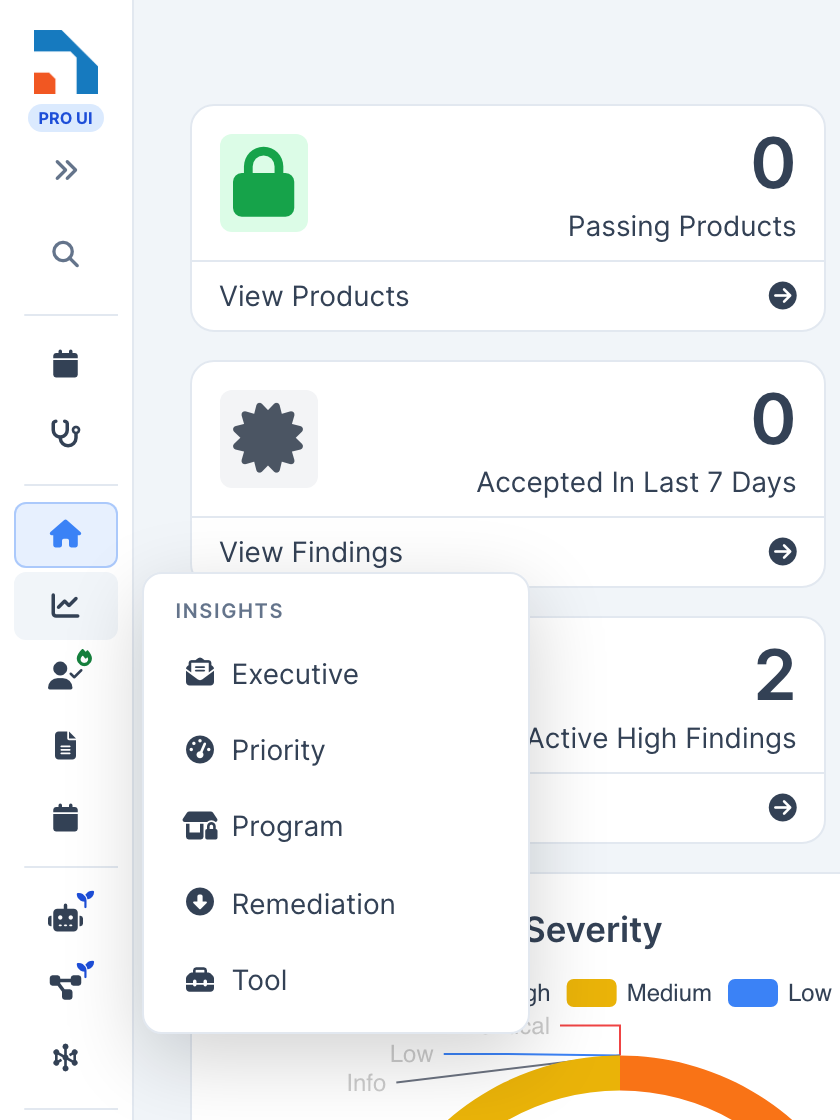
While collapsed:
- Rows show only their icon. Hovering a page shows its name (and its badge, if it carries one) as a tooltip.
- Hovering or selecting a section opens its entries in a flyout panel beside the rail. The panel is fully keyboard-driven: selecting a section moves focus into it, the arrow keys walk the entries, Enter opens one, and Escape closes the panel and puts focus back where it was.
- The icon of the section holding your current page stays highlighted, and the flyout marks the exact row, so you never lose your place.
- Badges shrink to small marks on the row icon: the
NEWflame, theBETAseedling, and a padlock for license-locked entries. See Menu Badges. - The magnifying glass under the logo keeps a mouse path to Global Search; the keyboard shortcut works as always.
The rail also follows your page as you navigate: opening a page that lives inside a menu group opens that group (expanded) or lights its section (collapsed), including when you arrive from a bookmark or a link.
Sensei + AI
The AI capabilities sit together in their own section rather than being spread through the dashboards.
Sensei opens the Sensei hub, the scan-and-fix capability that was previously listed under Dashboards. One entry covers everything Sensei scans: a Code | Cloud | All selector on the page switches between source-control repositories and cloud accounts.
Threat Modeling and Advisor (Sensei Advisor) ship under the Sensei license and show a LOCKED badge without it.
AI Proposals lists the verdicts the Triage Engine’s AI steps have left for a person to confirm. It appears only when your license includes Sensei.
MCP is shown to superusers, and to everyone once the MCP server is enabled. AI Model Settings appears only on on-premise instances, because DefectDojo manages the model credentials on Cloud.
Act
Act holds the work: the views you open to decide what matters and what to do next. In order: the Triage Engine, the Vulnerability Explorer, Root Causes, the Remediation Center, Risk Acceptances, the compliance records, and PSIRT. Every entry here depends on a permission, a feature flag or a license, so the section only appears when at least one of them is available to you.
The record catalogs these views route to (Organizations through Findings) are in the separate Explore section. That split is deliberate: the Organization to Finding chain is how DefectDojo stores your data, but it is not how most people navigate to the work in front of them.
Triage Engine
One entry covering both rules engines, named for what it does rather than how it does it. It holds Rules, Runs, Deliveries and Webhook Receivers. When both engines are turned on, the classic engine appears as Classic Rules with a LEGACY badge linking to the conversion guide; when only one is on, only its pages are listed and no badge appears.
Remediation Center
Turns what Root Causes shows into assigned, dated work, with an Overview, an Action Queue and Campaigns. It appears once an administrator turns on the Remediation Center feature flag.
Risk Acceptances
A top-level entry rather than a page inside Findings. A risk acceptance is a decision with an owner, an expiry and an approval trail, so it is a record in its own right. Risk Accepted, inside Findings, is the separate thing: the state a finding is in once an acceptance covers it.
Compliance records
Three entries sit beside Risk Acceptances because each one is a justified decision or a statutory record with an owner:
- Targeted Risk Analyses and PCI Scan Evidence, for PCI DSS, appear when the PCI DSS feature flag is on.
- CRA Article 14 Reports appear when the regulatory profile feature is on.
PSIRT
Product Security Incident Response, with its ten pages in three groups, ordered the way the work is done:
| Group | Pages |
|---|---|
| Sources & Inventory | Import SBOM, Advisory Feeds, Components, Feed Rules, Matching Rules |
| Triage | Feed Findings, Cases, Advisories |
| Configuration | SLA Policies, PSIRT Settings |
Setup leads because nothing reaches the triage queue until there is an inventory to match against: import an SBOM, choose the publishers to poll, look at what came in, then tune matching for advisories that publish nothing machine-readable to compare. PSIRT appears once the PSIRT feature flag is on, which in turn needs Locations to be enabled. The entry carries a LOCKED badge if your licence does not include the PSIRT Advisory Engine. See Menu Badges.
Explore
The record catalogs: Attack Surface, Organizations, Assets, Engagements, Tests, Findings and Surveys. Explore began as a single entry inside Act and became its own section, because these lists are half of how the product is used and one extra click made the most-visited pages the slowest to reach. Fold the section when you do not need it, and it takes a single line.
Assets holds the Asset Hierarchy, Change Plans, All Assets, and the Assets that Need Attention. Findings holds Active, Mitigated and All, plus Groups, Risk Accepted and Templates.
Attack Surface gathers the three entries that used to answer the same question, which is where a finding lives. It holds Components, plus either the location pages (Locations, URLs, Dependencies, Source Code and Cloud Resources, with Images and AI Inventory when those features are on) when your instance uses Locations, or the endpoint pages when it does not.
Connect
Connect answers what is connected to this instance and whether it is working. Upstream and Downstream are the connectors; Import now sits at the bottom, holding Add Findings, Smart Upload, Unassigned Findings, the Universal Importer and the Universal Parser. These were previously a separate Import section, which split scanning tools across two places depending on whether findings arrived by connector or by upload. It sits last because the connectors are the standing, automatic path, and a manual upload through the browser is the exception.
Smart Upload and Unassigned Findings can be removed from this group with the Smart Upload feature flag, which is on by default. Turning it off hides both entries and changes nothing else; findings already imported through Smart Upload are unaffected.
The Settings section
Settings is divided into eight groups, named for what you are trying to do rather than for the part of the system involved.
| Group | What it holds |
|---|---|
| System | System Settings, Appearance, Announcement Banner, Login Banner, and on on-premise instances, Email |
| UI Defaults | Form Configuration, Layout Defaults |
| Users & Permissions | Users, Groups, Roles |
| Finding Workflow | Dedupe Pools, Matching Configuration, Finding Enrichment (on-premise), Reachability Probe, Service Level Agreements, Framework Presets, Remediation Center, Prioritization Engines, Mitigation Policies, AI Governance Policies |
| Configuration | Custom Fields, Environments, Platforms, Lifecycles, Origins, Regulations, Note Types, Test Types, CI/CD Infrastructure, Tool Types, Tool Configurations |
| Notifications | Personal Notifications, System Notifications, Notification Template, Notification Webhooks |
| Operations | Audit Logs, Usage Logs, Scan Cadence, Schedules, Celery Status, and on DefectDojo Cloud, Message Portal and Firewall Rules |
| License & Support | License Manager, Support, Offboarding Export, and on on-premise instances, Version Manager |
Several of these entries appear only when the feature behind them is on: Reachability Probe, Framework Presets, Remediation Center, AI Governance Policies, Custom Fields, Scan Cadence and Celery Status each follow their own feature flag, and Offboarding Export follows your license. Tool Types and Tool Configurations carry a DEPRECATED badge.
Feature Flags sits above the groups, directly under All Settings, rather than inside any of them. It is the page administrators open most often, and it reads alongside All Settings: one lists what exists, the other controls what is switched on. It is still filed under System in the All Settings directory.
All Settings
The first entry in the section, All Settings, opens a directory of every settings page your account can reach, arranged in the same groups as the menu and searchable by name or by what the page does. Searching deduplication finds the two deduplication pages (Dedupe Pools and Matching Configuration) and System Settings, because System Settings holds deduplication options too.
The last category, Elsewhere in the app, lists pages that configure DefectDojo but live in other sidebar sections: the authorization providers, Login and MFA settings, Jira instances, the Upstream and Downstream connectors, and the Universal Parser. Each tile is chipped with the section it belongs to.
UI Defaults
The UI Defaults group collects the settings that control how much of the interface each person can tailor:
- Form Configuration: choose which fields the create and edit forms show and require, and whether the Optional Fields panel starts expanded.
- Layout Defaults: the Restrict Layout Customization switch, plus the global defaults designated for dashboards, page layouts, and table views. With the switch on, only superusers can create or change dashboards, page layouts, table views, and pinned sidebar pages; everyone else is shown the designated defaults, or the built-in defaults when none are chosen. Personal layouts saved earlier are kept and reappear if the switch is turned back off. You choose each default from a dropdown of the layouts an administrator has shared, or designate one in context (a shared dashboard’s Manage dialog, a view page’s layout menu, or a table’s Views menu).
What moved
If you are used to the classic sidebar:
| Previously | Now |
|---|---|
| Dashboards | Overview |
| Dashboards > Sensei | Sensei + AI > Sensei |
| Dashboards > Threat Modeling / MCP / AI Model Settings | Sensei + AI |
| Dashboards > PSIRT Feeds, and the other PSIRT entries | Act > PSIRT |
| Dashboards > Metrics | Overview > Insights |
| Dashboards > Reporting > Report Templates > All / New | Overview > Reporting > Templates |
| Import > (whole section) | Connect > Import (last entry) |
| Import > Smart Upload > Add Findings | Connect > Import > Smart Upload |
| Manage | Act |
| Manage > Endpoints / Locations / Components | Explore > Attack Surface |
| Manage > Organizations / Assets / Engagements / Tests / Findings / Surveys | Explore |
| Manage > Risk Acceptances | Act > Risk Acceptances |
| Manage > Root Causes / Vulnerability Explorer | Act (unchanged, now near the top) |
| Manage > Rules Engine and Rules Engine 2.0 | Act > Triage Engine |
| Manage > (any) > New (record) | The New (record) button on the matching list page |
| Dashboards > Home | Overview > Dashboard (Dashboards when Dashboards 2.0 is on). Overview > Home is now the Command Center |
| Settings > (top level) > Feature Flags | Unchanged: still at the top level, below All Settings |
| Settings > Pro Settings > System Settings | Settings > System > System Settings |
| Settings > Pro Settings > Appearance | Settings > System > Appearance |
| Settings > Pro Settings > Banner Settings > Announcement Banner Settings | Settings > System > Announcement Banner |
| Settings > Pro Settings > Banner Settings > Login Banner Settings | Settings > System > Login Banner |
| Settings > Pro Settings > Email Settings | Settings > System > Email |
| Settings > Users > All Users / New User | Settings > Users & Permissions > Users |
| Settings > Users > All Groups / New Group | Settings > Users & Permissions > Groups |
| Settings > Users > Roles | Settings > Users & Permissions > Roles |
| Settings > Pro Settings > Deduplication Settings > (three pages) | Settings > Finding Workflow > Matching Configuration (one page covering same-tool, cross-tool and reimport matching), beside Dedupe Pools |
| Settings > Pro Settings > Finding Enrichment Settings | Settings > Finding Workflow > Finding Enrichment |
| Settings > Configuration > Service Level Agreements | Settings > Finding Workflow > Service Level Agreements |
| Settings > Configuration > Prioritization Engines | Settings > Finding Workflow > Prioritization Engines |
| Settings > Configuration > Mitigation Policies | Settings > Finding Workflow > Mitigation Policies |
| Settings > Configuration > (reference-data catalogs) | Settings > Configuration > (unchanged) |
| Settings > Pro Settings > Notification Settings | Settings > Notifications > Personal Notifications / System Notifications / Notification Template / Notification Webhooks |
| Settings > Configuration > Audit Logs | Settings > Operations > Audit Logs |
| Settings > Configuration > Usage log | Settings > Operations > Usage Logs |
| Settings > Configuration > All Schedules | Settings > Operations > Schedules |
| Settings > Pro Settings > Celery Status | Settings > Operations > Celery Status |
| Settings > Cloud Manager > (cloud pages) | Settings > Operations |
| Settings > License Manager / Version Manager / Support | Settings > License & Support |
The group that was named after your license package, Pro Settings on a Pro instance and Enterprise Settings on an Enterprise one, no longer exists. Its pages are distributed across System, Finding Workflow, Notifications and Operations.
Turning entries off
Most optional entries follow a flag on the Feature Flags page. Two of them are on by default and are there so an administrator can remove them; turning one off removes the entry without changing any data behind it.
| Flag | Removes |
|---|---|
| Calendar | Calendar, from Overview |
| Smart Upload | Smart Upload and Unassigned Findings, from Connect > Import |
The others work the other way round: they are off by default, and the entry appears when the flag is turned on. Examples are the Triage Engine, the Remediation Center, Root Causes and PSIRT (which also needs Locations and a license).
The Calendar toggle used to be Enable Calendar in System Settings. It moved so that the switches which add or remove a menu entry sit together in one place, and the System Settings checkbox is gone. Your existing choice is carried across on upgrade: an instance that had the calendar switched off keeps it off.
The classic sidebar
This layout is the only sidebar. The classic sidebar it replaced, and the Menu 2.0 toggle on the Feature Flags page that switched between the two, have been removed. An instance that was still on the classic layout moves to this one on upgrade. Every page keeps its URL, so bookmarks and links continue to work; use the tables above to find where a page now sits in the menu, or search for it with Cmd+K / Ctrl+K.
Related
- Menu Badges: what the
NEW,BETA,SOON,LEGACYandDEPRECATEDtags mean - Feature Flags: turning optional features on and off